SaaS Platform
Travelio SaaS — run many travel agencies from one installation
Introduction
Travelio SaaS turns the Travelio travel-agency ERP into a platform you sell to many agencies on subscription. You install it once on your own domain. Each agency then gets its own subdomain, its own database, its own public website and the complete back office. You run everything from a separate platform panel that agencies never see.
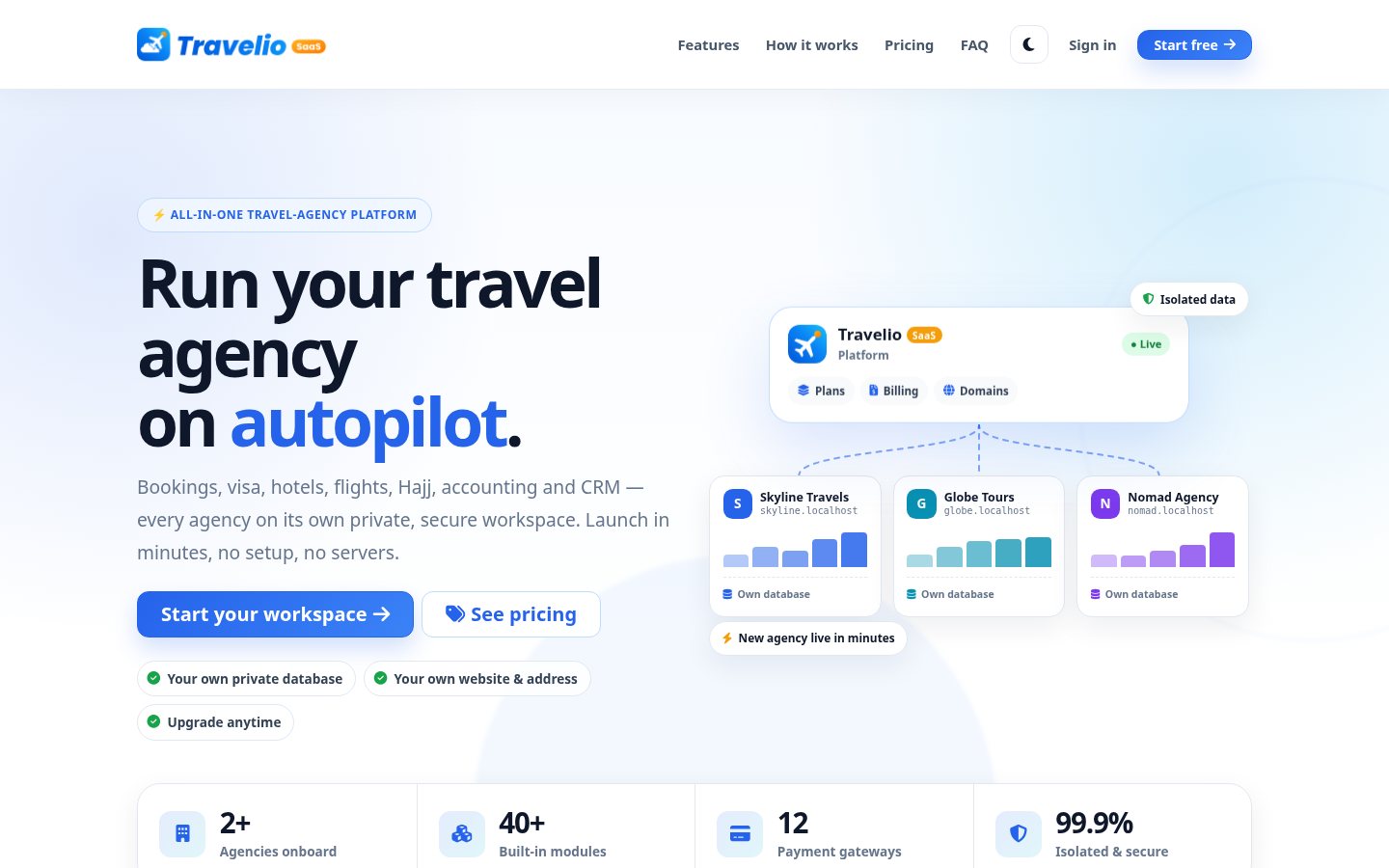
The installation has three parts:
| Part | Address | Who uses it |
|---|---|---|
| Platform site | yourplatform.com | Visitors: landing page, pricing and agency signup |
| Platform panel | yourplatform.com/saas/… | You, the SaaS owner: agencies, domains, plans, subscriptions, billing, support |
| Agency workspaces | agency.yourplatform.com or the agency's own domain | Each agency, its staff, customers, agents and vendors: the full Travelio ERP, website, portals and mobile API |
Everything inside an agency workspace is described in the Web (Admin) guide; it is the same ERP. This page covers what the SaaS edition adds.
How It Works
Every request is routed by its host name:
- Central hosts serve the platform: the host of
APP_URL,localhost,127.0.0.1and any host listed inSAAS_CENTRAL_DOMAINS. - Any other host is looked up in the list of agency domains. If it belongs to an agency, Travelio connects to that agency's database and serves its workspace. If it belongs to nobody, the visitor sees No workspace here (404).
Agencies are kept apart:
- Database: each agency has its own MySQL database, named
tenant+ the agency id (for exampletenantskyline). - Files: uploads are stored privately per agency under
storage/tenant<id>/. - Cache: each agency has its own cache prefix.
- Sessions: each agency has its own session cookie, so signing in to one agency never signs you in to another.
The platform database (the one in .env) holds only platform data: the platform admin login, agencies, domains, plans, subscriptions, invoices, payment records and support tickets.
Extra Requirements
Everything in Server Requirements, plus:
- A MySQL user that can create and drop databases. A new database is created for each agency at signup. On most shared hosting (cPanel) the database user cannot do this, so use a VPS or a host that grants
CREATEandDROP. - A wildcard DNS record
*.yourplatform.compointing at your server, so every new agency subdomain works without any DNS change. - A web server that accepts any host name for the site (catch-all virtual host), plus a wildcard SSL certificate. See Wildcard DNS, Server & SSL.
- The cron entry for Laravel's scheduler. It issues renewal invoices, sends reminders, expires subscriptions and suspends agencies; see Commands & Scheduler.
Installation
Upload the files and create the .env file exactly as in Upload & Environment. Then set:
APP_URL=https://yourplatform.com     # scheme, host and port are used in every agency link
SAAS_DOMAIN=                          # base for signup subdomains; empty = the host of APP_URL
SAAS_CENTRAL_DOMAINS= # extra platform hosts, comma separated (e.g. www.yourplatform.com)| Variable | What it does | Local | Live |
|---|---|---|---|
SAAS_DOMAIN | Base for agency addresses: agency skyline gets skyline.<SAAS_DOMAIN>. Empty = the host of APP_URL. | localhost (required when APP_URL uses 127.0.0.1) | yourplatform.com, or empty |
SAAS_CENTRAL_DOMAINS | Extra hosts that open the platform itself (landing page, signup, panel) instead of being looked up as an agency. The host of APP_URL, localhost and 127.0.0.1 are always included. | empty | usually empty; www.yourplatform.com if the platform also answers there |
Set SAAS_DOMAIN before seeding or before the first signup. Every agency's address is saved in the database when it is created; changing SAAS_DOMAIN later does not move existing agencies.
With the web installer: open your domain and follow the wizard. It installs only into an empty database (existing data is never modified or deleted), and the account you create becomes the SaaS Super Admin. When it finishes it locks itself with storage/app/installed.lock, so /install cannot be opened again on the live site. To reinstall on purpose, delete that file, set APP_INSTALLED=false and use an empty database.
From the command line:
composer install --no-dev --optimize-autoloader
php artisan key:generate
php artisan config:clear
php artisan migrate --seed
php artisan storage:link
php artisan optimize
migrate --seed creates the platform tables, the three default plans (Starter, Growth, Enterprise), the team roles and the payment-gateway setting rows. With APP_DEMO=true it also builds the demo agencies and the demo login; see Demo Data & Logins.
The command line creates no login of its own. With APP_DEMO=false there is no account to sign in with afterwards, so install a real platform with the web installer, which creates your owner account. Use the command line for a demo install (APP_DEMO=true, sign in as [email protected]).
Everything else is set in the panel, not in .env. Brand name, tagline, contact email, currency, logo and favicon are in General Settings. Billing rules (reminders, grace period), custom-domain settings and the landing page texts are in Platform Settings. Gateway credentials are entered in Payment Gateways, and outgoing mail in Mail Settings.
Wildcard DNS, Server & SSL
1. DNS. At your DNS provider add two records pointing at your server's IP address:
| Type | Name | Value |
|---|---|---|
| A | yourplatform.com (or @) | your server IP |
| A | * | your server IP |
2. Web server. The site must answer for the platform domain, every subdomain and any custom domain an agency points at you. Point the document root at public/.
Nginx:
server {
    listen 80;
    server_name yourplatform.com *.yourplatform.com _;   # "_" also catches custom domains
    root /var/www/travelio/public;
    index index.php;
    location / { try_files $uri $uri/ /index.php?$query_string; }
    location ~ \.php$ { include fastcgi_params; fastcgi_pass unix:/run/php/php8.3-fpm.sock;
                        fastcgi_param SCRIPT_FILENAME $realpath_root$fastcgi_script_name; }
}
Apache:
<VirtualHost *:80>
    ServerName yourplatform.com
    ServerAlias *.yourplatform.com
    DocumentRoot /var/www/travelio/public
</VirtualHost>
3. SSL. A wildcard certificate (*.yourplatform.com) covers every agency subdomain. With Let's Encrypt a wildcard needs the DNS challenge, for example:
certbot certonly --manual --preferred-challenges dns -d yourplatform.com -d "*.yourplatform.com"An agency's custom domain needs its own certificate on your server; see Automatic HTTPS for custom domains.
Testing locally: set APP_URL=http://localhost:8000. Browsers resolve *.localhost to your own computer, so skyline.localhost:8000 works with no hosts-file entry.
Running the Platform on a Subdomain
The platform does not need a domain of its own. It can run on a subdomain such as app.example.com while example.com stays your company website. Choose one of two layouts before the first agency signs up.
Option A: agencies under the platform subdomain
APP_URL=https://app.example.com
SAAS_DOMAIN=                          # empty = app.example.com
Agency skyline gets skyline.app.example.com.
| Type | Name | Value |
|---|---|---|
| A | app | your server IP |
| A | *.app | your server IP |
Web server: server_name app.example.com *.app.example.com _; (Nginx) or ServerAlias *.app.example.com (Apache). Certificate:
certbot certonly --manual --preferred-challenges dns -d app.example.com -d "*.app.example.com"A wildcard certificate covers one level only. *.example.com covers skyline.example.com but not skyline.app.example.com. For this layout the certificate must be issued for *.app.example.com.
Option B: agencies on the main domain
APP_URL=https://app.example.com
SAAS_DOMAIN=example.com
Agency skyline gets skyline.example.com, while the platform (landing page, signup, panel) stays on app.example.com. The names app, www, admin, api and the other reserved names cannot be taken by an agency, so signups never collide with the platform.
| Type | Name | Value |
|---|---|---|
| A | app | your server IP |
| A | * | your server IP |
Web server: server_name app.example.com *.example.com _; (Nginx) or ServerAlias *.example.com (Apache). Certificate for *.example.com (it covers app.example.com too):
certbot certonly --manual --preferred-challenges dns -d example.com -d "*.example.com"- DNS records you add by name (for example
blogormail) take priority over the*record, so other services onexample.comkeep working. - Should
example.comorwww.example.comalso open the platform, list them inSAAS_CENTRAL_DOMAINS(for exampleSAAS_CENTRAL_DOMAINS=example.com,www.example.com) and point them at this server. - Custom domains are told to CNAME to
SAAS_DOMAINby default, hereexample.com. Ifexample.comis hosted on another server, set toapp.example.com.
Either layout: leave SESSION_DOMAIN empty in .env. Every agency already gets its own session cookie; a shared cookie domain is not needed. On cPanel, point the wildcard subdomain at the same document root (public/) as the platform.
Automatic HTTPS for Custom Domains
The wildcard certificate covers every subdomain, but not an agency's own domain. Travelio can let your web server issue those certificates by itself, using on-demand TLS (for example with Caddy).
Before the server asks Let's Encrypt for a certificate, it asks Travelio whether the domain is allowed:
https://yourplatform.com/saas/tls-check?domain=book.skylinetravels.com- 200 for your platform hosts and for any domain that belongs to an agency (suspended agencies included);
- 404 for everything else, so no certificate is issued for strangers' domains.
Caddyfile example:
{
    on_demand_tls {
        ask http://127.0.0.1/saas/tls-check
    }
}
https:// {
    tls {
        on_demand
    }
    root * /var/www/travelio/public
    php_fastcgi unix//run/php/php8.3-fpm.sock
    file_server
}
The ask URL must reach the Travelio app on a platform host. If 127.0.0.1 does not open your platform, use the host of APP_URL instead (for example ask https://yourplatform.com/saas/tls-check).
With this in place, a custom domain gets HTTPS on its first visit after it is connected. If you use Nginx or Apache without on-demand TLS, issue a certificate per domain as before, for example certbot --nginx -d book.skylinetravels.com.
Testing Locally
The platform runs with php artisan serve; no virtual hosts or hosts-file entries are needed. Browsers send every *.localhost address to your own computer, port included.
# .env
APP_URL=http://localhost:8000
SAAS_DOMAIN=                 # empty: agencies get <name>.localhost

php artisan config:clear
php artisan migrate:fresh --seed     # with APP_DEMO=true: the demo platform
php artisan serve| Open | You get |
|---|---|
http://localhost:8000 | The landing page and signup |
http://localhost:8000/admin/login | The platform panel |
http://skyline.localhost:8000 | An agency's website; /admin/login is its ERP, /login its customer, agent and staff portals |
Using APP_URL=http://127.0.0.1:8000? An IP address cannot have subdomains, so agencies would get unusable addresses such as skyline.127.0.0.1. Either use localhost in APP_URL, or keep the IP and set SAAS_DOMAIN=localhost. With the IP, links in emails and the Renew button point at 127.0.0.1, which the browser treats as a different site from localhost, so you are asked to sign in again.
Every address keeps its own sign-in: the platform, each agency's ERP and each agency's portal. Use separate browser profiles or private windows to stay signed in to several at once. Custom domains cannot be tried locally; they need real DNS records.
Demo Data & Logins
With APP_DEMO=true, php artisan migrate:fresh --seed builds a platform with two demo agencies. All passwords are 12345678.
| Where | Address (local) | Login |
|---|---|---|
| Platform panel | localhost:8000/admin/login | [email protected] |
| Skyline Travels: Enterprise plan, active, full sample data, two paid renewal invoices | skyline.localhost:8000 | [email protected], and every demo login of the ERP ([email protected], [email protected], …) |
| Globe Tours: Growth plan, active, empty, two paid renewal invoices | globe.localhost:8000 | [email protected] |
The platform also gets three ready-made team roles (Billing Manager, Support Agent, Analyst); see Team. To see the Workspace suspended page, suspend Globe Tours under .
Six demo support tickets (SST-DEMO-1001 to 1006) are also created.
On a demo site (APP_DEMO=true) Platform Settings and Team are read-only, and an invoice can be paid with Simulate payment when no gateway is set up.
Seeding again
| Command | Platform database | Demo agencies (tenantskyline, tenantglobe) | Agencies that signed up |
|---|---|---|---|
migrate:fresh --seed | Emptied and rebuilt | Dropped and rebuilt with the same names, so they never pile up | Their databases stay on the MySQL server but no longer belong to any agency (orphans). Drop them by hand. |
db:seed | Kept; missing rows added | Rebuilt | Untouched |
Any seed with APP_DEMO=false | Plans and gateway rows added if missing; your prices and keys are kept | Not created | Untouched |
Never run migrate:fresh on a live platform: it deletes every agency, subscription, invoice and payment record. Never seed a live platform with APP_DEMO=true either: it would attach skyline.<your domain> and globe.<your domain> to the demo agencies and create the public demo login [email protected].
Signing In to the Platform Panel
Sign in at yourplatform.com/admin/login (or /login). After signing in you land on the SaaS Dashboard. The platform panel shows the Travelio SaaS logo.
Only members of the platform team can sign in on the platform domain: the SaaS Super Admin and anyone you add under Team. Anyone else sees: “This is the platform sign-in. Your company has its own workspace — please sign in there.” Agency users sign in on their own agency's address.
The platform domain serves only the platform. /login leads to this team sign-in and /register to agency signup; customer and vendor sign-up, social login, an agency's website pages, the portals and the mobile API answer 404 there (they work on every agency's address).
The platform sidebar is grouped into menus with submenus. Each person sees only the menus their role allows (see Team):
| Menu | Submenus |
|---|---|
| Dashboard | — |
| Tenants | All Tenants, Domains |
| Billing | Plans, Subscriptions, Manage Invoices, Payments, Payment Records |
| Support | Agency Support Tickets, Tenant Support |
| Reports | Analytics, Revenue, Dues & Aging, Subscription Report, Agency Growth, Plan Performance, Audit Logs |
| Settings | General Settings, Platform Settings, Payment Gateways, Mail Setting, API Security, Language |
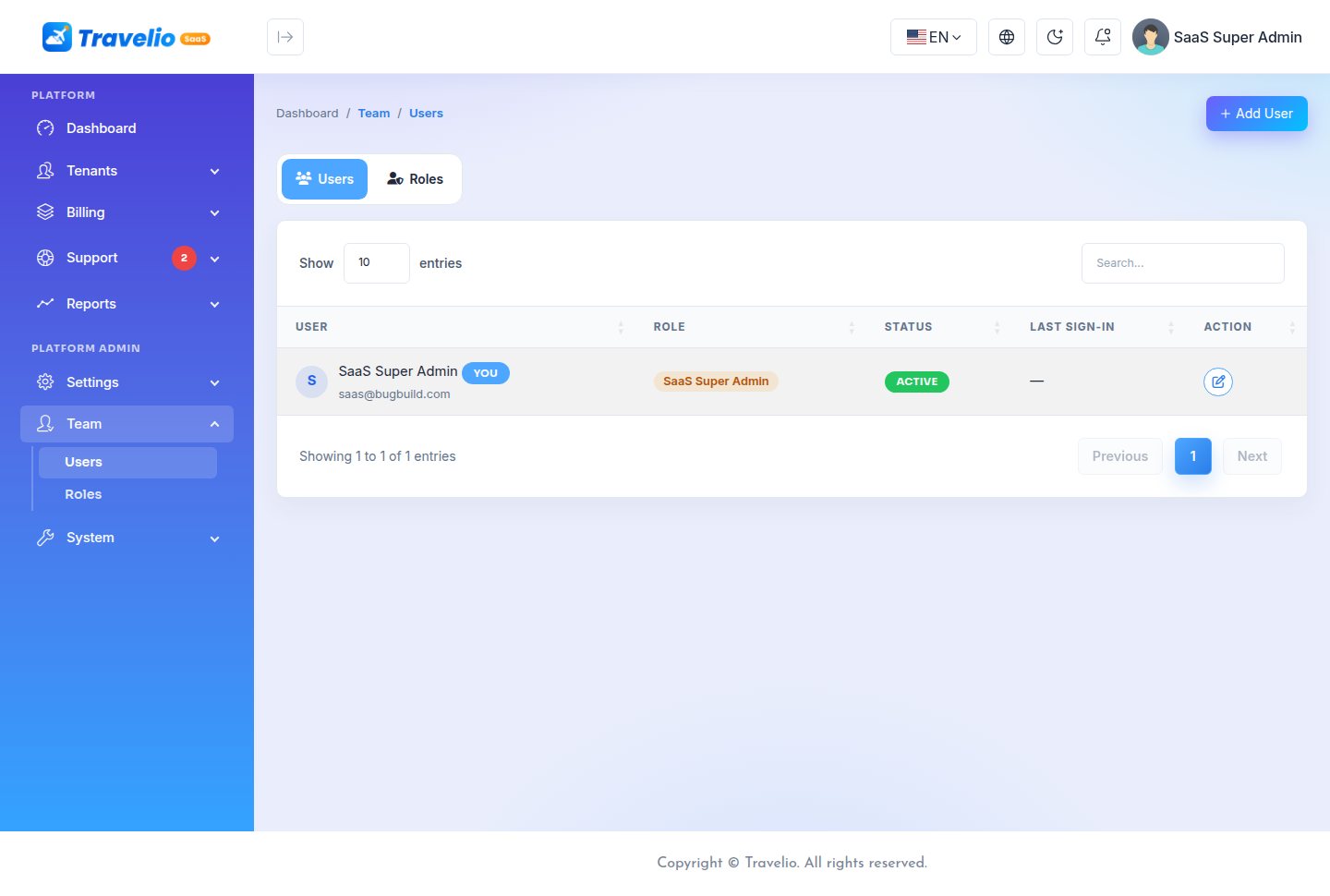
| Team | Users, Roles |
| System | Feature Management, System Update, System Settings |
A menu with something waiting shows a count: domains to approve on Tenants, unpaid invoices on Billing, open tickets on Support.
General Settings, Mail Setting, API Security, Language and System Update apply to the whole platform: the mail settings send every platform email, the API Security key is the mobile app key for all agencies, the languages are shared by all agencies, and System Update updates every agency.
Dashboard & Analytics
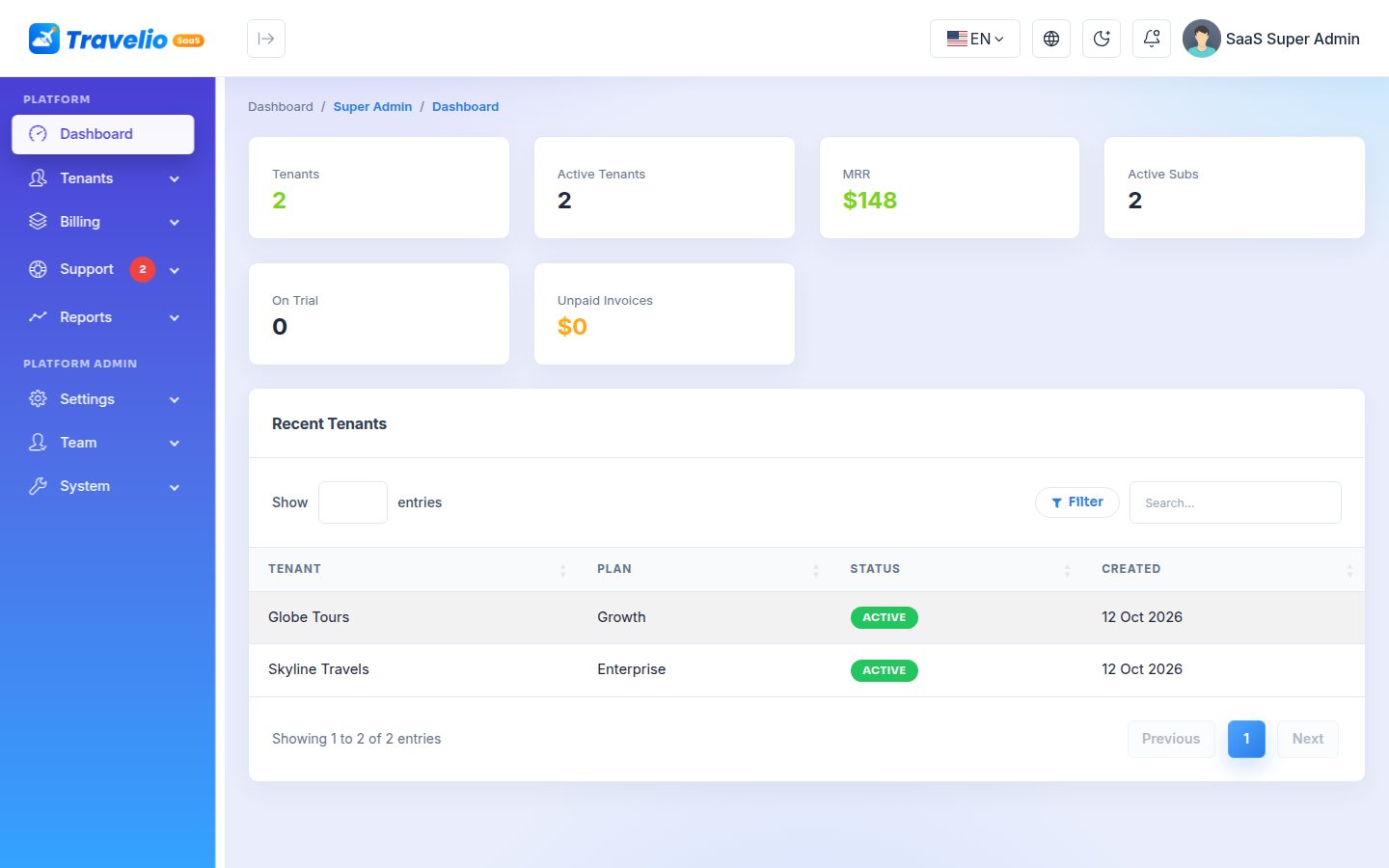
shows the number of tenants, active tenants, MRR (the total of active subscription amounts), active subscriptions, agencies on trial, unpaid invoices and the five newest agencies.
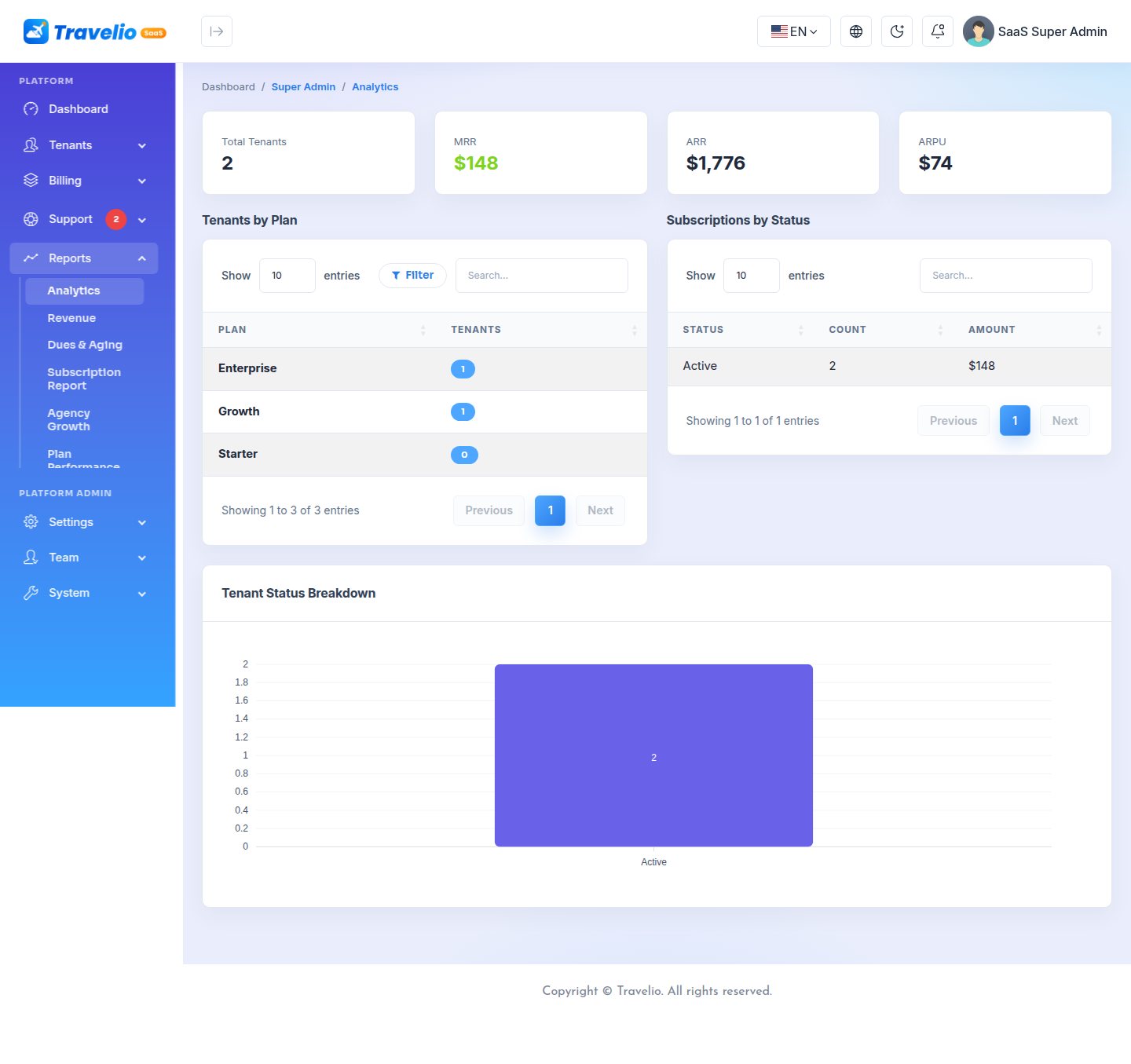
adds ARR (MRR × 12), ARPU, tenants per plan, subscriptions by status (count and amount) and a tenant-status chart.
Reports
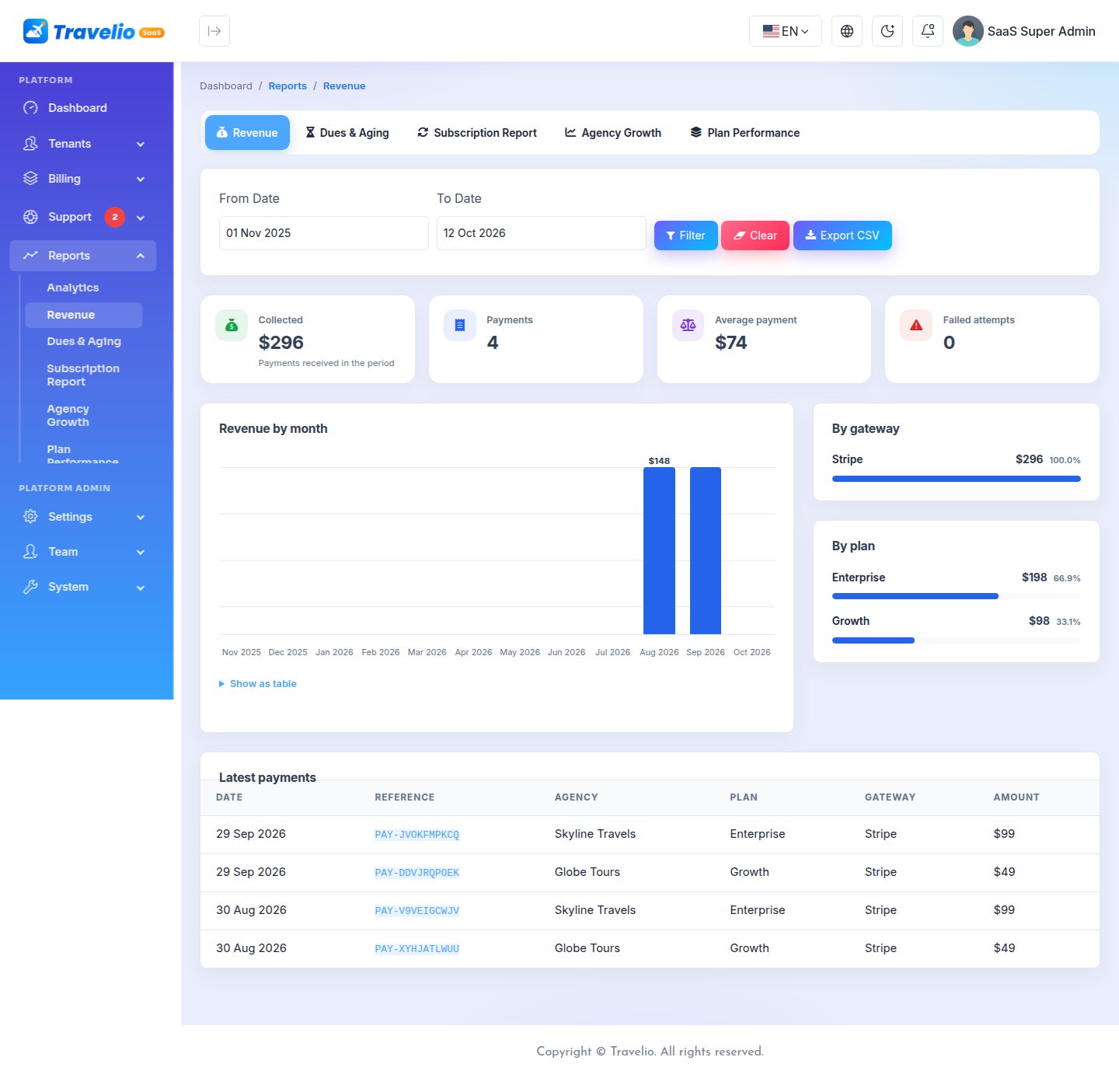
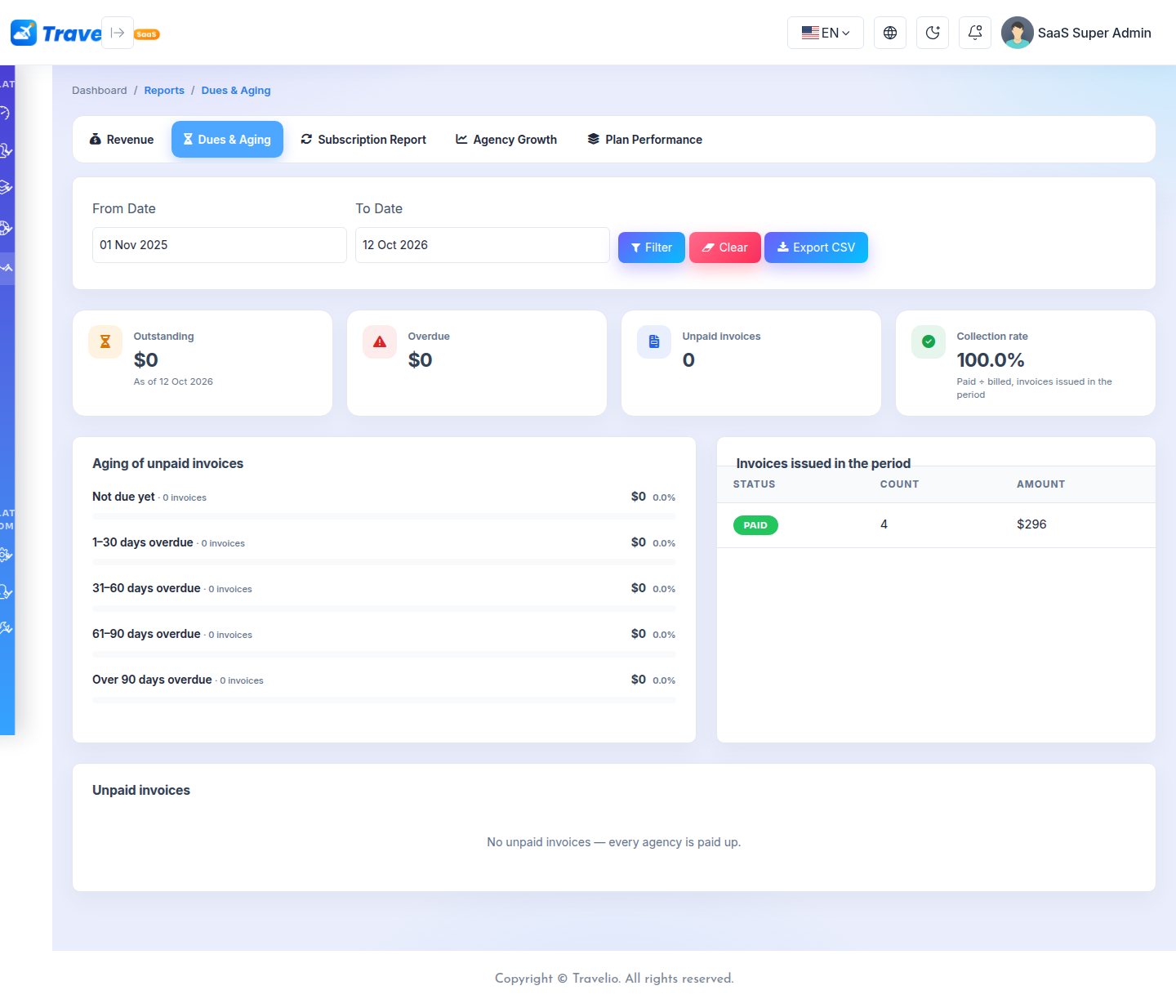
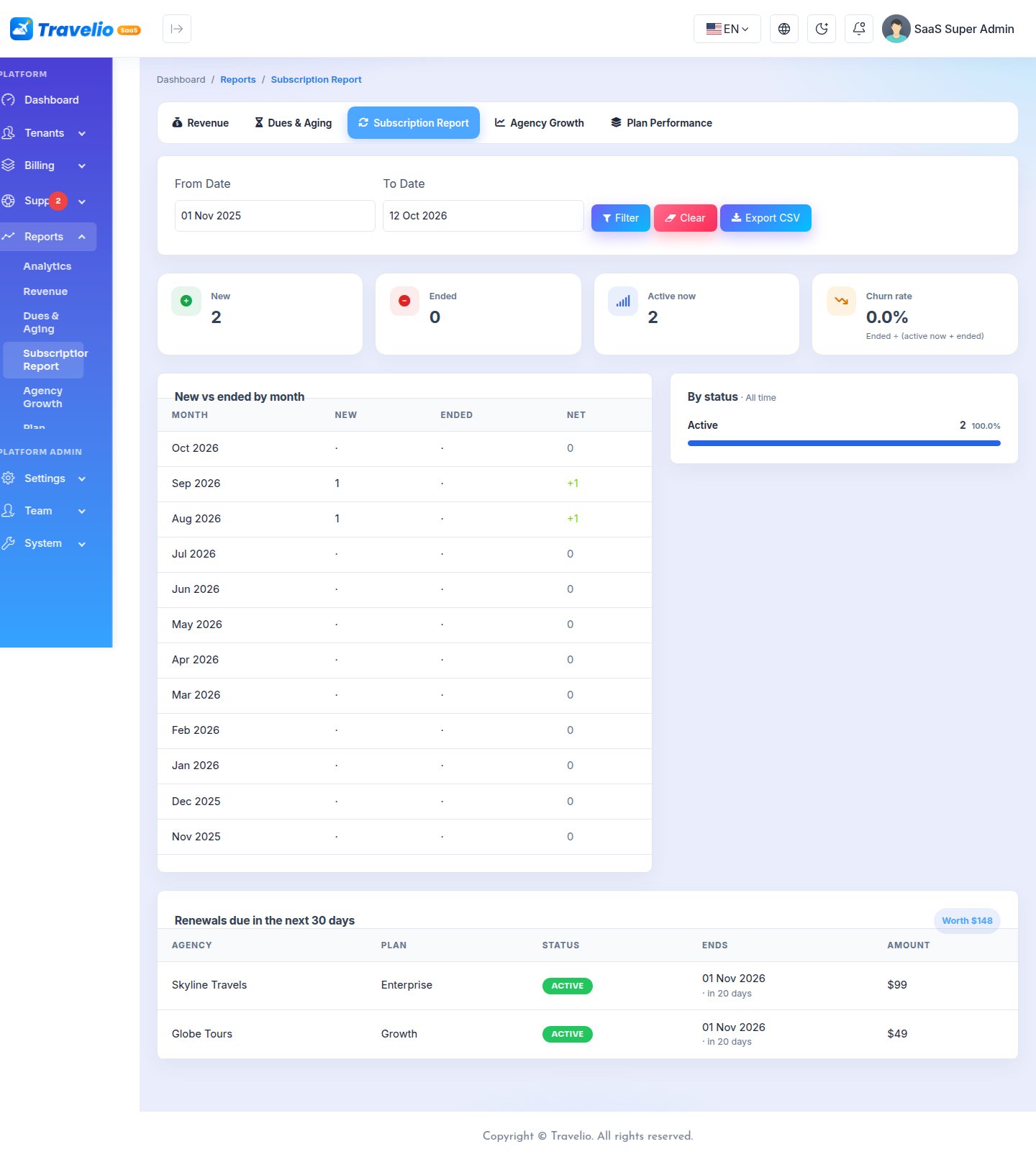
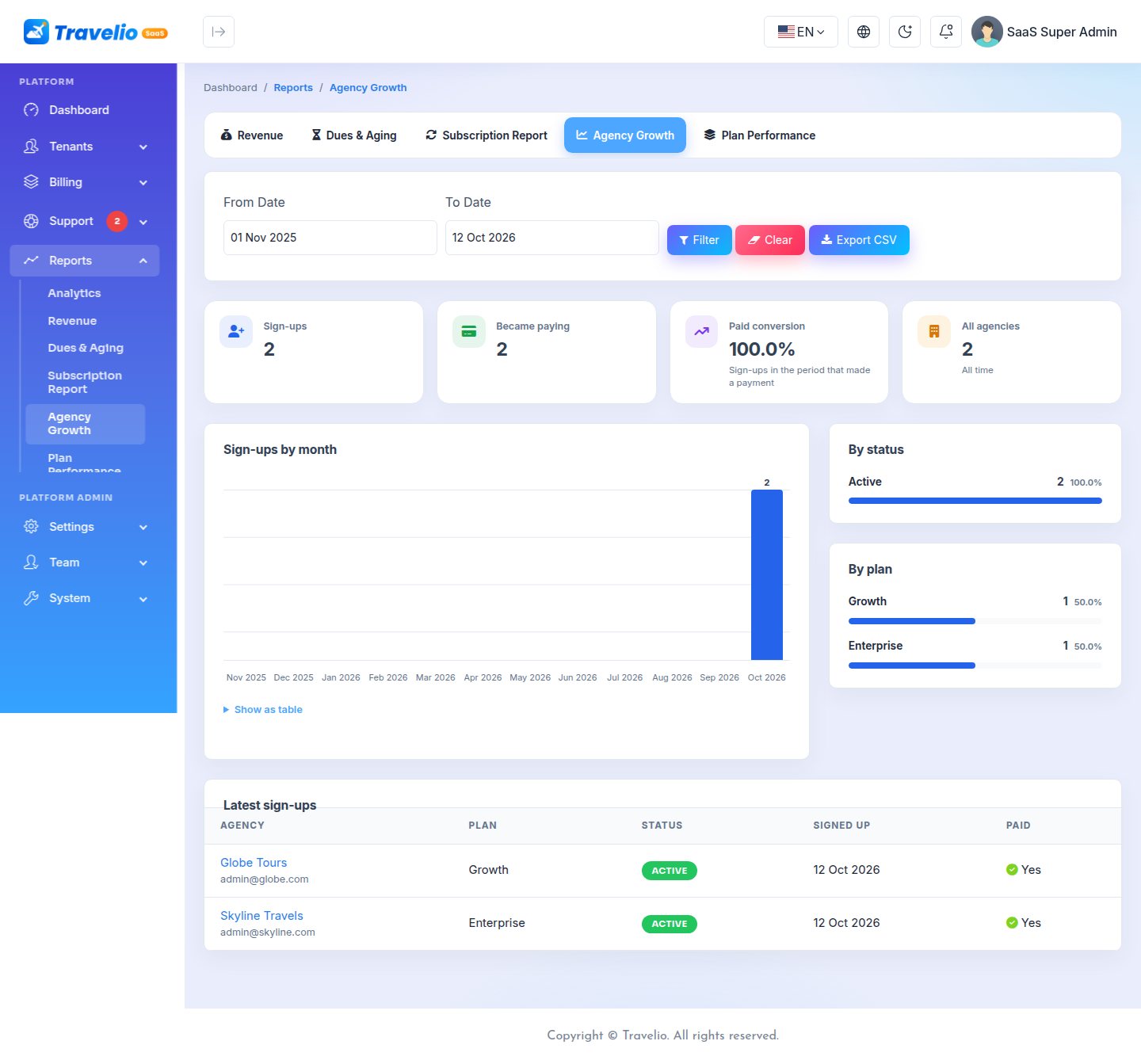
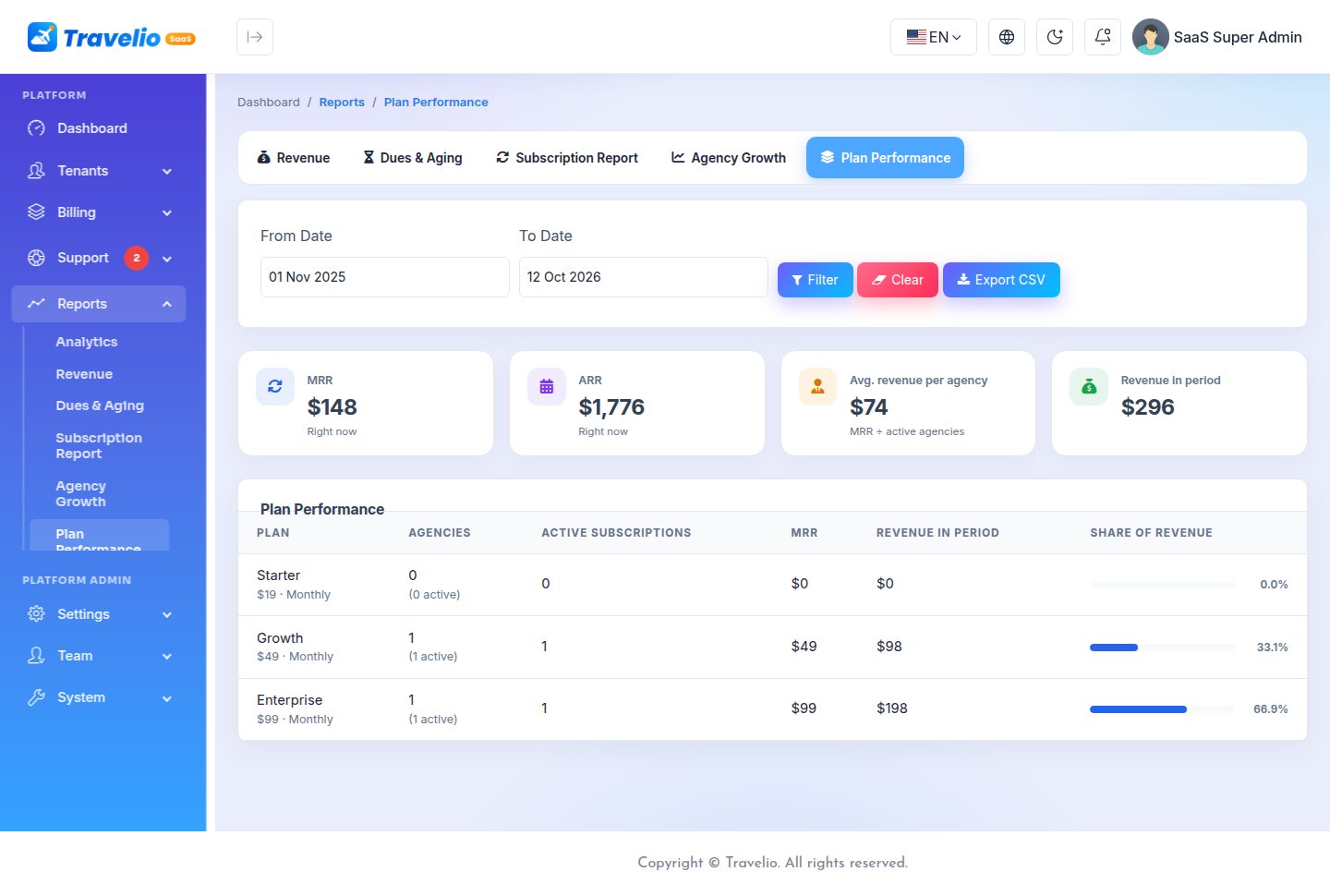
The menu has five reports next to Analytics and Audit Logs. Each has a From / To date filter (the last 12 months by default), tabs to switch report while keeping the dates, and Export CSV, which downloads what is on screen (UTF-8, opens correctly in Excel).
| Report | Shows |
|---|---|
| Revenue | Amount collected, number of payments, average payment and failed attempts; revenue by month (chart, with a table view), by gateway and by plan; the latest payments. |
| Dues & Aging | What agencies owe today: outstanding, overdue, unpaid invoices and the collection rate. Unpaid invoices are grouped by age (not due yet, 1–30, 31–60, 61–90, over 90 days overdue), with the list of unpaid invoices. |
| Subscription Report | New and ended subscriptions in the period, active now and the churn rate; new vs ended by month; subscriptions by status; renewals due in the next 30 days and what they are worth. |
| Agency Growth | Sign-ups in the period, how many became paying and the paid conversion; sign-ups by month, by status and by plan; the latest sign-ups. |
| Plan Performance | MRR, ARR and average revenue per agency now; for every plan its agencies, active subscriptions, MRR, revenue in the period and share of revenue. |
The aging buckets and the 30-day renewals always show today's position; the date filter does not change them. Amounts are added up in the platform currency (General Settings). Reports need the Reports permission (Team).
Tenants (Agencies)
lists every agency with its email, domains, plan, status (Active, Suspended, Pending) and whether its database is Ready or Not provisioned.
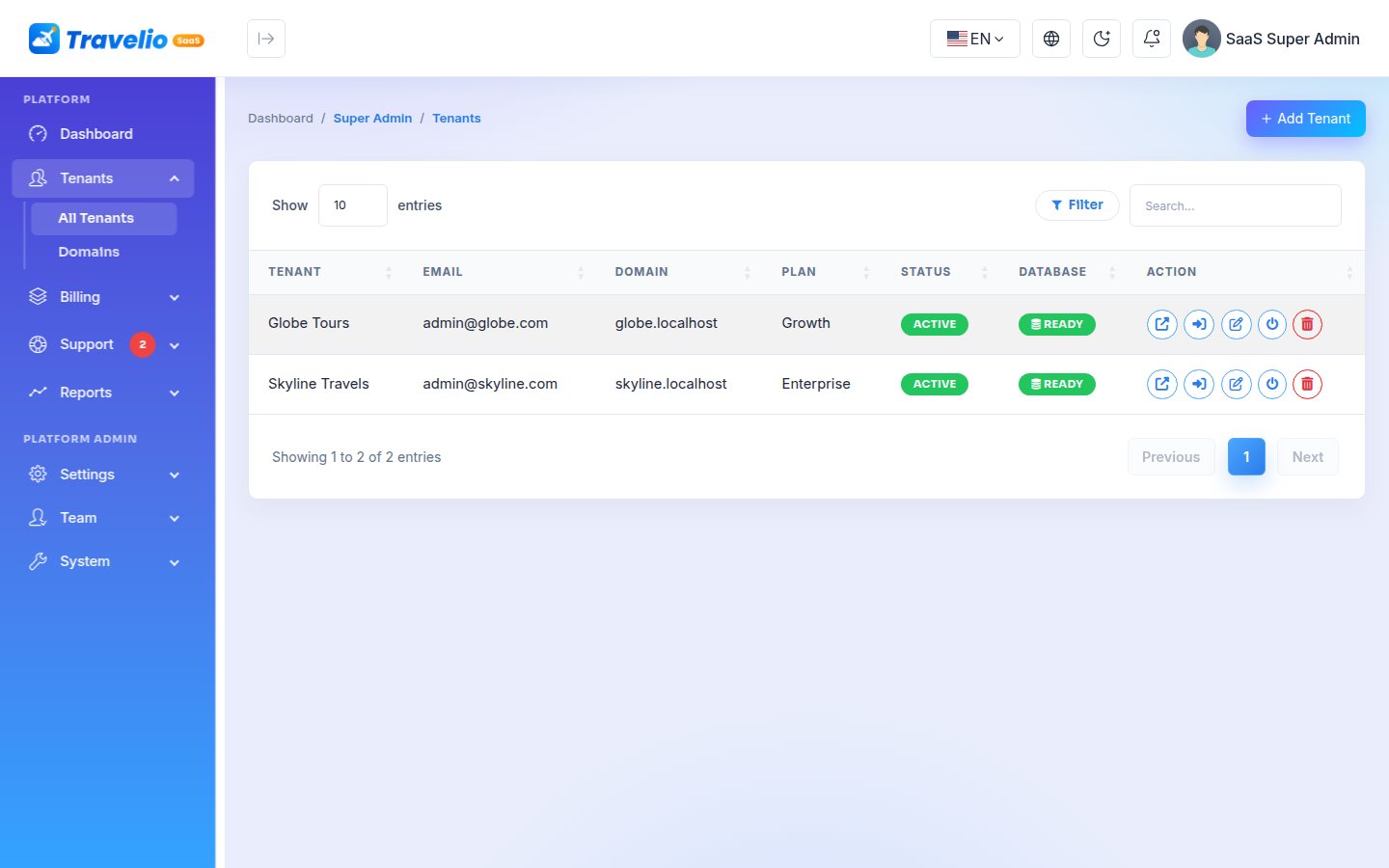
The action buttons on each row:
| Button | What it does |
|---|---|
| Open website | Opens the agency's public website on its domain. |
| Admin sign-in | Opens /admin/login on the agency's domain. |
| Edit | Changes the company name, email, plan and status. Domains are managed under Domains. |
| Build workspace | Shown only while the database is not provisioned. Creates the database, runs every migration and seeder, and creates the owner account. |
| Suspend / Activate | A suspended agency's visitors and staff see the Workspace suspended page. |
| Delete | Deletes the agency, drops its database and removes its private files. This cannot be undone. |
Adding an agency yourself
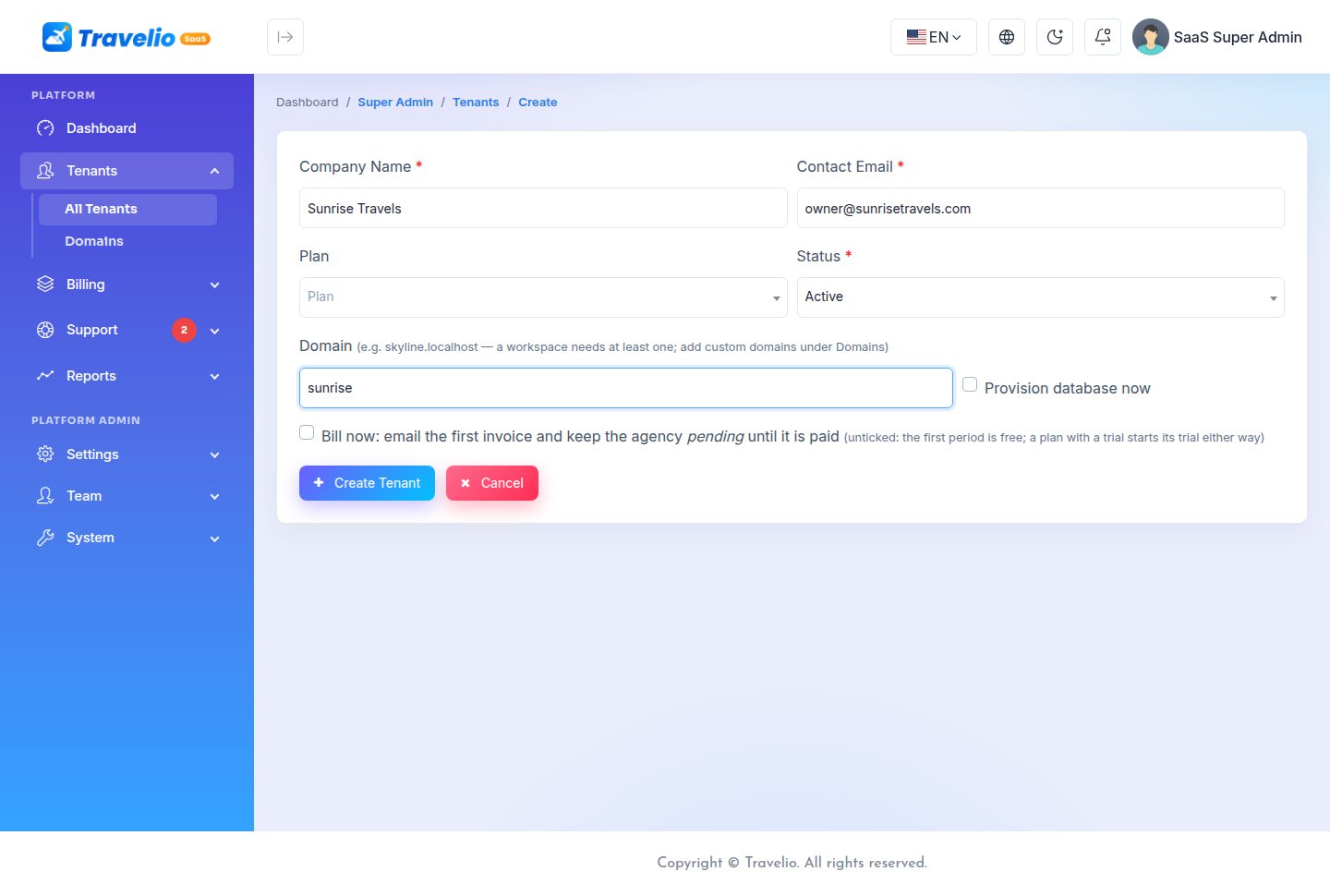
Click Add Tenant and fill in Company Name, Contact Email, Plan, Status and Domain (for example bluelagoon.yourplatform.com). Tick Provision database now to build the workspace straight away.
Bill now (optional):
- Ticked: the first invoice is created and emailed to the agency, and the agency stays pending until it is paid.
- Unticked: the first billing period is free. If the plan has a free trial, the trial still applies.
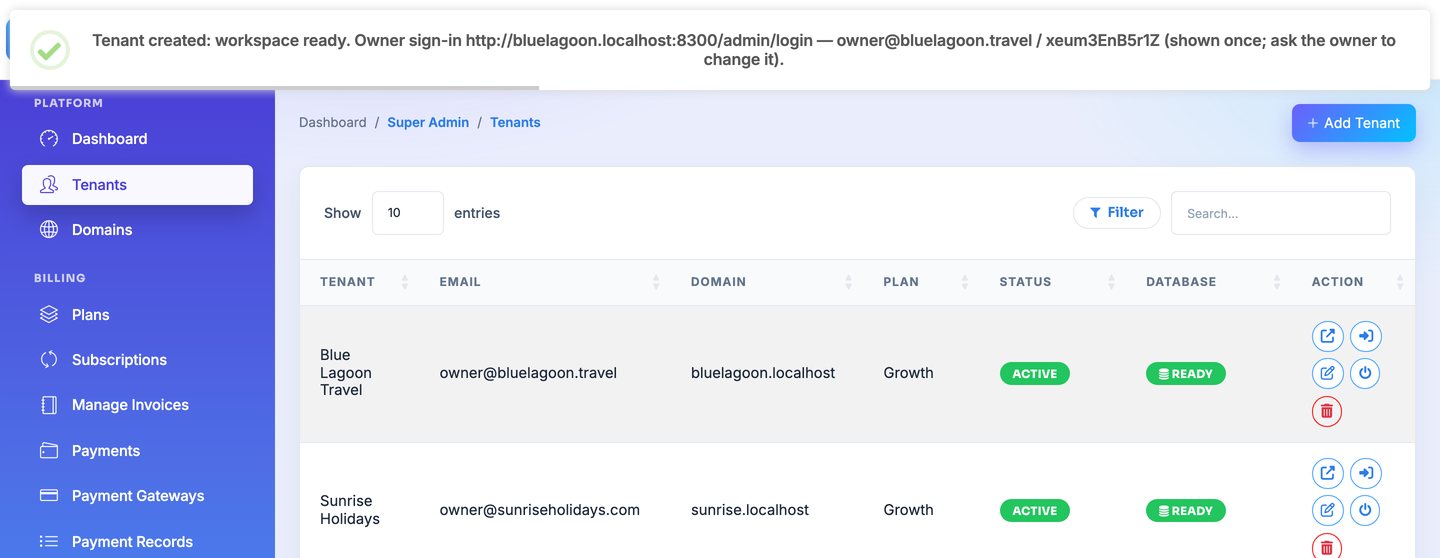
When the workspace is built, a message shows the agency's sign-in link and a generated 12-character owner password. It is shown only once, so copy it and send it to the agency owner. If you leave the box unticked, build the workspace later with the Build workspace button or php artisan saas:provision <id>.
Agencies can also create themselves; see Self-Service Signup.
Subdomains & Custom Domains
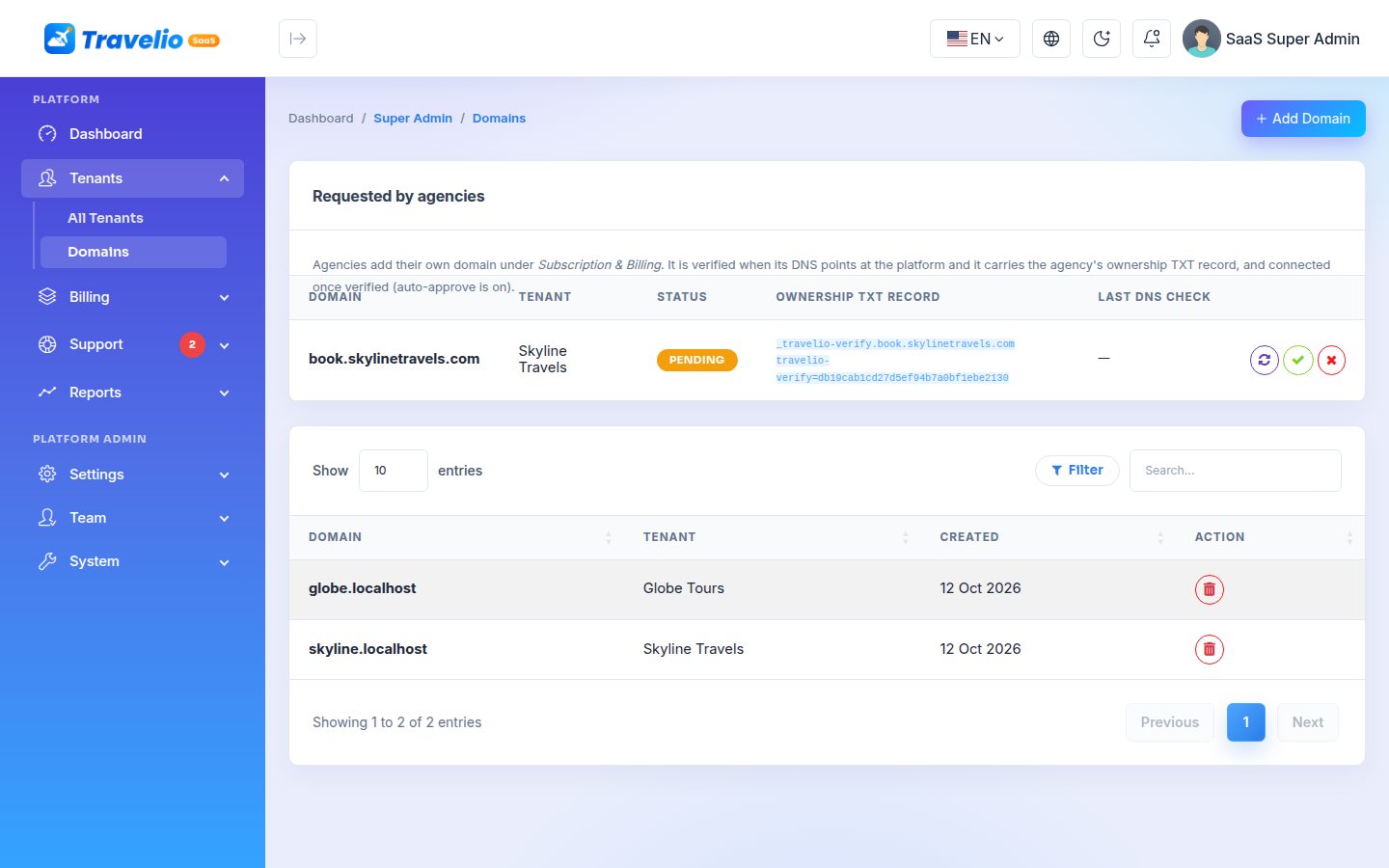
lists every domain and the agency it belongs to. An agency can have several domains, and all of them open the same workspace.
Subdomains are automatic. An agency that signs up as skyline gets skyline.yourplatform.com, served through your wildcard DNS record and certificate. Nothing else needs to be done.
Custom domains requested by agencies
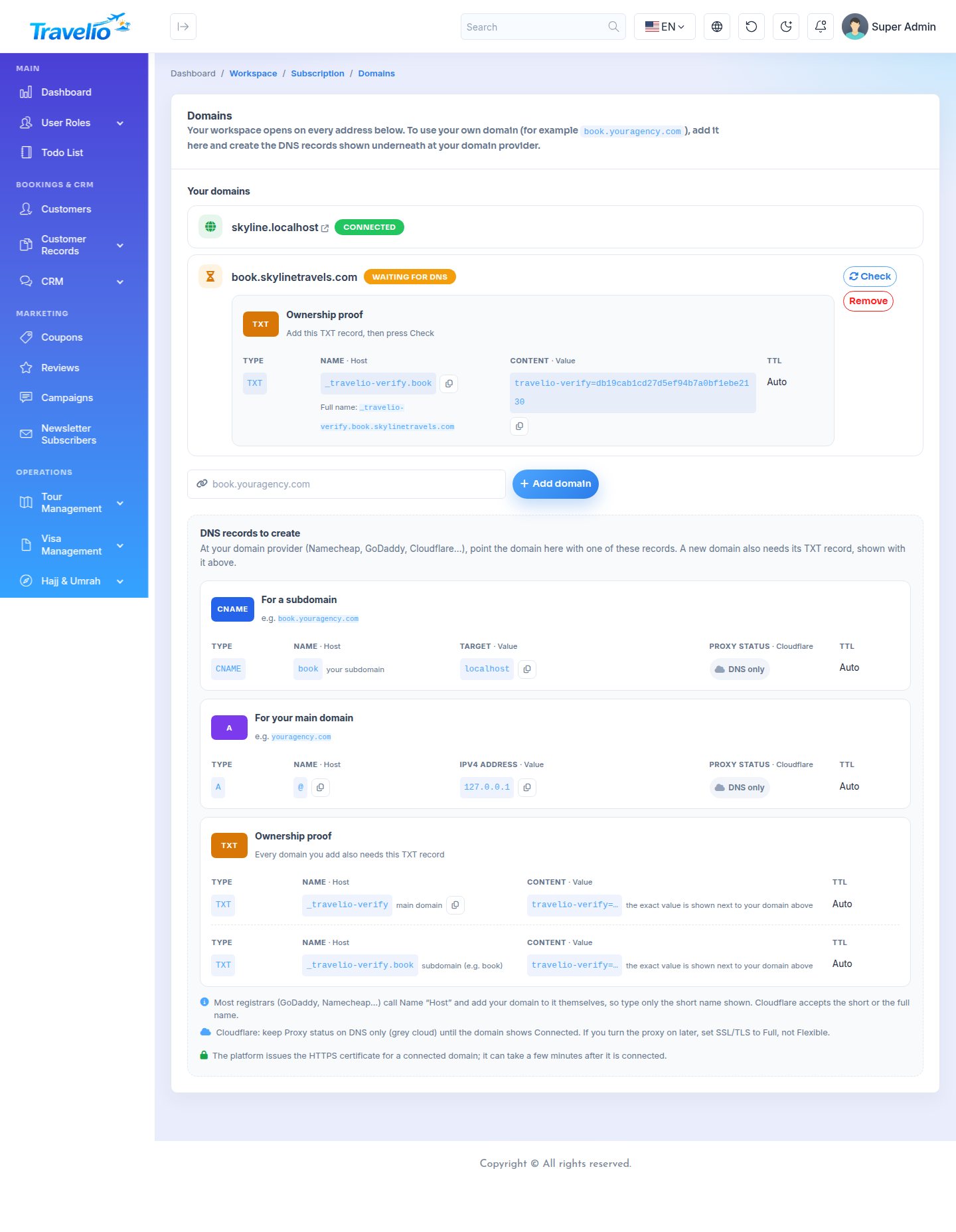
Agencies add their own domains on their Subscription & Billing page. Travelio checks the DNS:
- The agency adds the domain. It is listed as Waiting for DNS, with its own TXT record that proves the agency owns it.
- The agency creates the records at its DNS provider: a CNAME to your CNAME target (subdomain) or an A record to your server IP (main domain), plus the TXT record. The page lays them out with the field names DNS editors use; see the Custom Domain DNS Guide.
- The agency presses Check. When the domain points at your server and the TXT record is right, the domain becomes verified. There is no automatic re-check; the agency presses Check again after the DNS has spread.
- With auto-approve on (the default), a verified domain is connected at once and the agency gets an email. With auto-approve off, it waits for you.
Domains waiting for you appear in the Requested by agencies table on the Domains page, with three buttons:
| Button | What it does |
|---|---|
| Check DNS now | Checks the domain's DNS again. |
| Approve and connect | Connects the domain to the agency; the agency gets an email. |
| Reject | Refuses the request with a reason; the agency gets an email with the reason. |
Adding a custom domain yourself
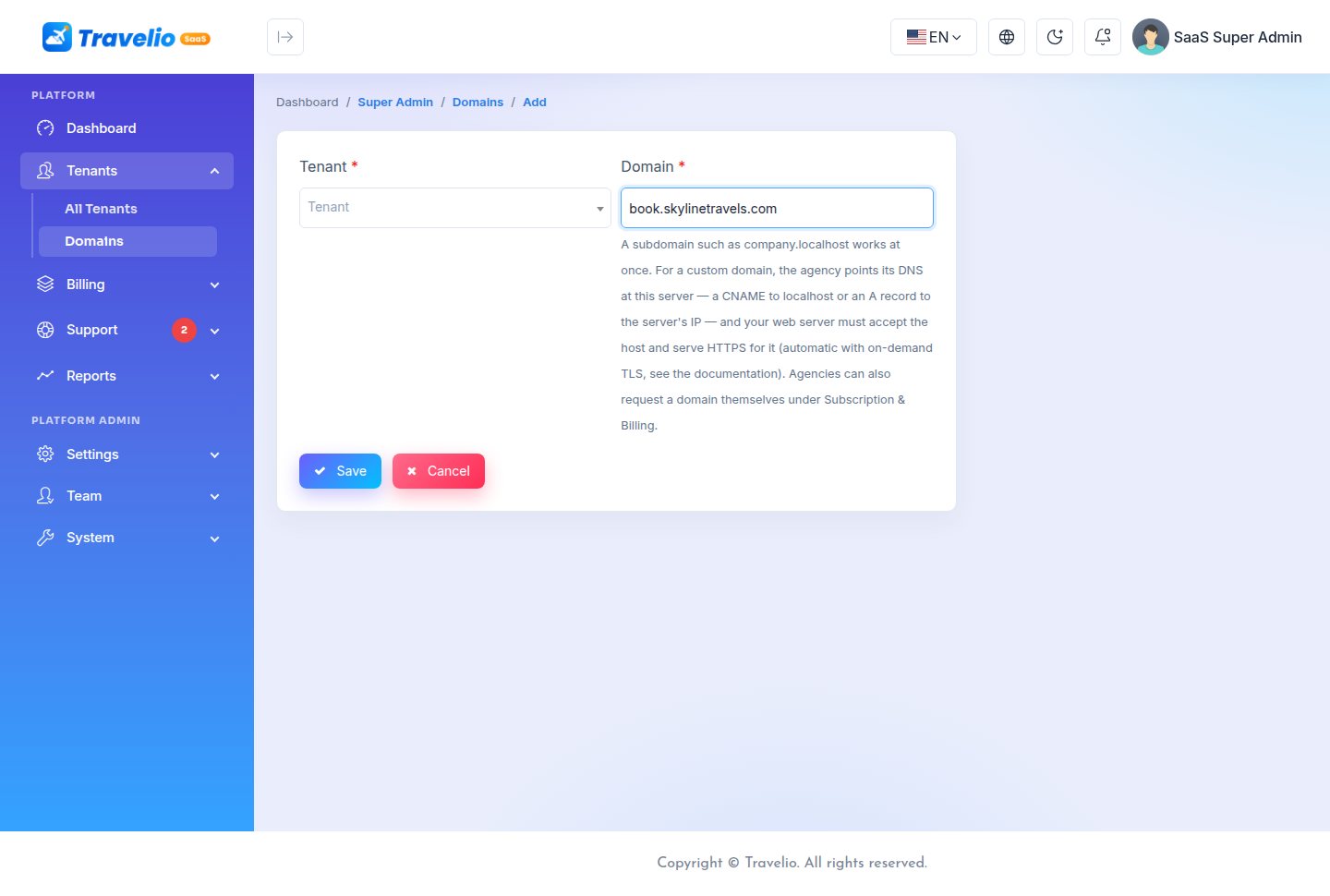
- The agency points its domain at your server: an A record to your server IP, or a CNAME to your platform host (for example
book.skylinetravels.com → yourplatform.com). No TXT record is needed when you add the domain yourself. - In choose the agency and type the domain. A pasted URL such as
https://book.skylinetravels.com/is reduced to the host.
HTTPS: with an on-demand-TLS web server such as Caddy, a connected domain gets its certificate automatically; see Automatic HTTPS for custom domains. Otherwise issue a certificate per domain (for example certbot --nginx -d book.skylinetravels.com). A request for a host that is not on the domain list shows No workspace here.
Custom Domain DNS Guide
An agency can connect its main domain (skylinetravels.com) or a subdomain (book.skylinetravels.com). Its Subscription & Billing page shows the exact records; this is the same guide, to send to agencies who ask.
The records
| Connecting | Type | Name / Host | Content / Value |
|---|---|---|---|
A subdomain (book.skylinetravels.com) | CNAME | book | your CNAME target |
The main domain (skylinetravels.com) | A | @ | your server IP |
| Proof for the main domain | TXT | _travelio-verify | travelio-verify=… (the token shown next to the domain) |
| Proof for a subdomain | TXT | _travelio-verify.book | travelio-verify=… |
The page works out the short TXT name for every domain, also under two-part endings such as .com.bd or .co.uk, and shows the full name under it (_travelio-verify.book.skylinetravels.com).
A main domain cannot have a CNAME (a DNS rule), which is why it uses an A record. www.skylinetravels.com is a separate domain: to open the site on both, add both.
Field names in DNS editors
| On the page | Cloudflare | GoDaddy, Namecheap and most registrars |
|---|---|---|
| Type | Type | Type |
| Name · Host | Name | Host (or Name) |
| Target / IPv4 address / Content · Value | Target (CNAME), IPv4 address (A), Content (TXT) | Value / Points to |
| Proxy status | Proxy status | — |
| TTL | TTL (Auto) | TTL (Automatic or the lowest offered) |
Without Cloudflare (GoDaddy, Namecheap, Hostinger …)
- Type only the short name in Host. These editors add the domain themselves: typing
_travelio-verify.skylinetravels.comcreates_travelio-verify.skylinetravels.com.skylinetravels.comand the check fails. - Use real A / CNAME records. URL redirect or forwarding is not a DNS record and does not connect a domain.
- A low TTL makes changes show sooner.
With Cloudflare
- Keep Proxy status on “DNS only” (grey cloud) until the domain shows Connected. With the proxy on (orange cloud), the domain answers with Cloudflare's addresses instead of your server's, so the check cannot see it pointing at you.
- Cloudflare allows a CNAME on the main domain (
@) and flattens it to an A record; this passes the check too. - Name accepts the short or the full name.
- If the agency turns the proxy on after connecting, SSL/TLS must be Full or Full (strict), never Flexible. With Flexible, Cloudflare talks plain HTTP to your server, the platform redirects to HTTPS, and the browser ends in “too many redirects”.
Is your own platform behind Cloudflare's proxy? Then enter your server's real IP under . When that box is empty, the platform looks up the IP of the CNAME target, which would return Cloudflare's addresses: agencies would be shown the wrong IP, and correct A records would fail the check.
DNS changes can take from a few minutes to several hours to spread. Until then Check shows what it found (for example TXT … missing).
Plans & Features
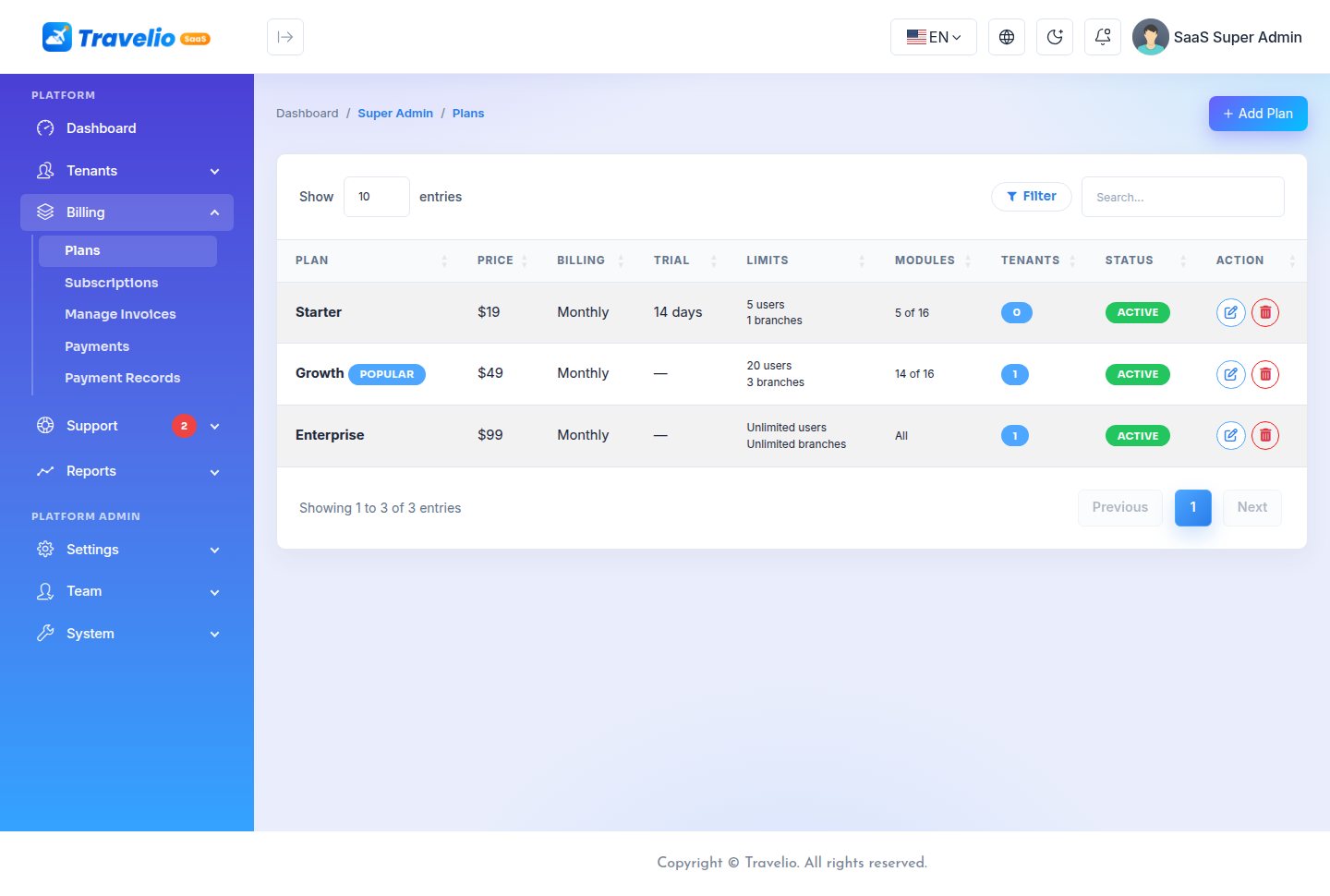
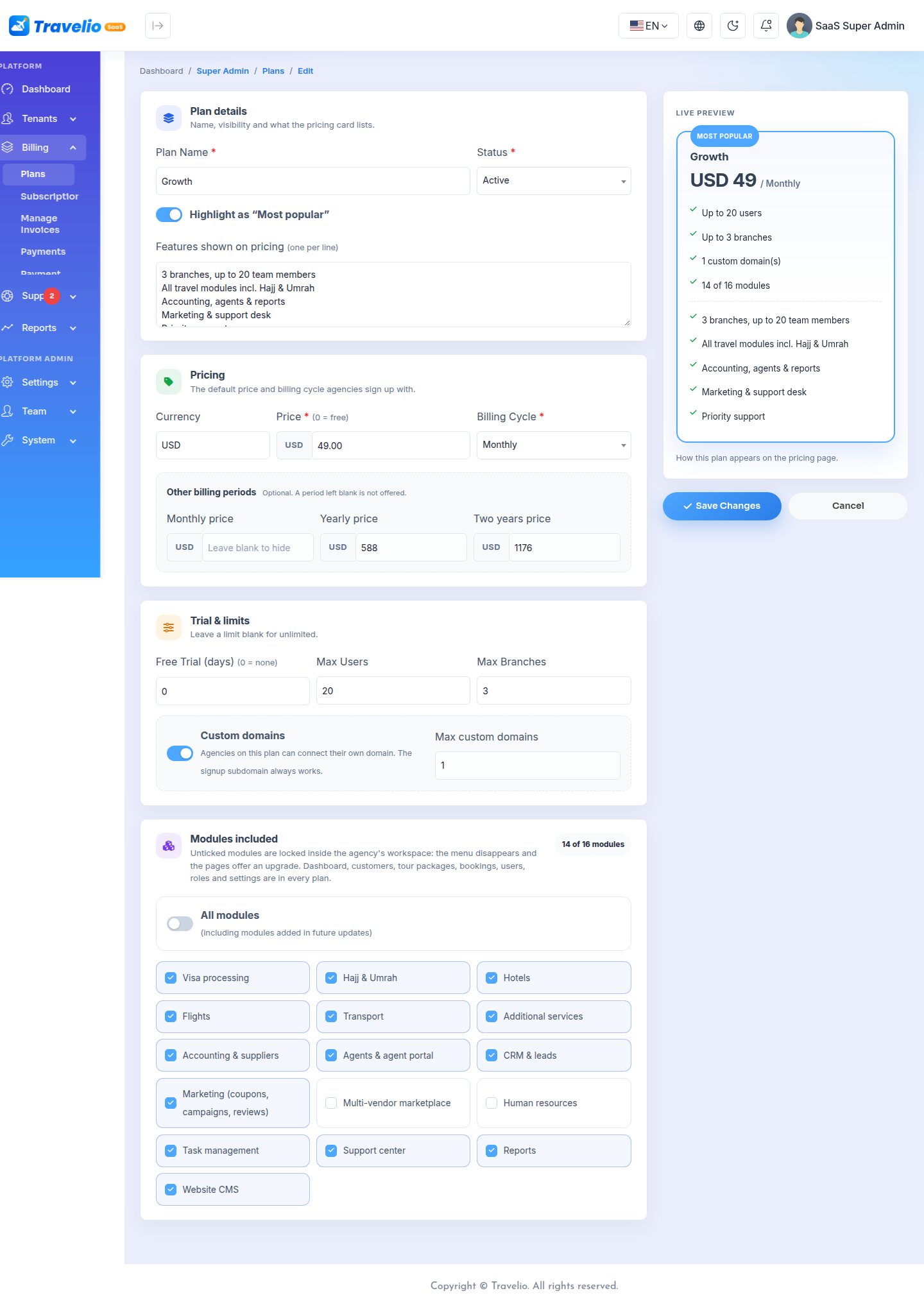
lists your plans with price, billing cycle, limits, the number of agencies on each plan and status. Fresh installs ship with:
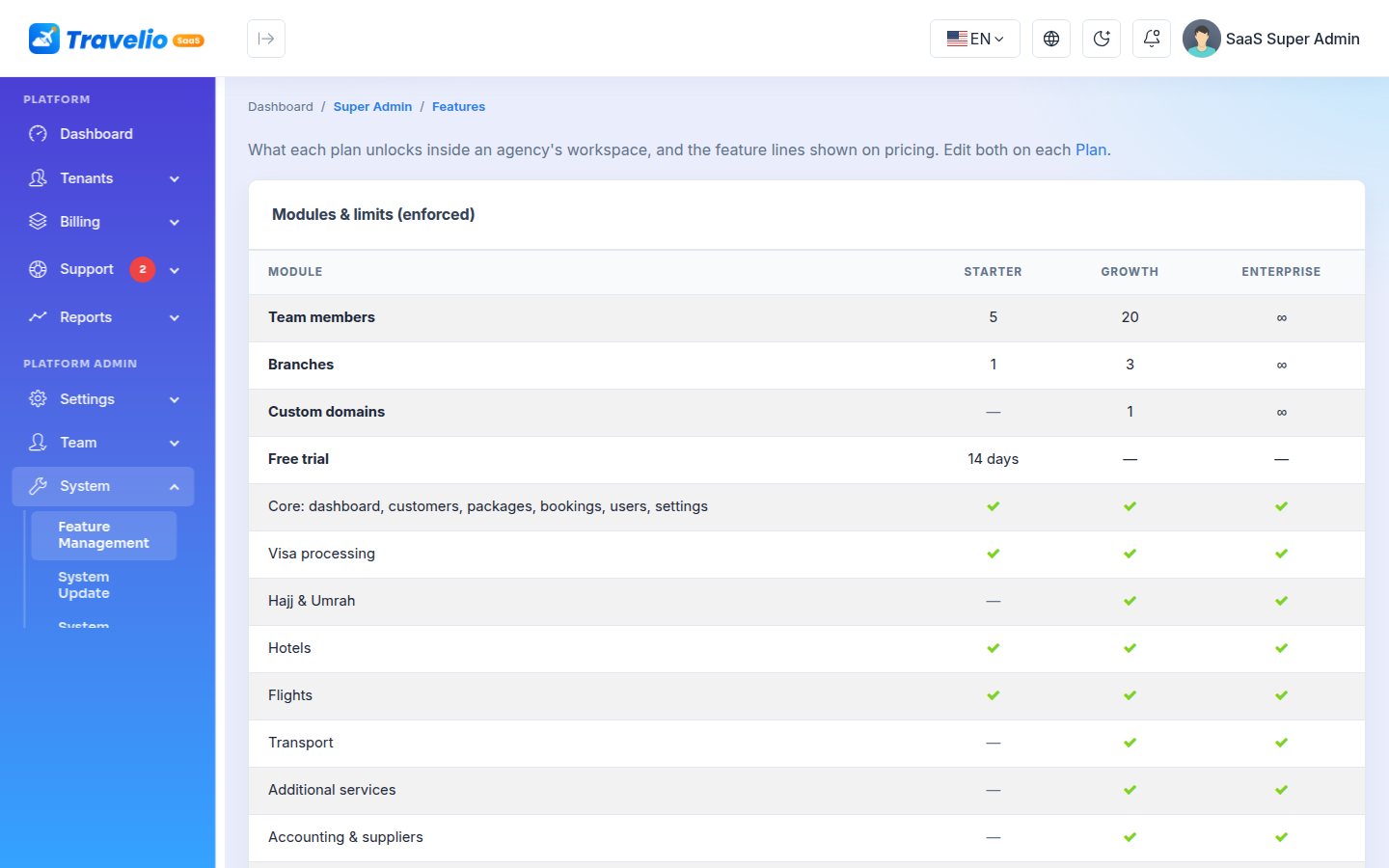
| Plan | Price | Trial | Max users | Max branches | Modules |
|---|---|---|---|---|---|
| Starter | $19 / month | 14 days | 5 | 1 | Visa, hotels, flights, CRM, website CMS |
| Growth (highlighted) | $49 / month | none | 20 | 3 | All modules except multi-vendor marketplace and HR |
| Enterprise | $99 / month | none | Unlimited | Unlimited | All modules |
Plan fields
| Field | Meaning |
|---|---|
| Name | Shown on the landing page, signup and invoices. |
| Currency | 3-letter code. The default is the platform currency from General Settings. |
| Price | 0 makes a free plan. Free plans are never invoiced. |
| Billing cycle | Monthly, yearly, two years or lifetime. Lifetime never expires. |
| Other billing periods | Optional monthly, yearly and two-year prices, so one plan can be bought for different periods. A period left blank is not offered. |
| Free trial | Number of days; 0 means no trial. |
| Max users | Blank means unlimited. |
| Max branches | Blank means unlimited. |
| Custom domains | Whether agencies on the plan may connect their own domain, and optionally how many (blank = unlimited). The signup subdomain always works. Fresh installs ship with Starter: off, Growth: 1, Enterprise: unlimited; updating an existing platform leaves every plan allowing them, so set this yourself. |
| Highlight as Most popular | Marks the plan on the landing page. |
| Modules included | Tick modules one by one, or choose All modules, which also includes modules added in future versions. |
| Features | Text lines shown on the pricing cards, one per line. |
Modules you can include: visa, Hajj, hotels, flights, transport, additional services, accounting & suppliers, agents & agent portal, CRM, marketing (coupons, campaigns, reviews), multi-vendor marketplace, HR, tasks, support center, reports and website CMS. Always included in every plan: dashboard, customers, tour packages, bookings, users, roles and settings.
The form is split into Plan details, Pricing, Trial & limits and Modules, with a live preview of the pricing card beside it.
Only active plans are offered at signup and on the landing page. A plan with agencies on it cannot be deleted.
Limits are enforced inside the workspace
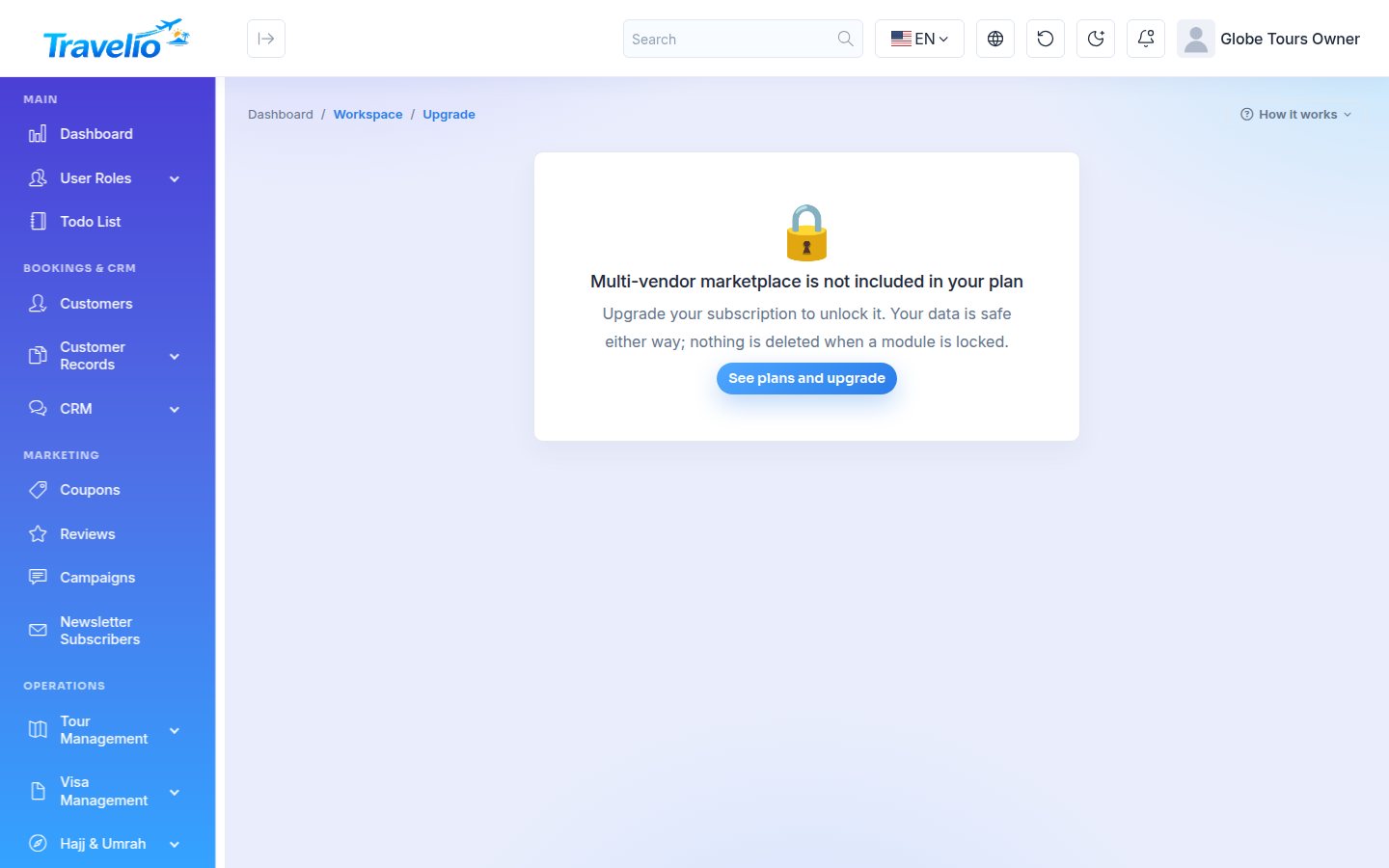
- Modules: the menus of modules that are not in the plan disappear. Opening one of their pages shows Not in your plan (403; JSON for API calls), with an upgrade button for the owner.
- Plan modules and the agency's own switches work together. Inside its plan, every agency can still switch services off for itself under Settings → Modules (e.g. a Hajj & Umrah + Visa agency hides tours, flights, hotels and transport) — see Modules. A module is on in a workspace only when the plan includes it and the agency has not switched it off; the agency's website, portals and app follow the result. Tour packages are not a plan module, so only the agency can switch them off. On the agency's Modules page a module outside its plan is shown locked (“Not in your plan”), and the agency's own choice for it is kept for when the plan is upgraded. The marketplace works the same way: without it in the plan, vendor sign-up, the vendor directory and vendor listings stay off whatever the agency's marketplace setting says.
- Max users: adding a team member beyond the limit is refused with a message. “Users” are team members who sign in to the admin panel; customers, agents and vendors are not counted.
- Max branches: adding a branch beyond the limit is refused with a message.
- Custom domains: without them, the agency's Domains page shows a locked box with a See plans button instead of the add form; at the limit, the same box says the allowance is in use.
When a plan stops covering a custom domain
A downgrade starts at the next renewal, so a connected custom domain keeps working until then; the downgrade confirmation names the domains that will stop and the date. When the new plan takes effect (or you narrow a plan), the domains it no longer covers are paused, newest first:
- The domain stops opening the workspace; visitors are sent on to the agency's subdomain with a temporary (302) redirect, path included.
- Its DNS and ownership proof are kept. On the agency's Domains page it shows as Paused with an Upgrade button.
- When the plan covers it again, it is reconnected automatically, with nothing to redo. Another agency cannot claim a paused domain.
- The daily billing run also checks every agency, as a safety net.
shows a matrix of the modules and limits of every plan, plus their feature lines. Edit them on the plan itself.
Subscriptions & Upgrades
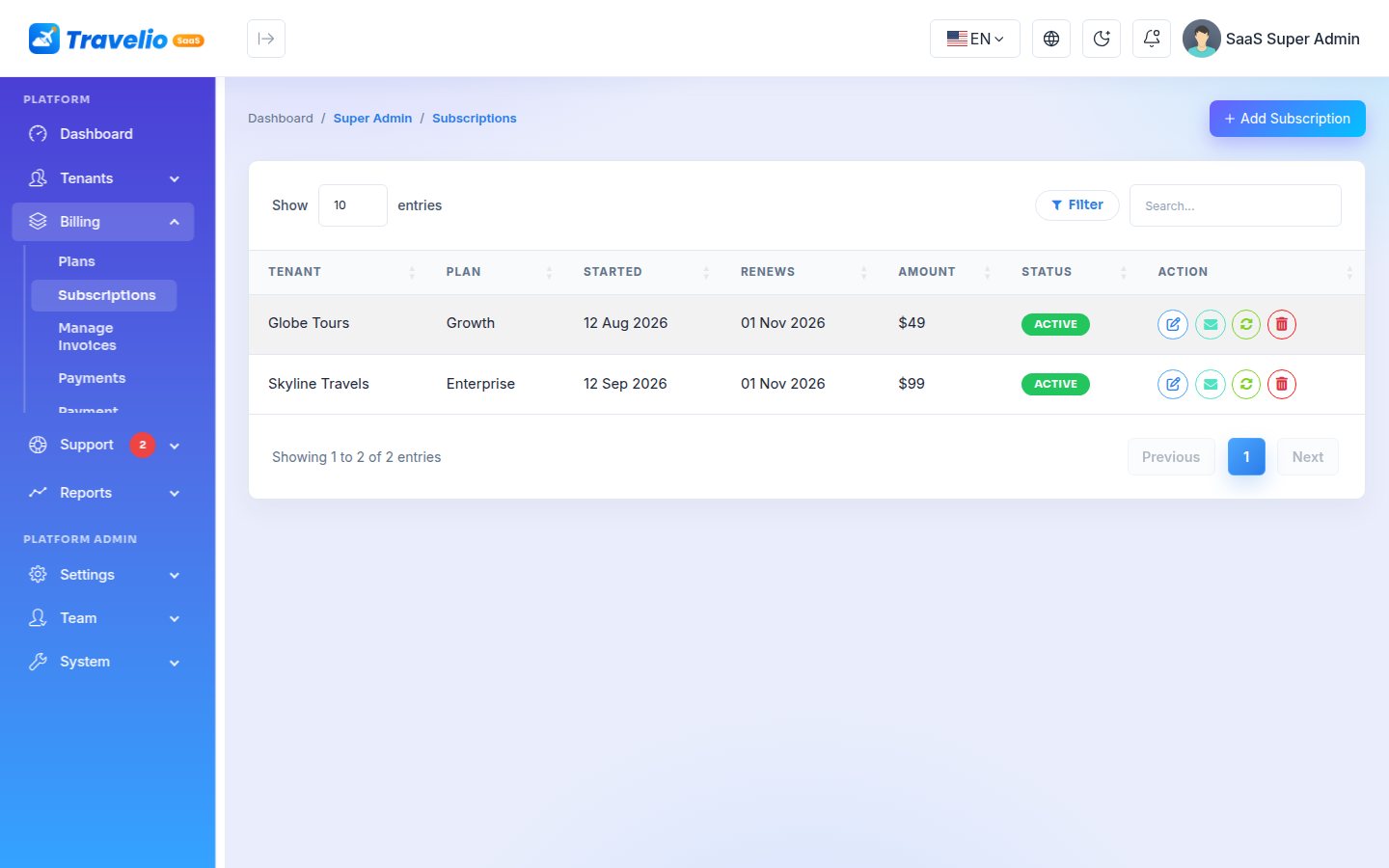
shows each agency's plan, start date, renewal date, amount, status and any scheduled downgrade.
| Status | Meaning |
|---|---|
| active | Paid (or free) and running. |
| trial | In the plan's free trial, until the trial end date. |
| pending | A paid signup waiting for its first payment. |
| expired | Not renewed before the end of the grace period. |
| cancelled | Cancelled. |
The buttons on each subscription:
| Button | What it does |
|---|---|
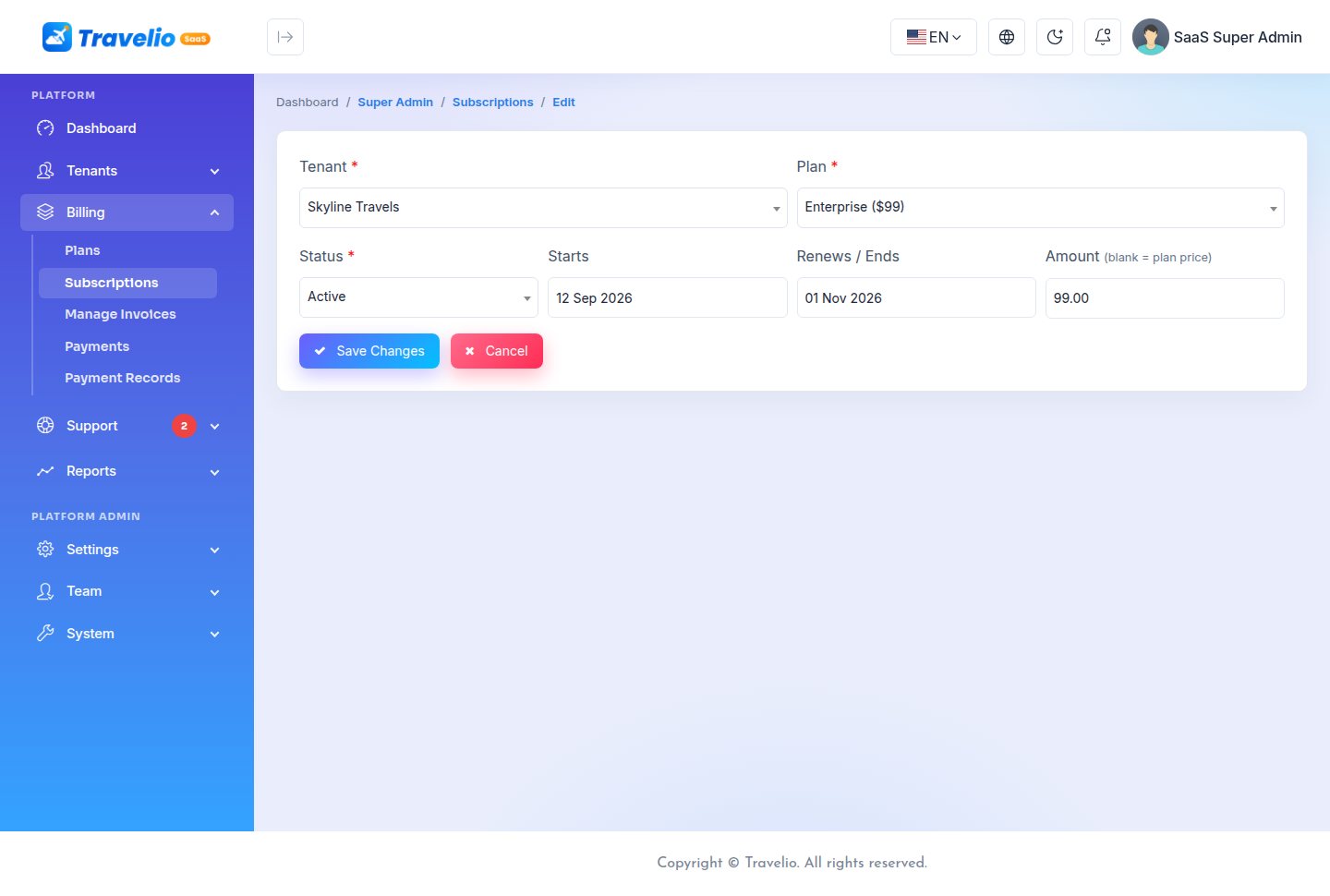
| Edit / change plan | Your override: choose a new plan, adjust Renews / Ends and the amount (blank = the plan's price). No invoice is created. |
| Email the renewal invoice | Sends the agency its renewal invoice with the pay link. |
| Renew (mark paid) | Marks the renewal invoice paid and extends the subscription by one period, counted from today or from the end date, whichever is later. |
Add Subscription creates one for an agency that has none. Agencies can also upgrade or downgrade themselves on their Subscription & Billing page.
The daily billing run
Every day at 02:00 the scheduler runs saas:run-subscription-lifecycle (the cron entry is required; see Commands & Scheduler):
- Renewal invoices: for every subscription or trial that ends within the invoice lead days (default 7), the renewal invoice is created. If a downgrade is scheduled, the invoice uses the new plan.
- Reminders: emails 7, 3 and 1 days before the end date (configurable), on the end date, and once during the grace period. Each reminder is sent at most once per end date.
- Expiry: after the grace period (default 3 days) the subscription becomes expired and the agency is suspended. The agency and the platform get an email.
- Unpaid signups (optional): signups that never paid can be removed after a number of days, together with their workspace. The default is
0= never.
All these numbers are set in Platform Settings.
To reactivate a suspended agency, the agency pays its renewal invoice (from the Workspace suspended page or the emailed link), or you use Renew (mark paid). Paying the invoice activates the agency again.
Free plans are never invoiced. Lifetime subscriptions have no end date and never expire.
Billing & Payment Gateways
Invoices
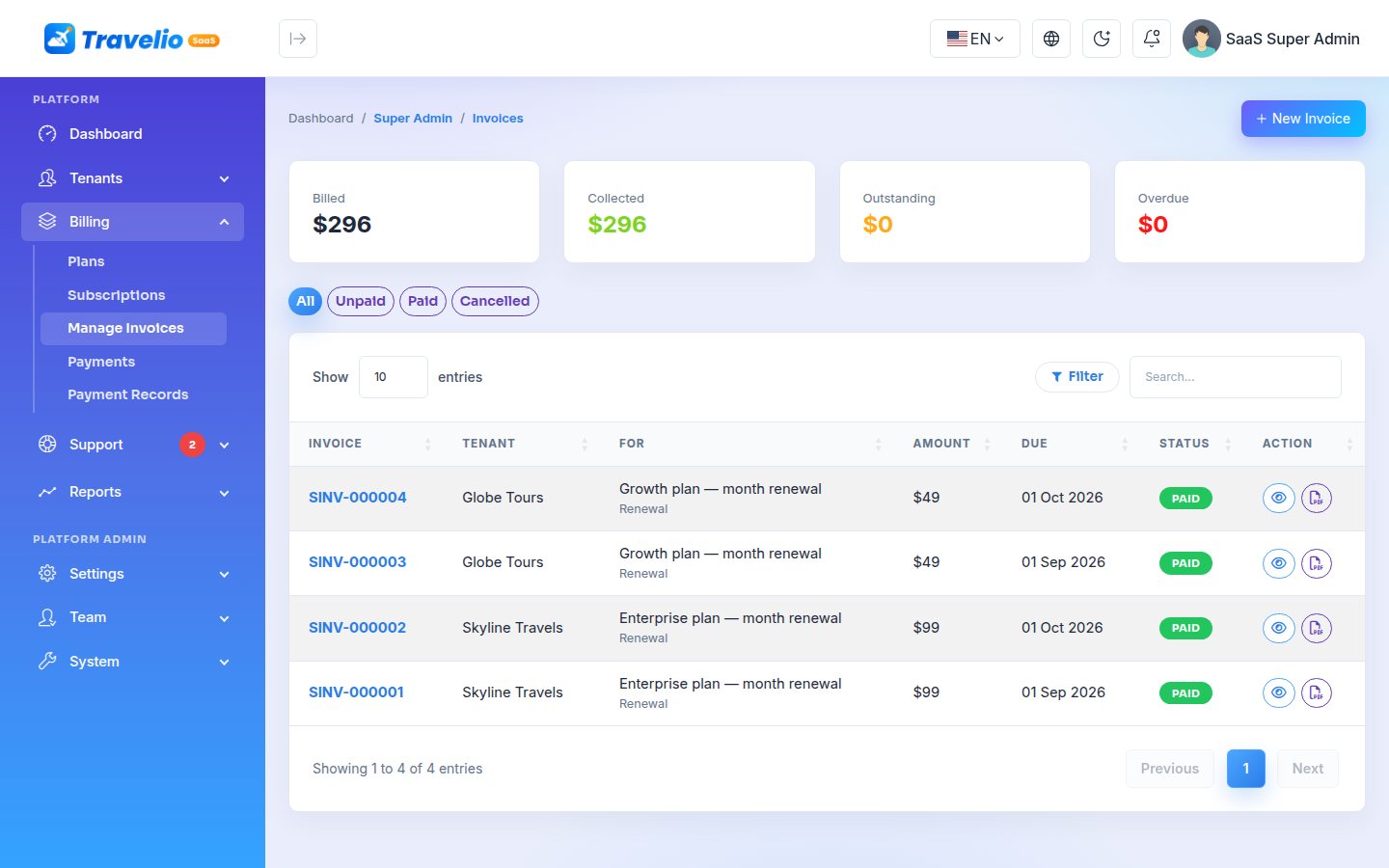
Invoices are real records, numbered SINV-000001, SINV-000002 and so on. They are created by:
- a paid signup, or Add Tenant with Bill now;
- the daily billing run (renewals);
- a plan upgrade by the agency;
- you, manually: . This is a one-off charge; it changes nothing on the subscription.
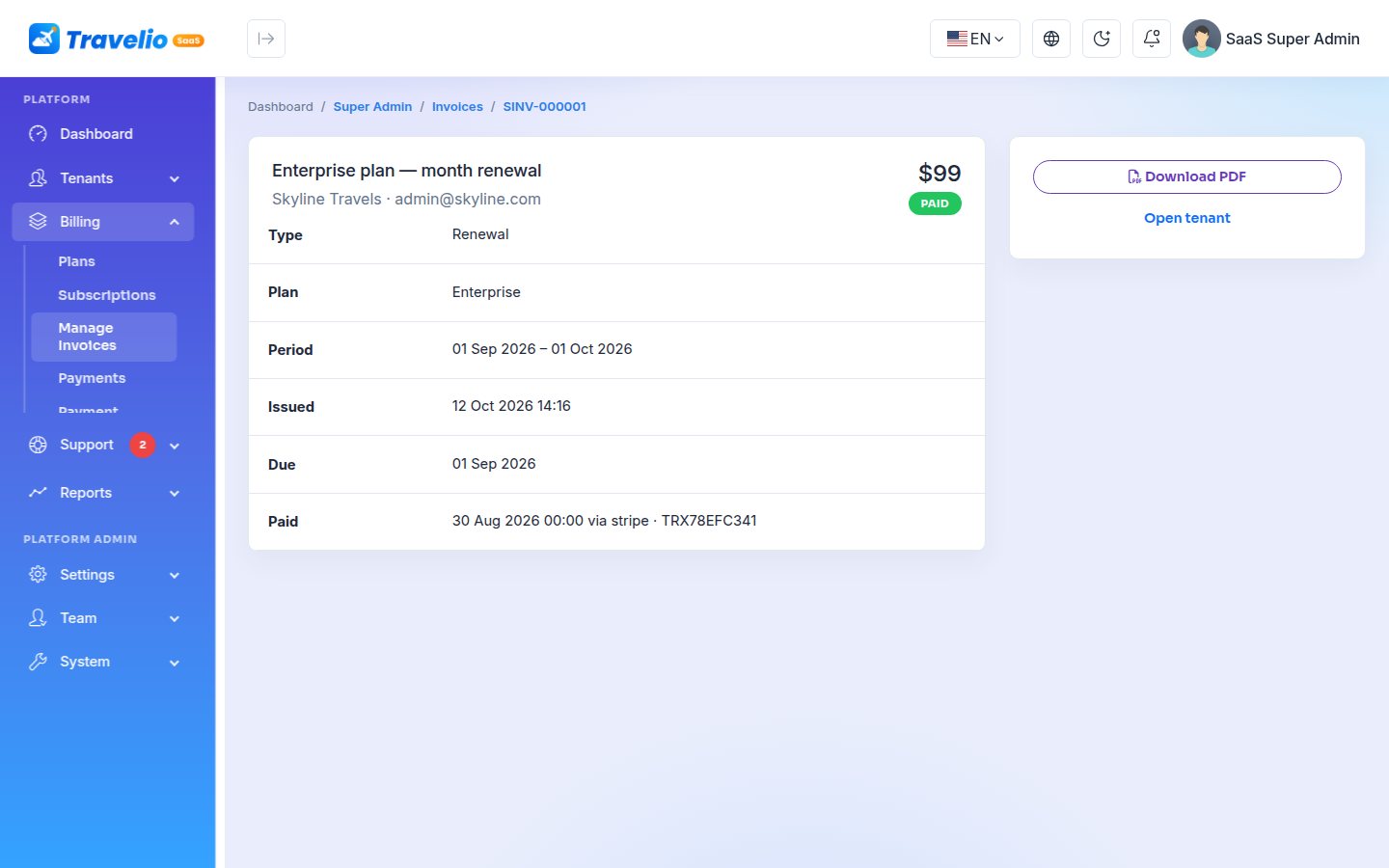
shows totals Billed, Collected, Outstanding and Overdue, with filters. Open an invoice to:
- copy its pay link, or press Email the pay link;
- Mark as paid, with a note such as a bank-transfer reference. The subscription is updated at once;
- Cancel invoice;
- download the PDF. Agencies can download their invoice PDFs too.
The pay page
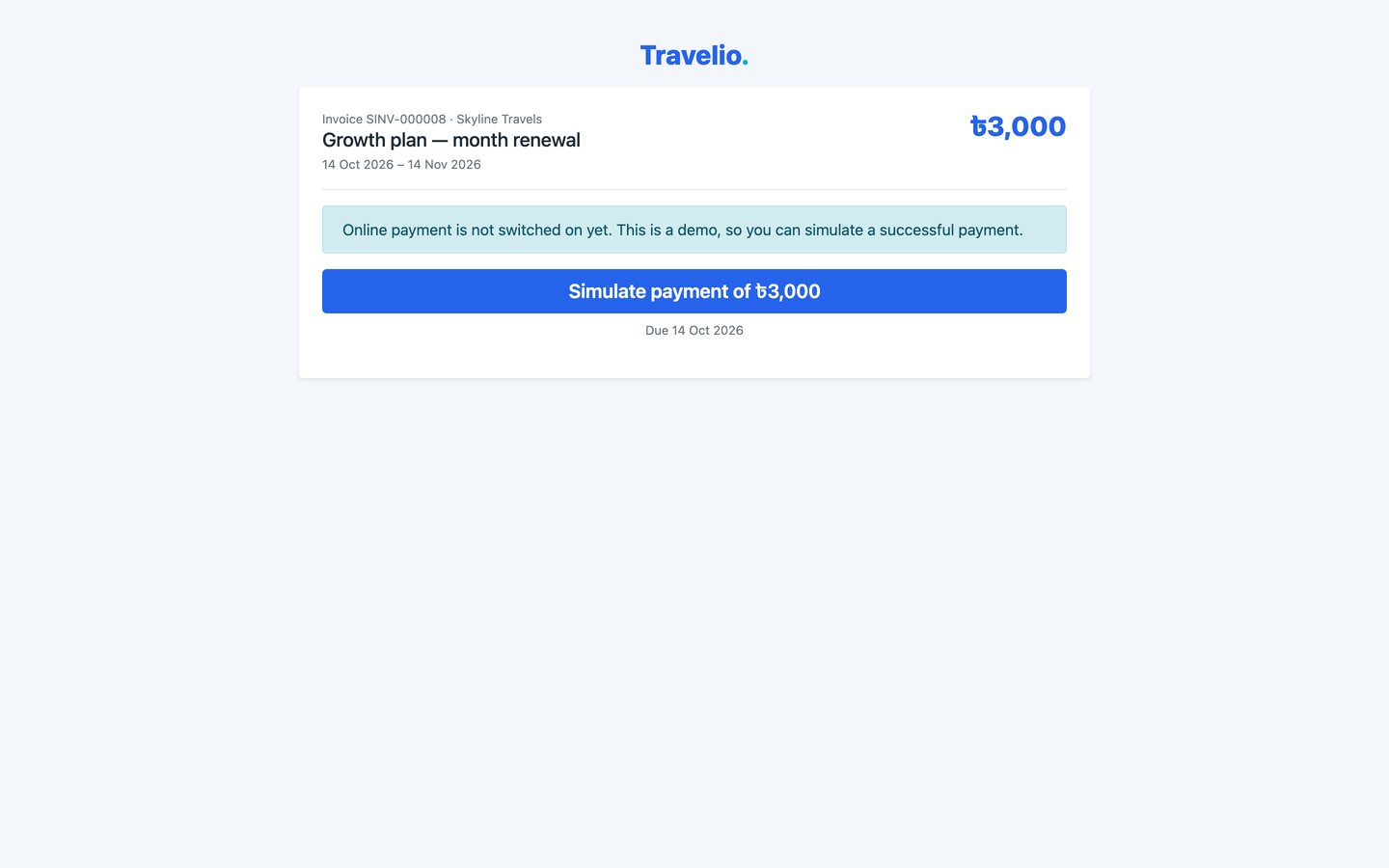
Every invoice has a pay link:
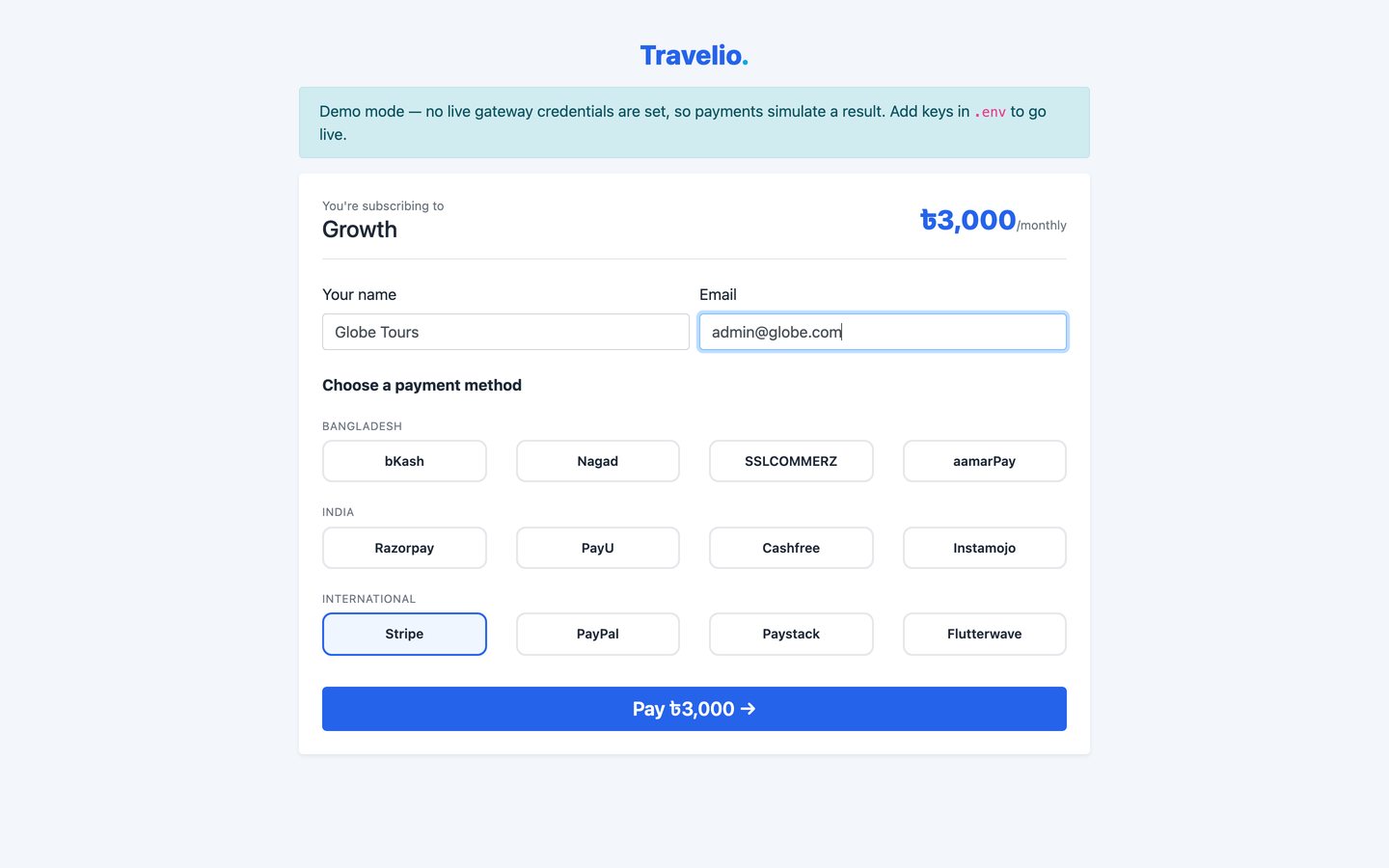
https://yourplatform.com/saas/pay/SINV-000123?t=TOKENThe token allows paying that invoice only; a wrong token shows 404. The page lists the gateways you have set up, grouped as Bangladesh, India and International. After the gateway confirms the payment, the invoice is marked paid automatically (repeated callbacks are handled safely). If no gateway is set up, the page says so; only on a demo site (APP_DEMO=true) it offers Simulate payment.
The plan checkout page yourplatform.com/saas/checkout/<plan id> is also still available.
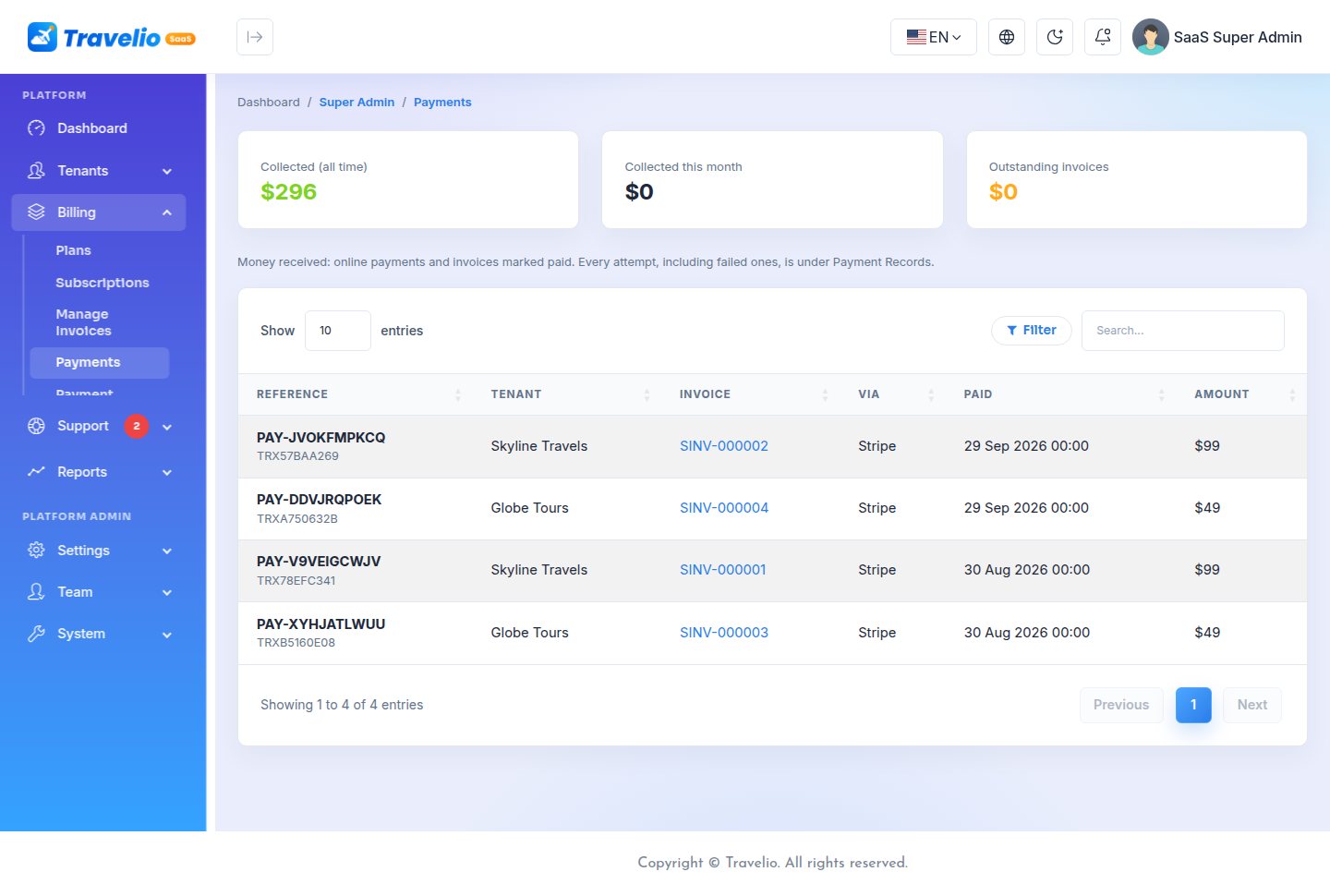
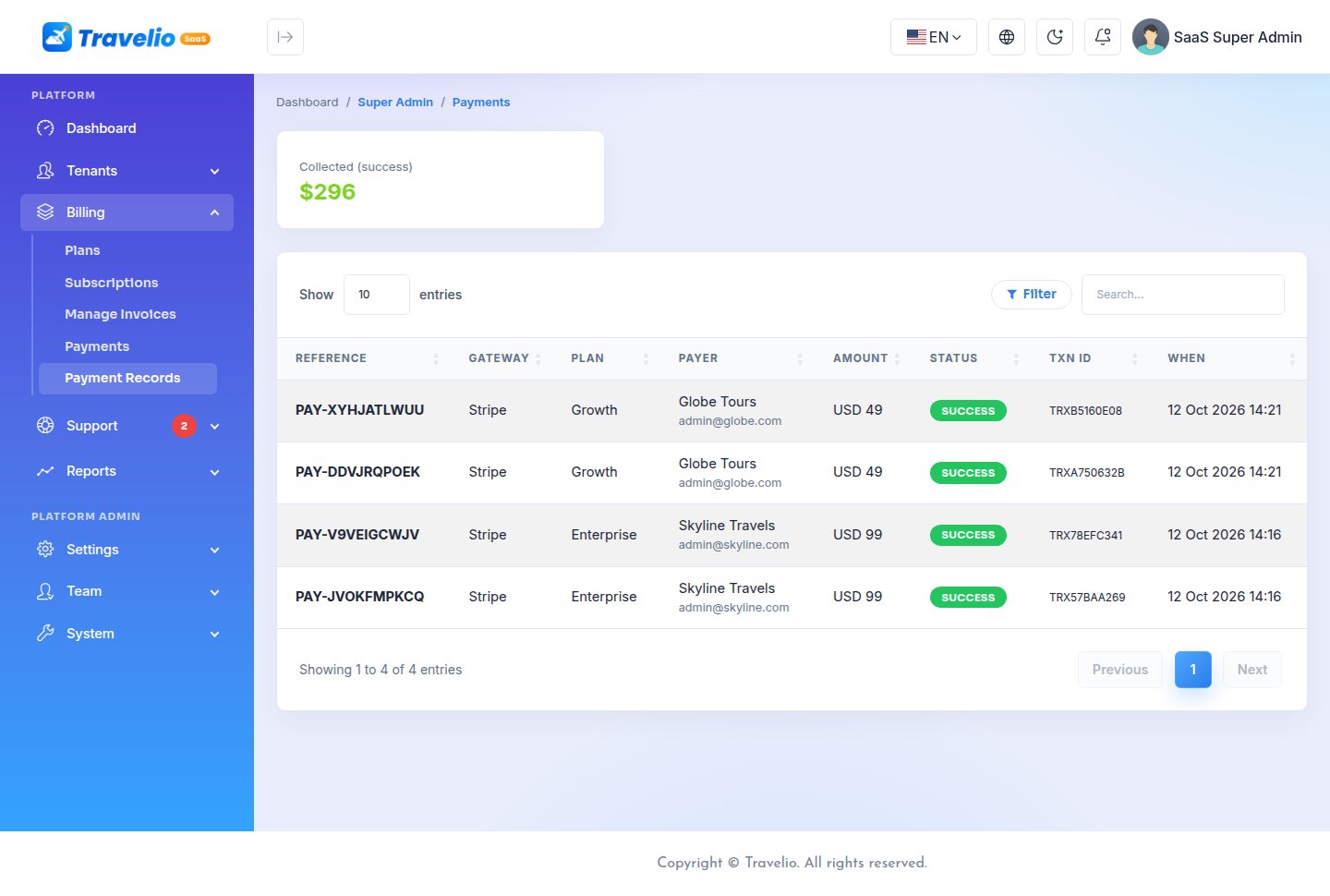
lists the money received (online payments and invoices marked paid), with totals for all time, this month and outstanding. lists every payment attempt, including failed ones, with its reference, gateway, payer, amount, status and transaction ID.
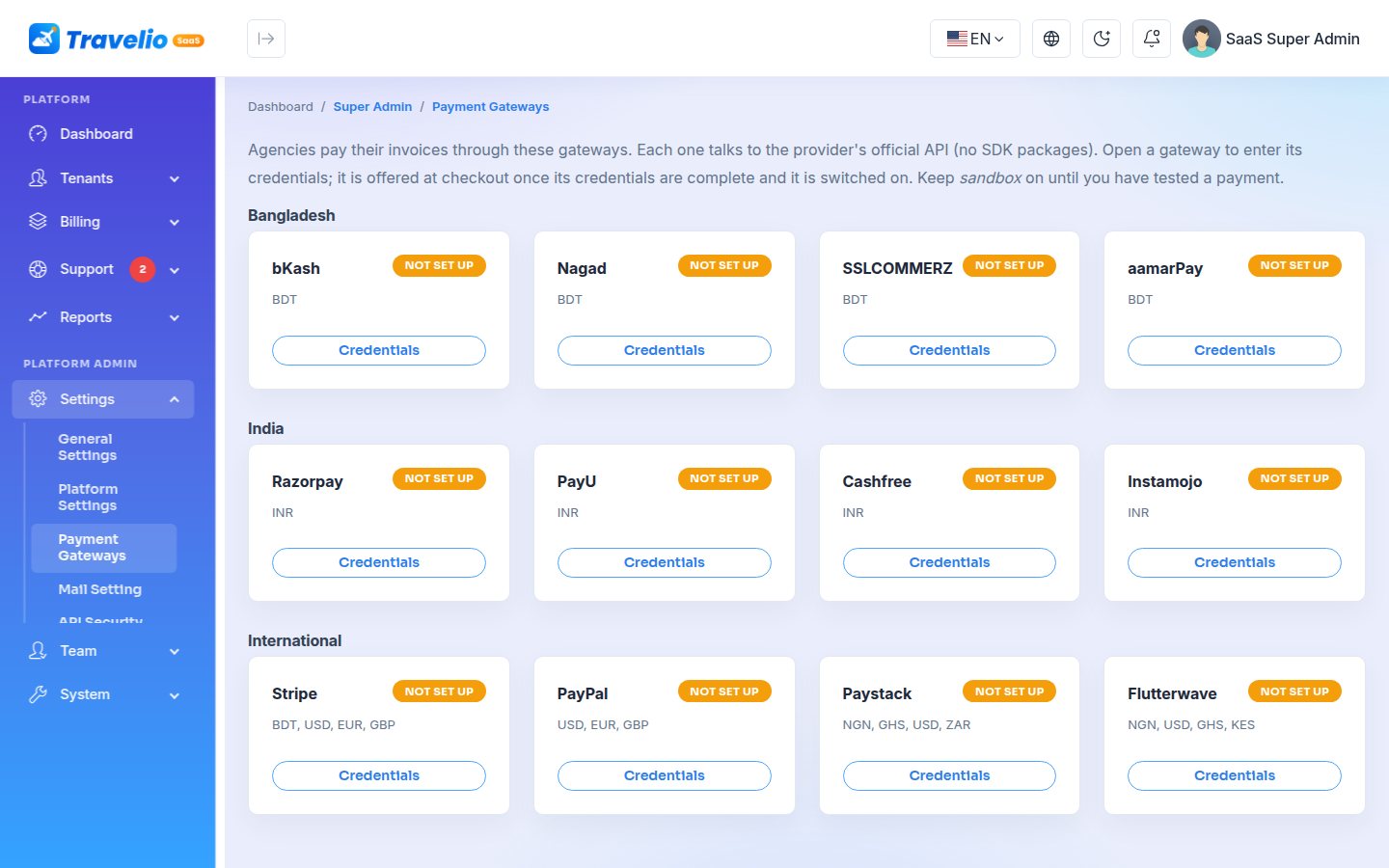
The 12 gateways
| Region | Gateways |
|---|---|
| Bangladesh (BDT) | bKash, Nagad, SSLCOMMERZ, aamarPay |
| India (INR) | Razorpay, PayU, Cashfree, Instamojo |
| International | Stripe, PayPal (USD/EUR/GBP), Paystack (NGN/GHS/USD/ZAR), Flutterwave (NGN/USD/GHS/KES) |
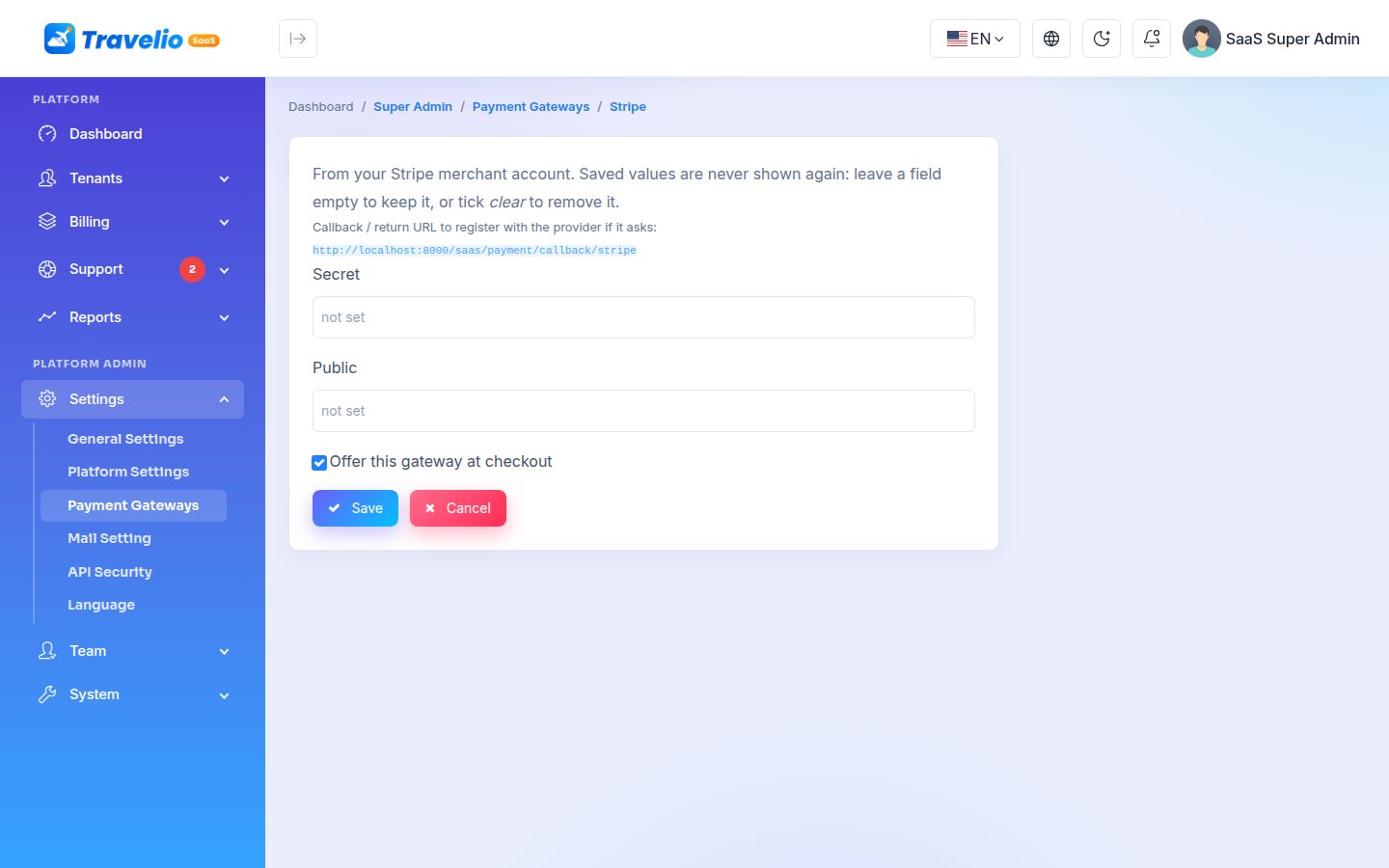
shows each gateway with a badge: Not set up, Sandbox, Live or Off. Click Credentials to open the gateway's form:
- the credential fields listed below;
- Sandbox: tick it while testing, untick it to take real payments;
- Offer this gateway at checkout: untick it to hide the gateway without deleting its credentials;
- the callback URL to enter in the gateway's dashboard:
yourplatform.com/saas/payment/callback/<gateway>.
Saved secrets are never shown again. Leave a field blank to keep the saved value; type clear to remove it.
| Gateway | Fields |
|---|---|
| bkash | sandbox, app_key, app_secret, username, password |
| nagad | sandbox, merchant_id, merchant_number, public_key, private_key |
| sslcommerz | sandbox, store_id, store_passwd |
| aamarpay | sandbox, store_id, signature_key |
| razorpay | key_id, key_secret |
| payu | sandbox, merchant_key, merchant_salt |
| cashfree | sandbox, app_id, secret_key |
| instamojo | sandbox, api_key, auth_token |
| stripe | secret, public |
| paypal | sandbox, client_id, client_secret |
| paystack | secret_key, public_key |
| flutterwave | secret_key, public_key |
These gateways bill agencies for their subscription. Booking payments inside an agency's workspace are configured by the agency under Settings → Payment Gateways, as in the ERP.
Agency Support Tickets
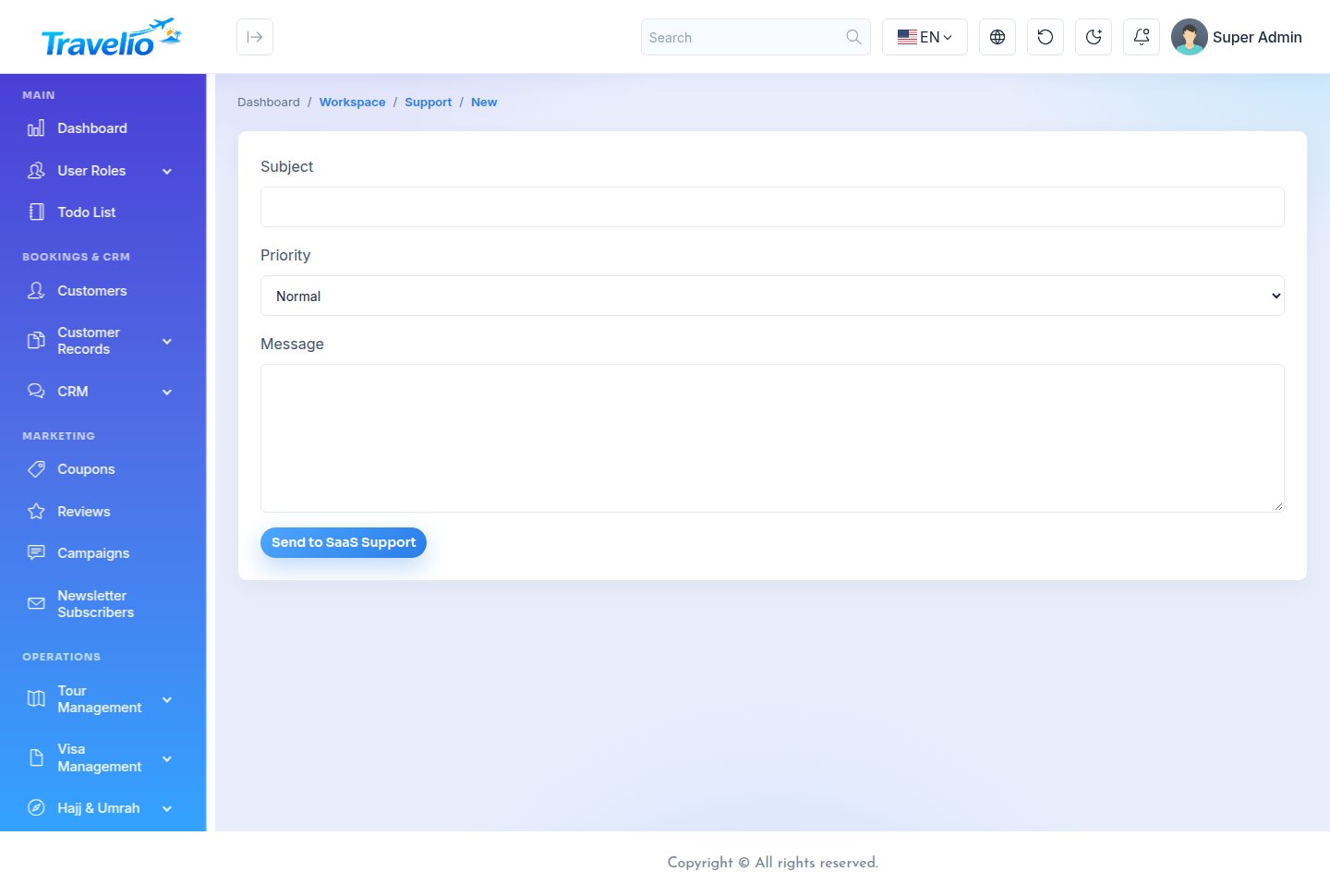
Inside every workspace, lets the agency send you a ticket with a subject, a priority (low, normal, high, urgent) and a message. The agency sees the status of every ticket it sent and can reply. A Platform Support link is also in the agency's Subscription section, for the owner and for staff with support access.
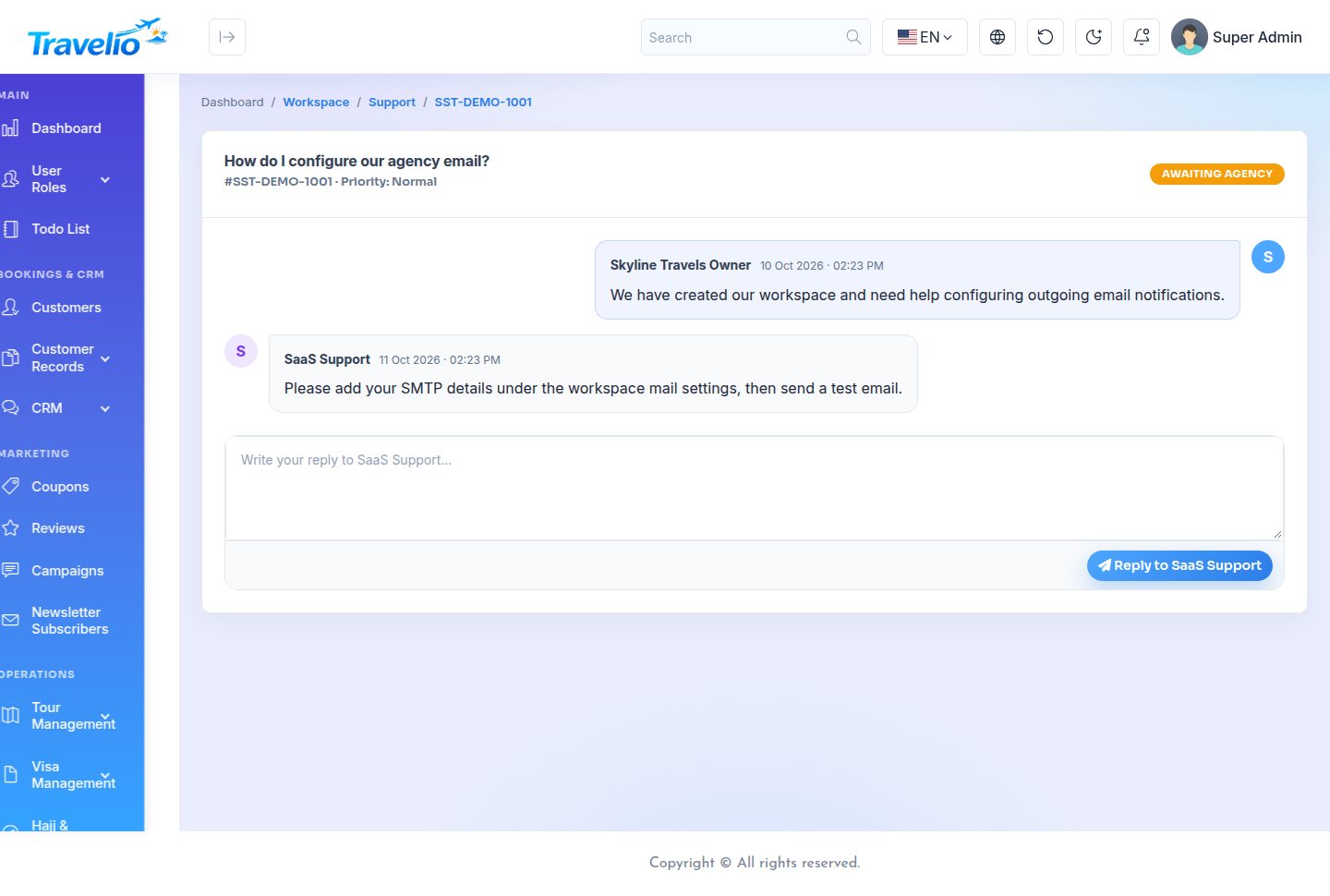
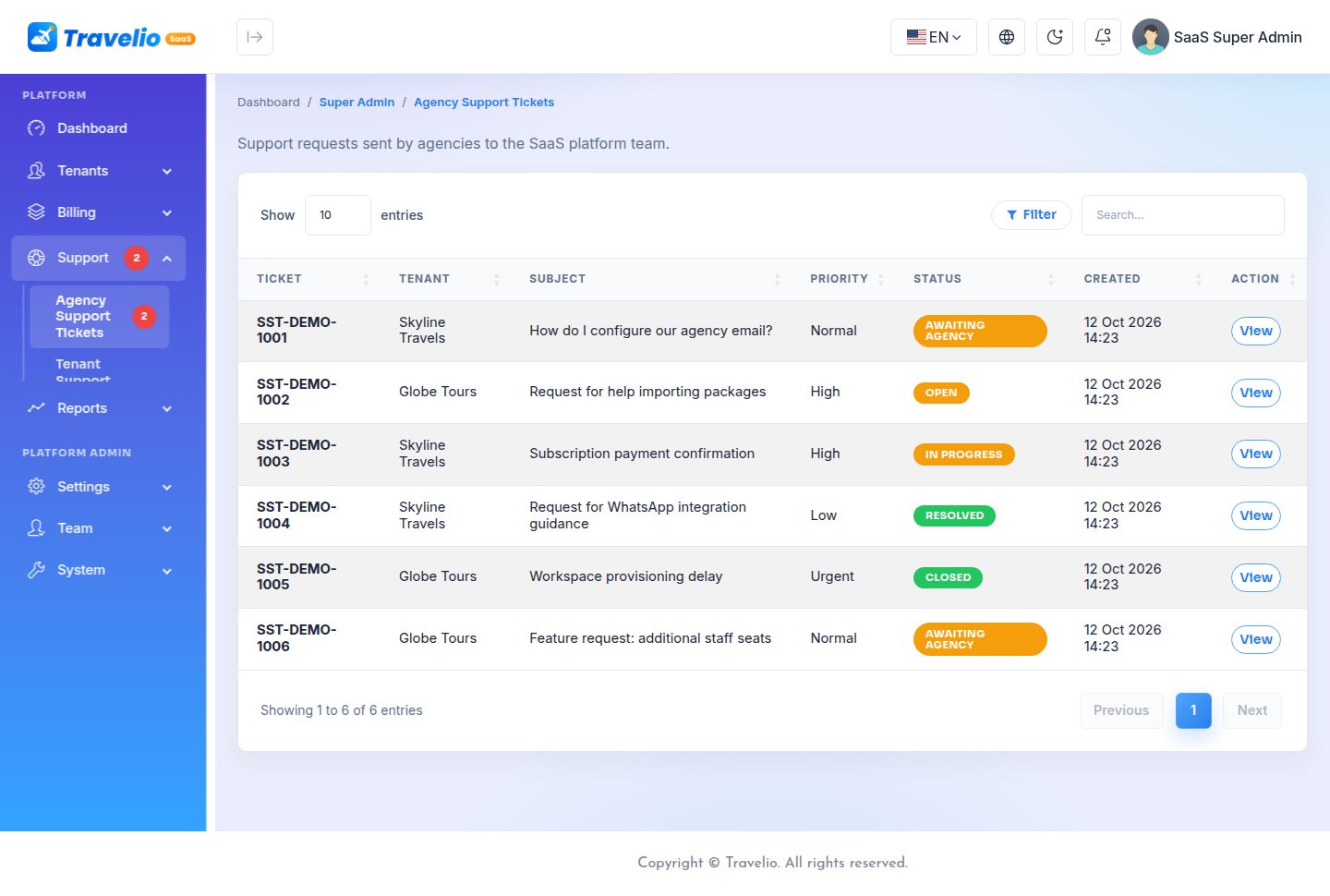
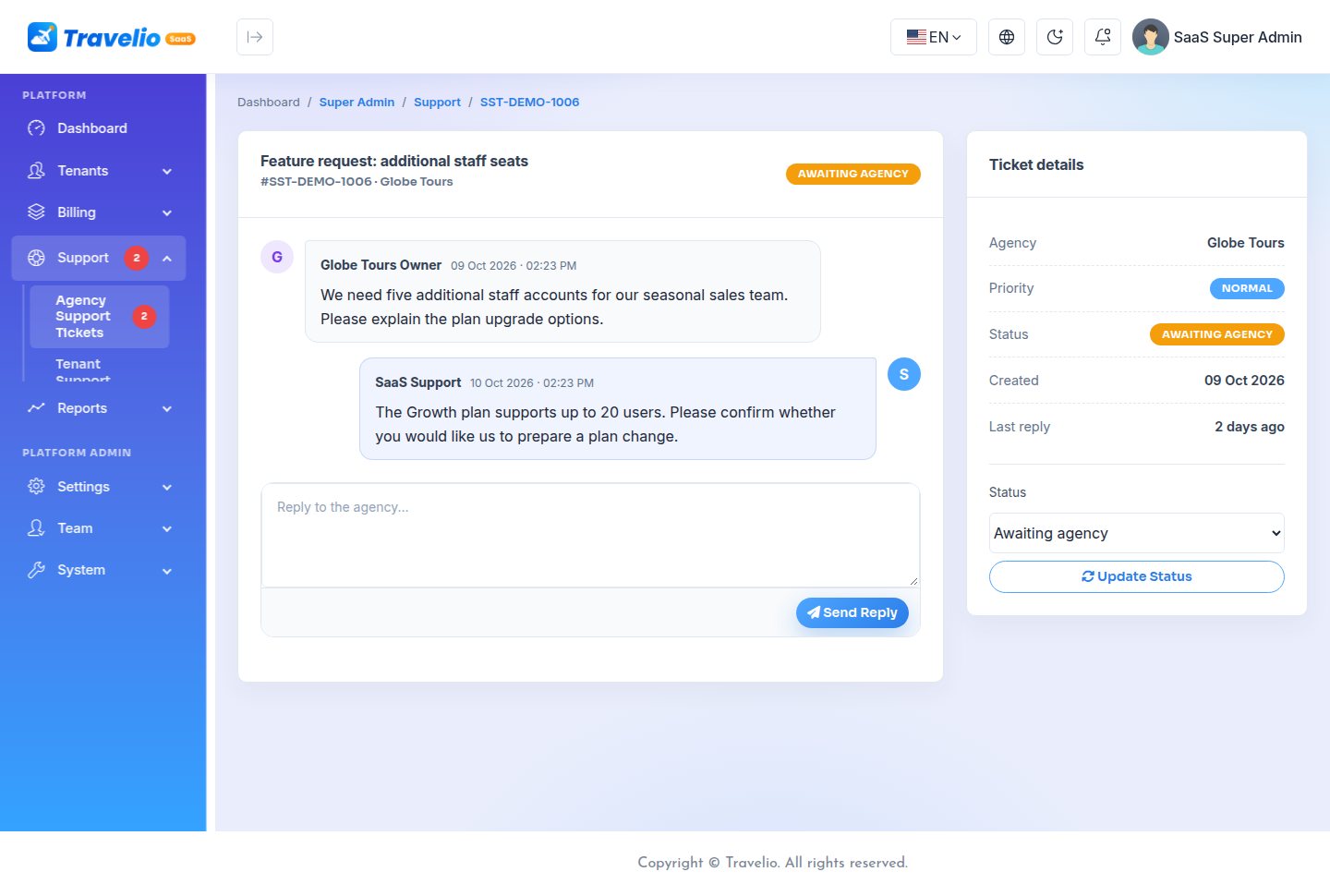
On the platform, lists every ticket from every agency. Open one to read the thread, reply, and set its status: open, awaiting agency, in progress, resolved or closed. Replying to an open ticket moves it to awaiting agency; a reply from the agency moves it back to open.
is a contact list of active agencies (email, plan, status, customer since).
Emails both ways: a new ticket and every agency reply are emailed to the platform's support email; your replies are emailed to the agency. Mail must be set up; see Emails.
System Settings & Audit Logs
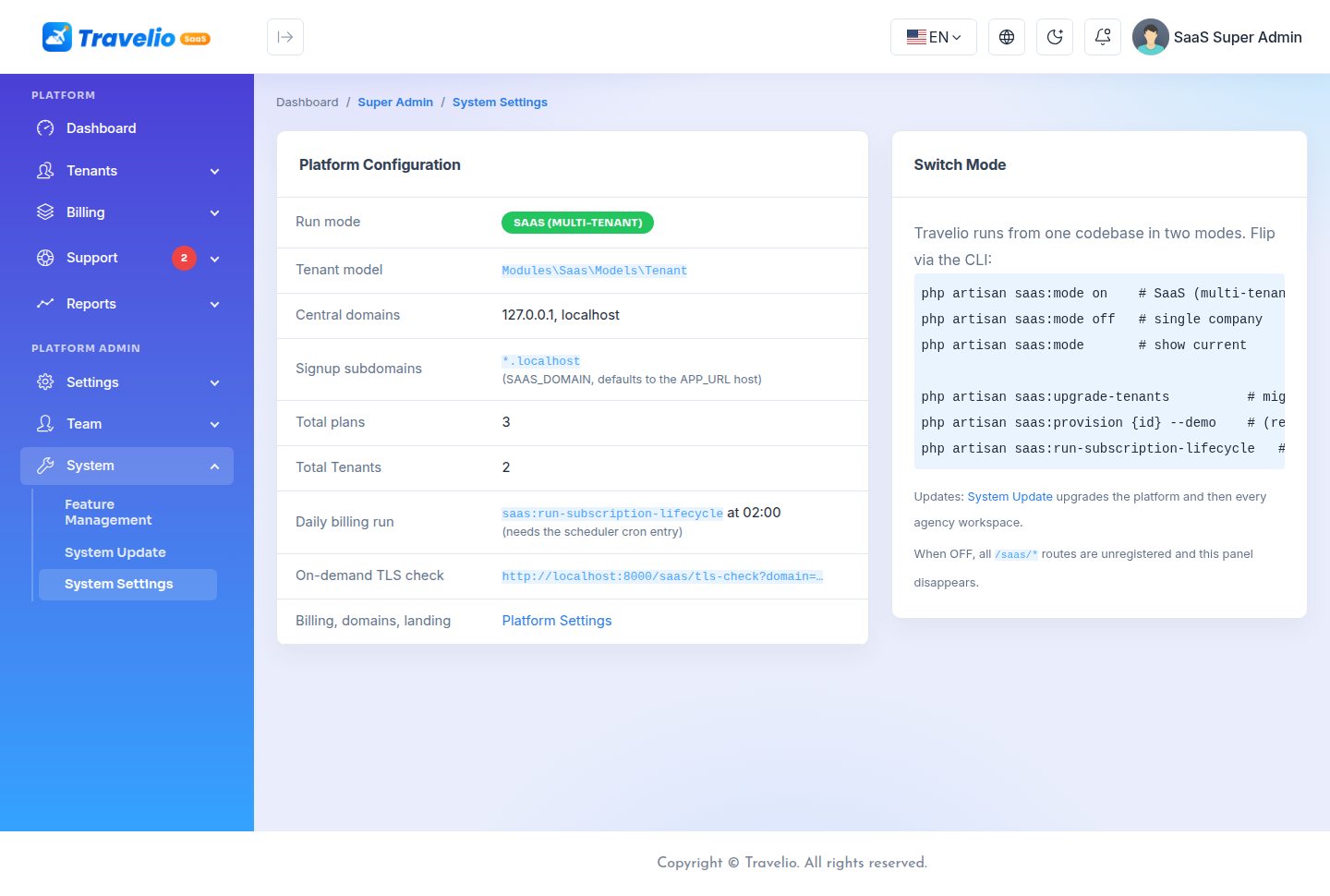
shows how the platform is configured: the central domains, the signup subdomain pattern, and the number of plans and tenants. The domain values come from .env (see Installation). Brand, billing, custom-domain and landing page settings are edited in Platform Settings.
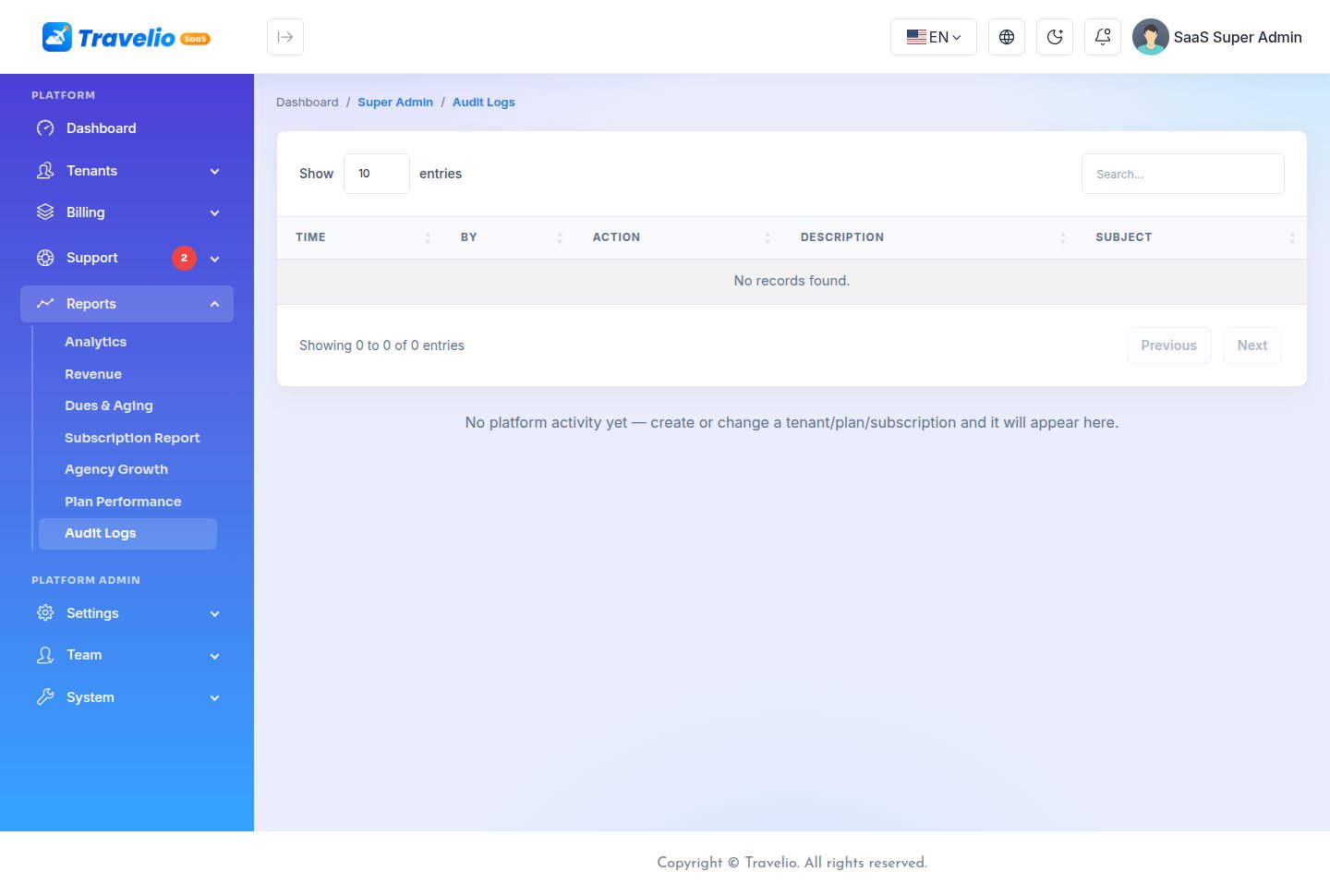
lists the last 100 changes to tenants, plans and subscriptions: when, by whom and what changed.
General Settings (Brand & Logo)
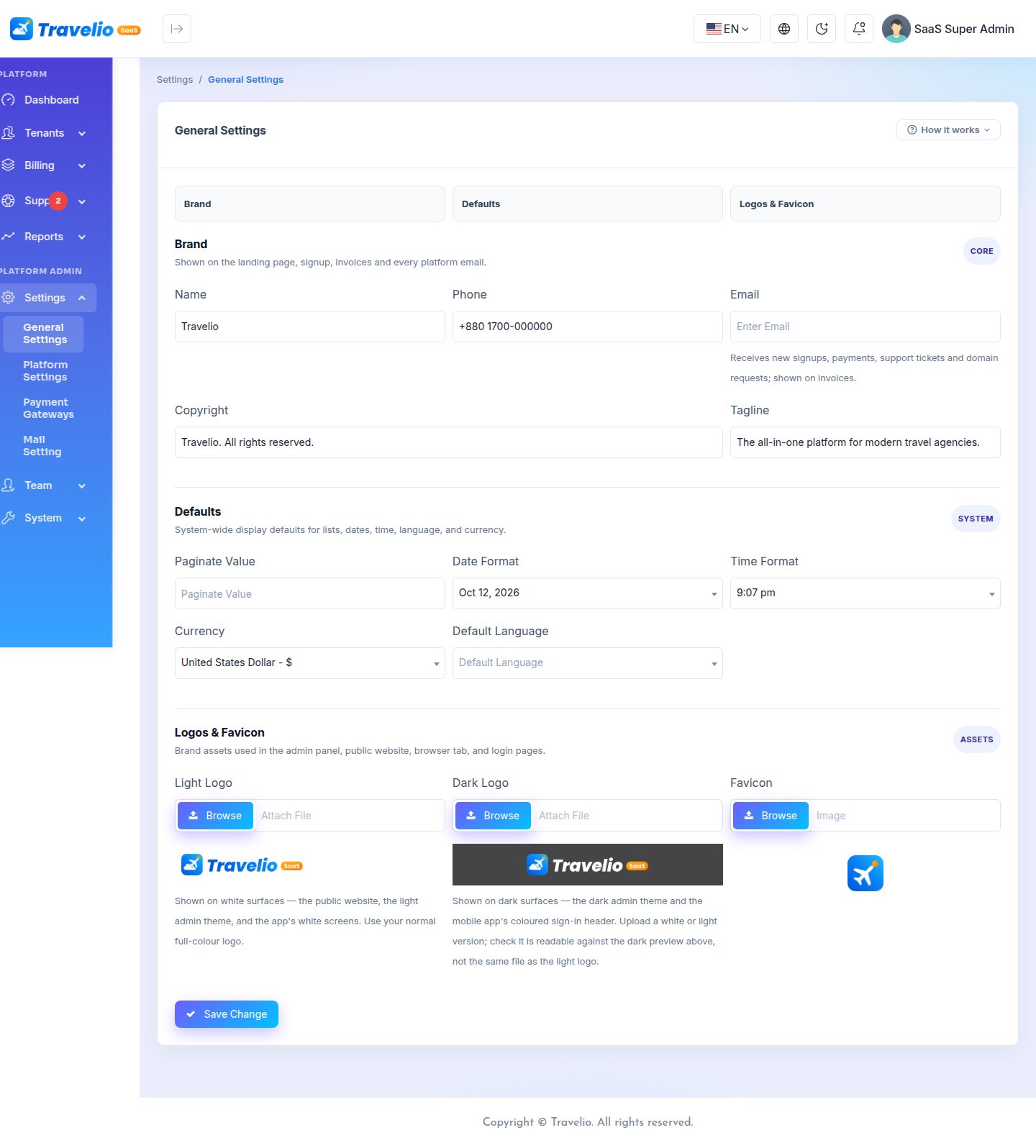
is the one place for the platform's identity. On the platform it shows only what applies to it:
| Section | Settings | Used for |
|---|---|---|
| Brand | Name, phone, email, copyright, tagline | Name: landing page, signup, invoices, emails, status pages. Email: receives signup, payment, ticket and domain emails and is printed on invoices; when empty these emails go to the platform owners. Tagline: landing page. |
| Defaults | Pagination, date and time format, currency, default language | Currency: the platform currency, the default for new plans and the currency reports add up in. |
| Logos & Favicon | Light logo, dark logo, favicon | Platform panel, landing page, signup, payment and status pages. Until you upload your own, the SaaS edition artwork is used. |
The agency-only sections (tax rates, marketplace, booking policy, public contact, social links and app artwork) are not shown on the platform; every agency sets them in its own workspace.
Platform Settings
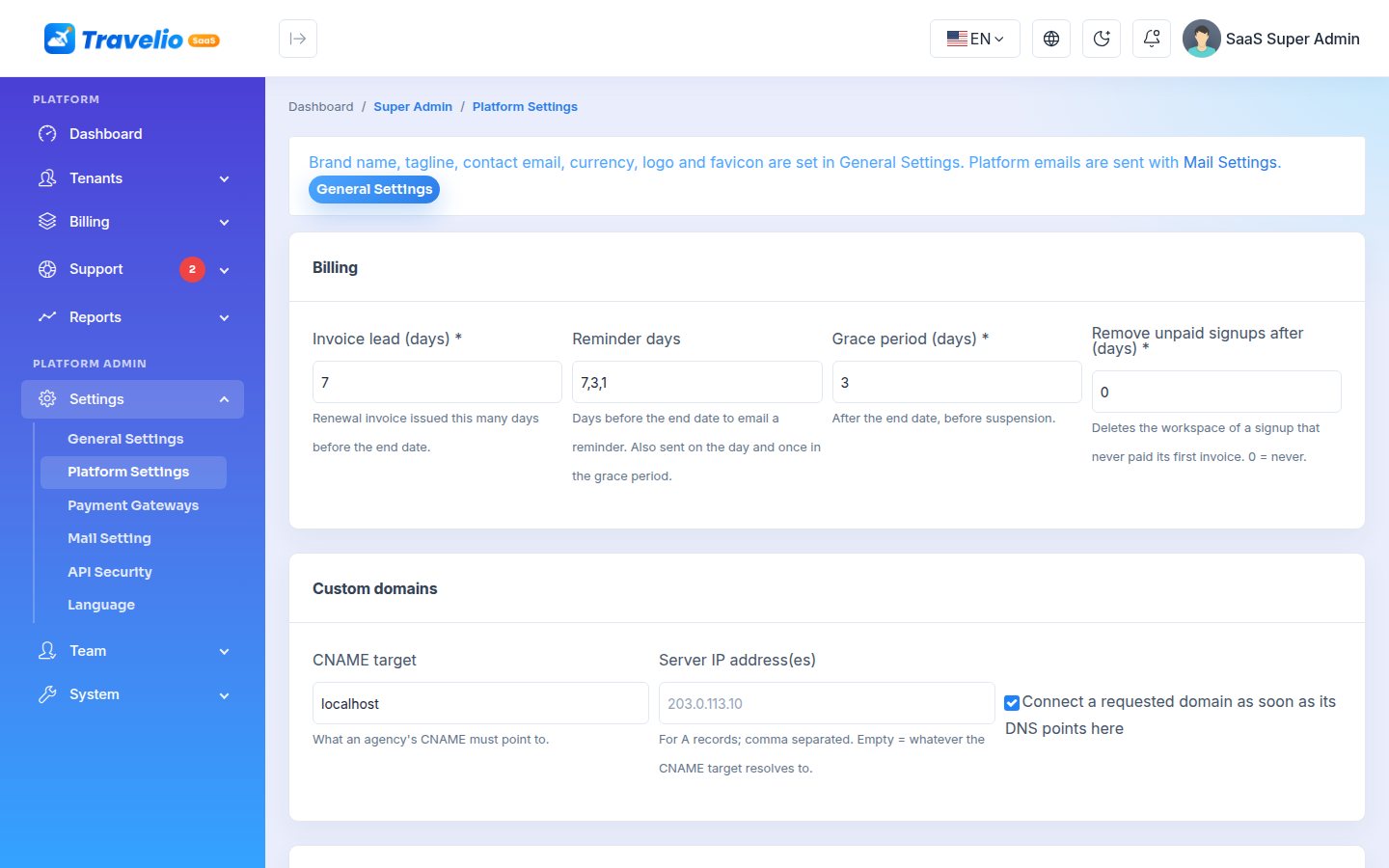
holds the settings you change most. No .env edit is needed.
| Group | Settings |
|---|---|
| Billing | Invoice lead days (default 7), reminder days (default 7, 3, 1), grace period (default 3 days), remove unpaid signups after N days (default 0 = never). |
| Custom domains | CNAME target and server IP(s) shown to agencies in the DNS instructions, and auto-approve verified domains (on by default). |
| Landing page | Browser title and description; hero pill, headline (<br> and <em> allowed), text, buttons and the line under the buttons; 3 stats; 6 features; pricing heading; 3 testimonials; 8 FAQs; closing call to action. |
Empty fields keep the shipped text. The brand, contact email, currency and logo are in General Settings; a box at the top of this page links there.
On a demo site (APP_DEMO=true) these settings are read-only.
Team: Users, Roles & Permissions
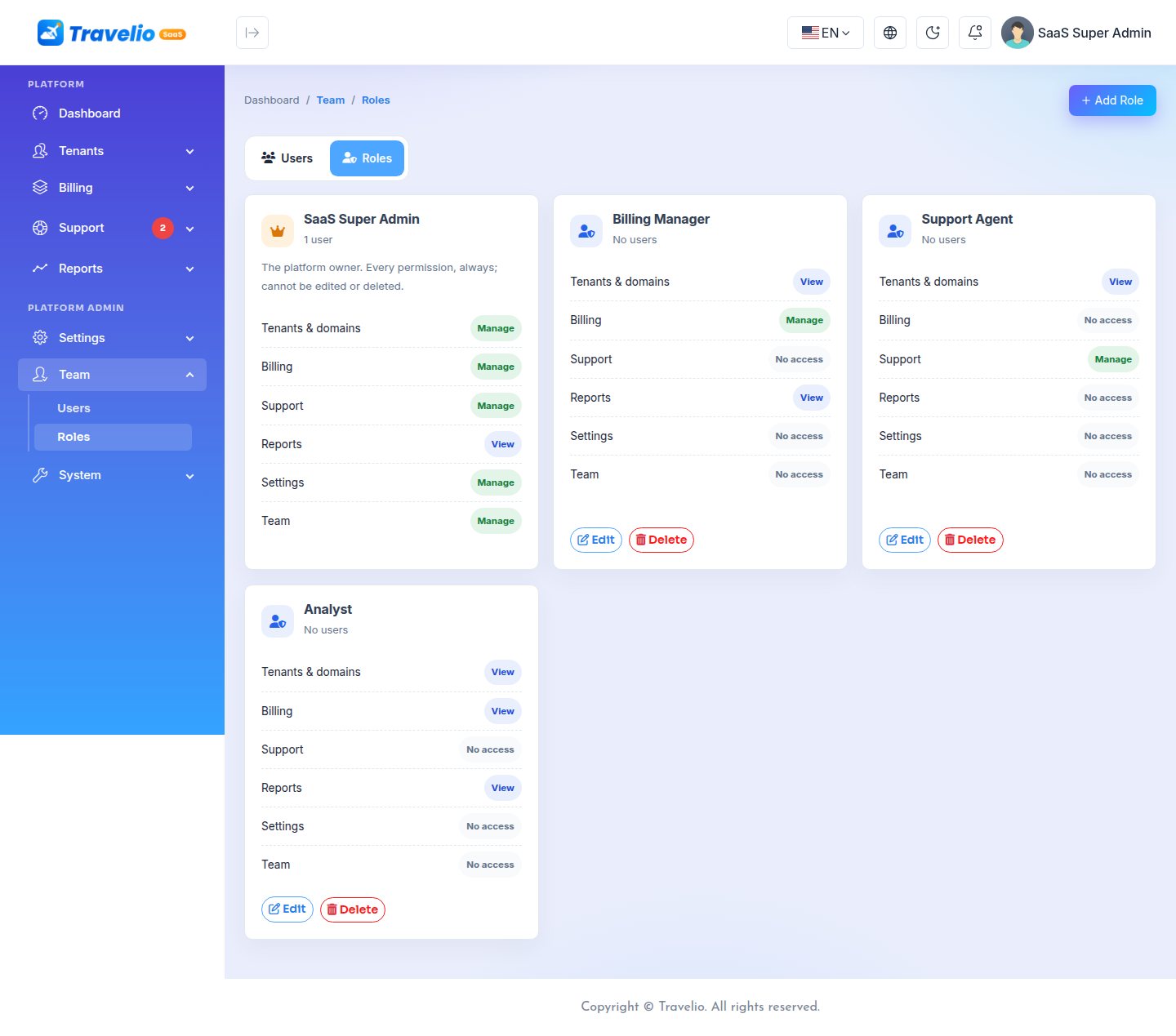
and let you give your staff their own platform logins, each with only the access they need. (Agencies manage their own staff inside their workspace under User Roles; that is separate.)
Permissions
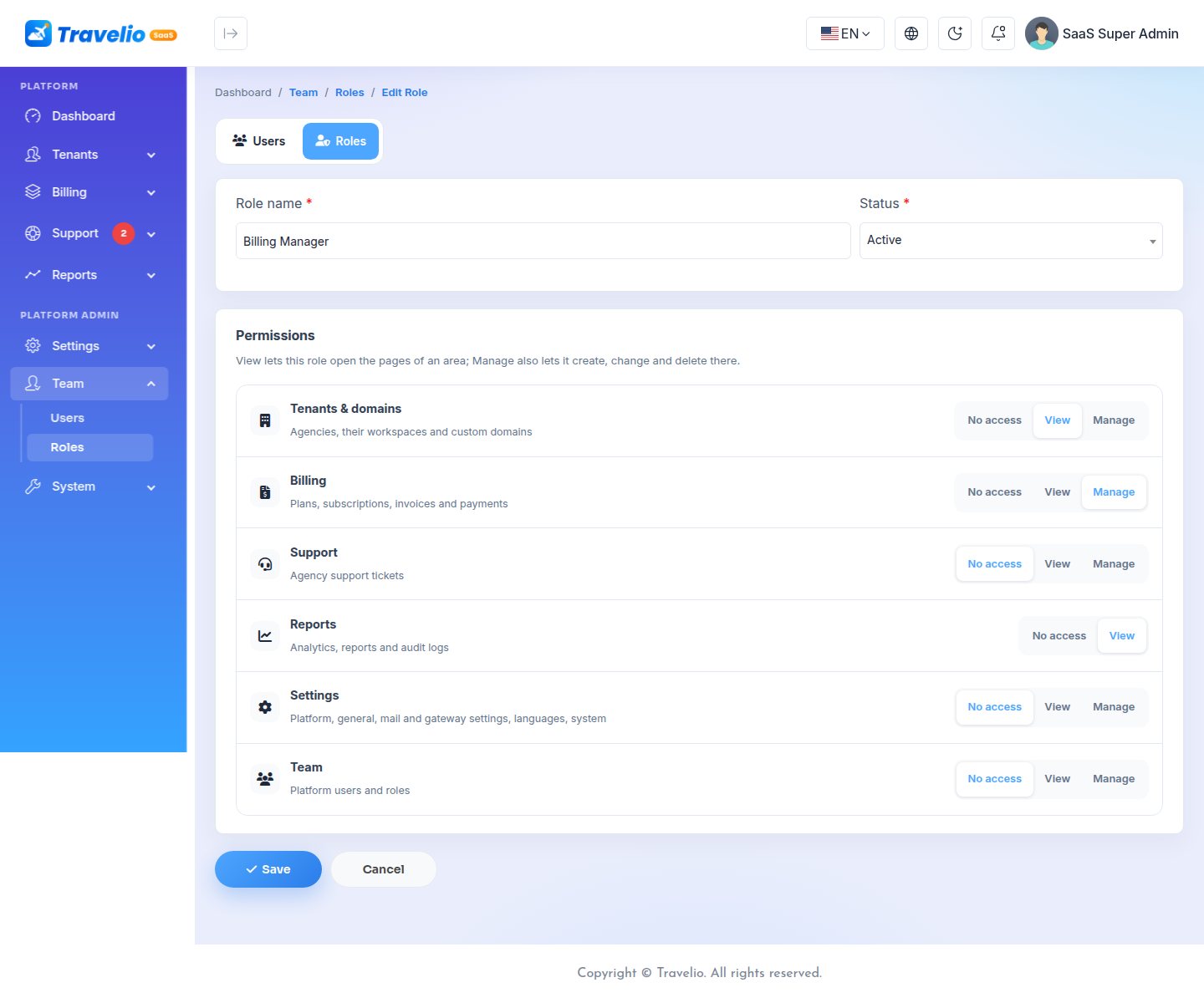
A role sets one of No access, View or Manage for each area. View opens the pages; Manage also allows creating, changing and deleting there.
| Area | Opens |
|---|---|
| Tenants & domains | All Tenants, Domains |
| Billing | Plans, Subscriptions, Invoices, Payments, Payment Records |
| Support | Agency Support Tickets, Tenant Support |
| Reports (View only) | Analytics, the five reports, Audit Logs |
| Settings | General, Platform, Mail, Payment Gateways, API Security, Language, System |
| Team | Users and Roles |
Everyone on the team can open the Dashboard. Menus outside a person's role are hidden, and their pages answer 403 even when opened by address. Changing a role changes the access of everyone who has it straight away.
Ready-made roles
| Role | Access |
|---|---|
| SaaS Super Admin | Everything, always. It cannot be edited or deleted. |
| Billing Manager | Billing: Manage. Tenants, Reports: View. |
| Support Agent | Support: Manage. Tenants: View. |
| Analyst | Tenants, Billing, Reports: View. |
Adding a team member
- : name, email, phone, gender, a password (at least 8 characters), the role and the status.
- Send them the address
yourplatform.com/admin/loginand their password. They sign in with their email.
Safety rules
- Nobody can delete their own account or change their own role or status.
- The platform always keeps at least one active SaaS Super Admin.
- A role that still has users cannot be deleted; move them to another role first.
- On a demo site (
APP_DEMO=true) the team is read-only.
Updating an existing platform gives the SaaS Super Admin role (and its users) every new permission and adds the three ready-made roles; nothing else changes for current users.
Landing Page
The platform domain opens a ready-made landing page: hero, live agency count, feature cards, “Live in three steps”, live pricing from your active plans, payment-gateway logos, testimonials, FAQ and a sign-up call to action. Sign in opens the platform login.
Pricing:
- Each plan is shown in its own currency.
- The Most popular badge goes to the plan marked Highlight as Most popular; if none is marked, to the middle plan.
- Plans with a free trial show a trial badge and a Start free trial button.
- Every pricing button opens signup with that plan already chosen (
/tenant-signup?plan=ID).
Editing the texts: all texts (title, hero, stats, features, pricing heading, testimonials, FAQs, closing call to action) are edited in Platform Settings. Empty fields keep the shipped text.
Review the shipped copy before you go live; the testimonials are placeholders. Images and the logo on the landing page cannot be changed from the panel, only the texts.
Self-Service Signup
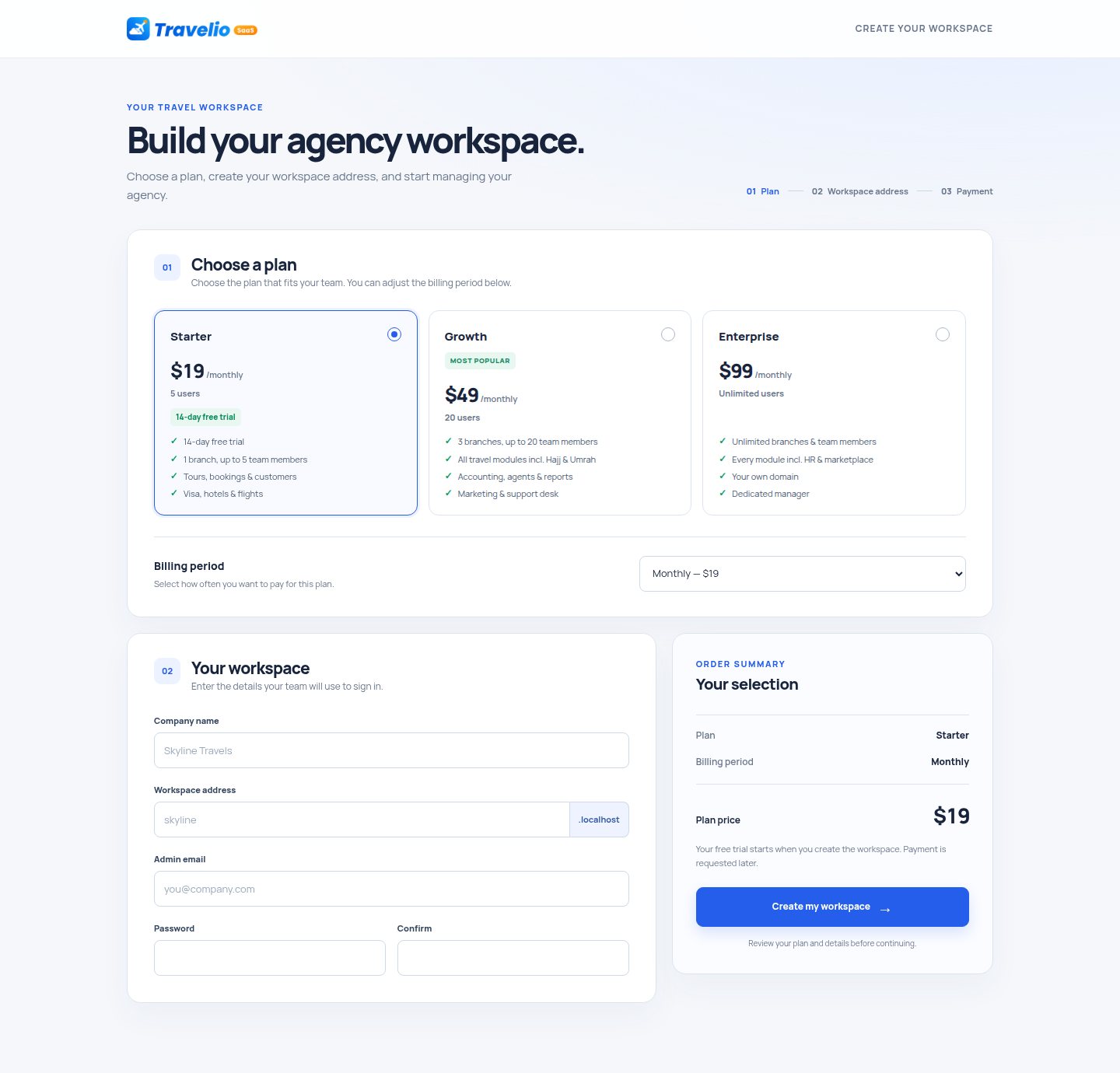
Agencies sign up at yourplatform.com/tenant-signup in two steps. The buttons on the landing page pass the chosen plan (?plan=ID), so it is already selected.
- Choose a plan from your active plans.
- Your workspace: company name, workspace address (
[name].yourplatform.com), admin email, password and confirmation.
The workspace address must be 3 to 40 characters and a valid DNS label. These names are reserved: www, app, api, admin, mail, smtp, ftp, saas, platform, support, help, status, static, cdn, assets. Signup is limited to 5 attempts per hour per visitor.
When the form is sent, Travelio:
- creates the agency, its subdomain and a subscription to the chosen plan;
- creates the agency's database and installs the full ERP into it;
- sets the company name and email, and creates the owner account (Super Admin) with the email and password from the form;
- emails a welcome message to the owner and a “New signup” message to the platform.
If any step fails, everything is rolled back. What happens next depends on the plan:
| Plan | Result |
|---|---|
| Has a free trial | The workspace is active. The subscription is trial until the trial ends. No payment now. |
| Free (price 0) | The workspace is active and never expires. |
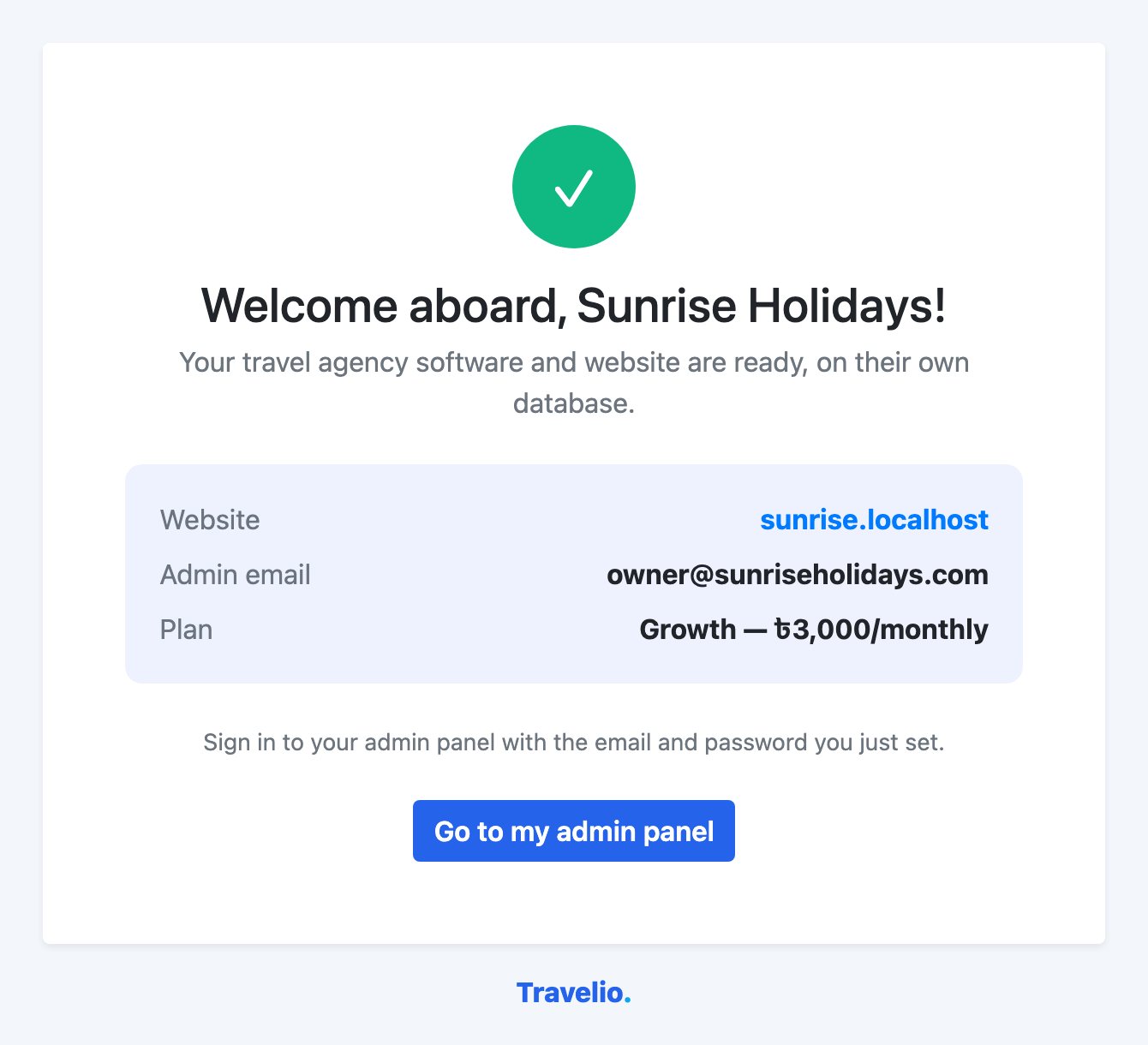
| Paid, no trial | The workspace is built, but the agency stays pending and a signup invoice is created. The success page shows Pay and switch on; visitors of the agency's address see Workspace not ready yet with a pay button. Paying activates the agency for one billing period. |
On success the agency sees its website address, admin email and plan, and a Go to my admin panel button (or the pay button for a paid plan).
What Each Agency Gets
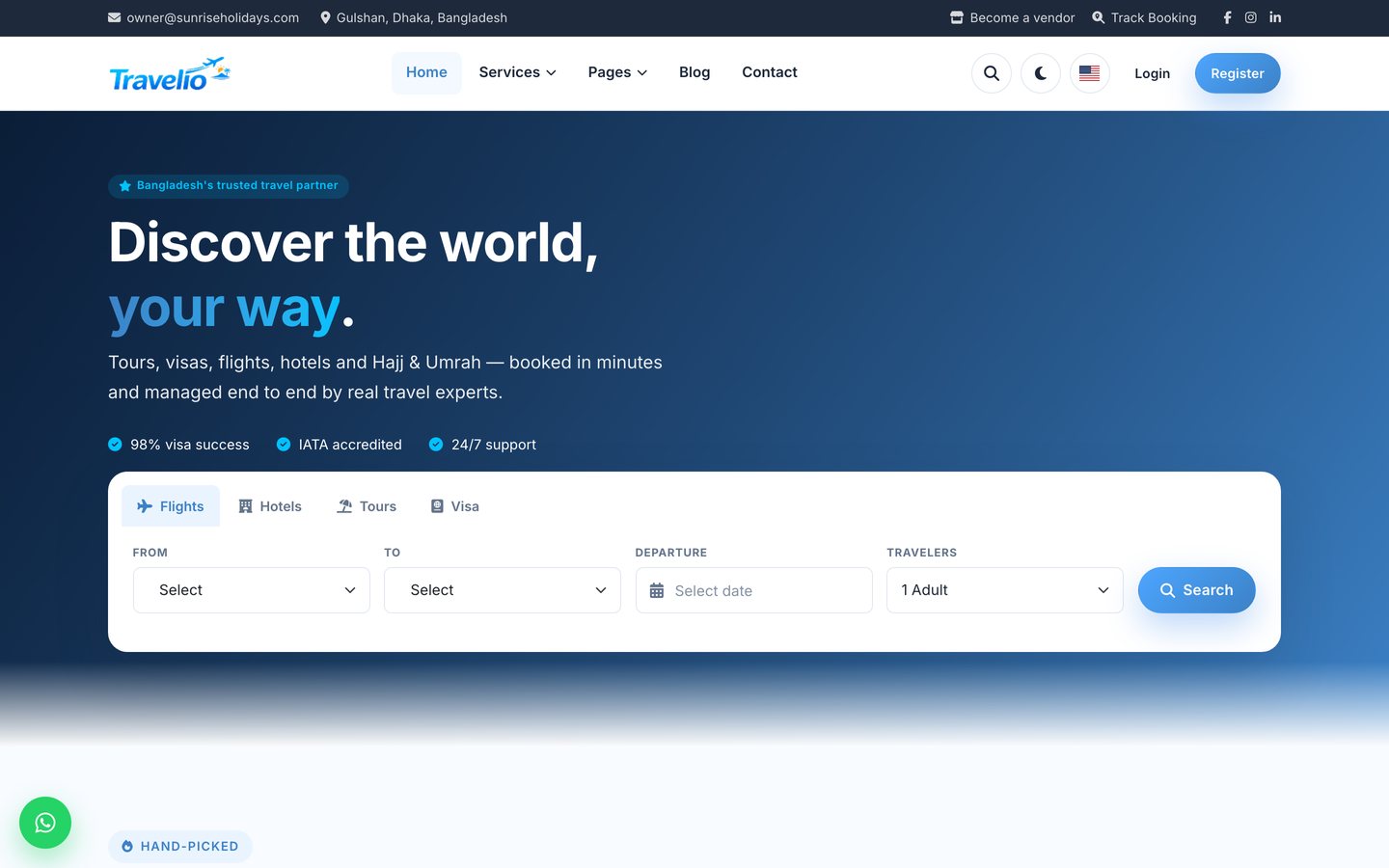
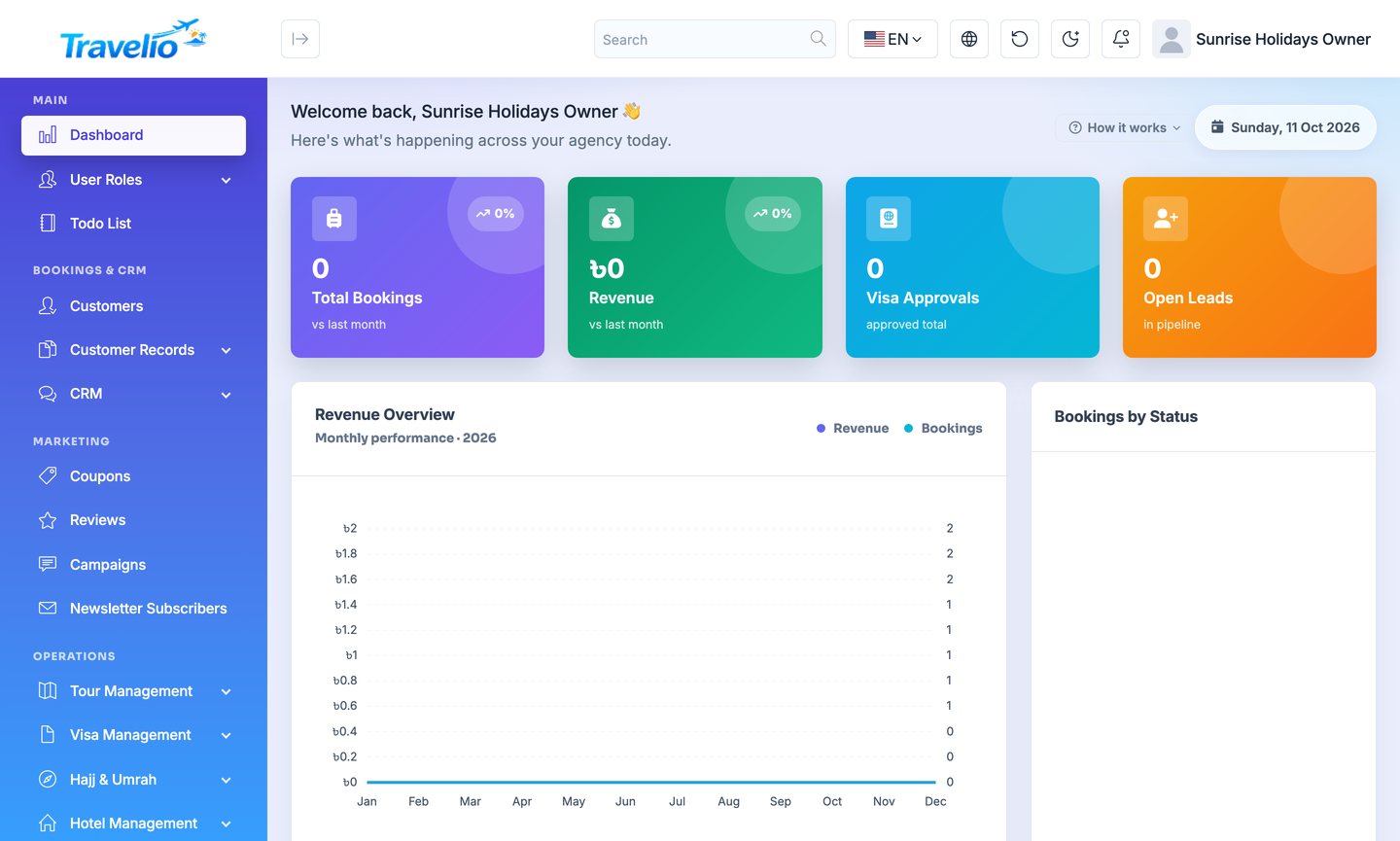
Every agency workspace is a Travelio ERP, as described in the Web (Admin) guide, with the modules of its plan:
- the admin panel with the core (dashboard, customers, tour packages, bookings, users, roles, settings) plus the modules in its plan (see Plans & Features);
- its own public website on its domain, with its own content, logo and languages;
- the customer, agent, staff and vendor portals, as far as the plan includes them;
- its own Settings → Modules switches (and agent-registration switch), to hide services it does not sell, within its plan;
- the REST API for the mobile app, answering on the agency's domain;
- a Subscription & Billing page to pay, change plan and add custom domains.
The owner signs in as Super Admin and adds staff, roles, branches and settings as in a single installation, within the plan's limits.
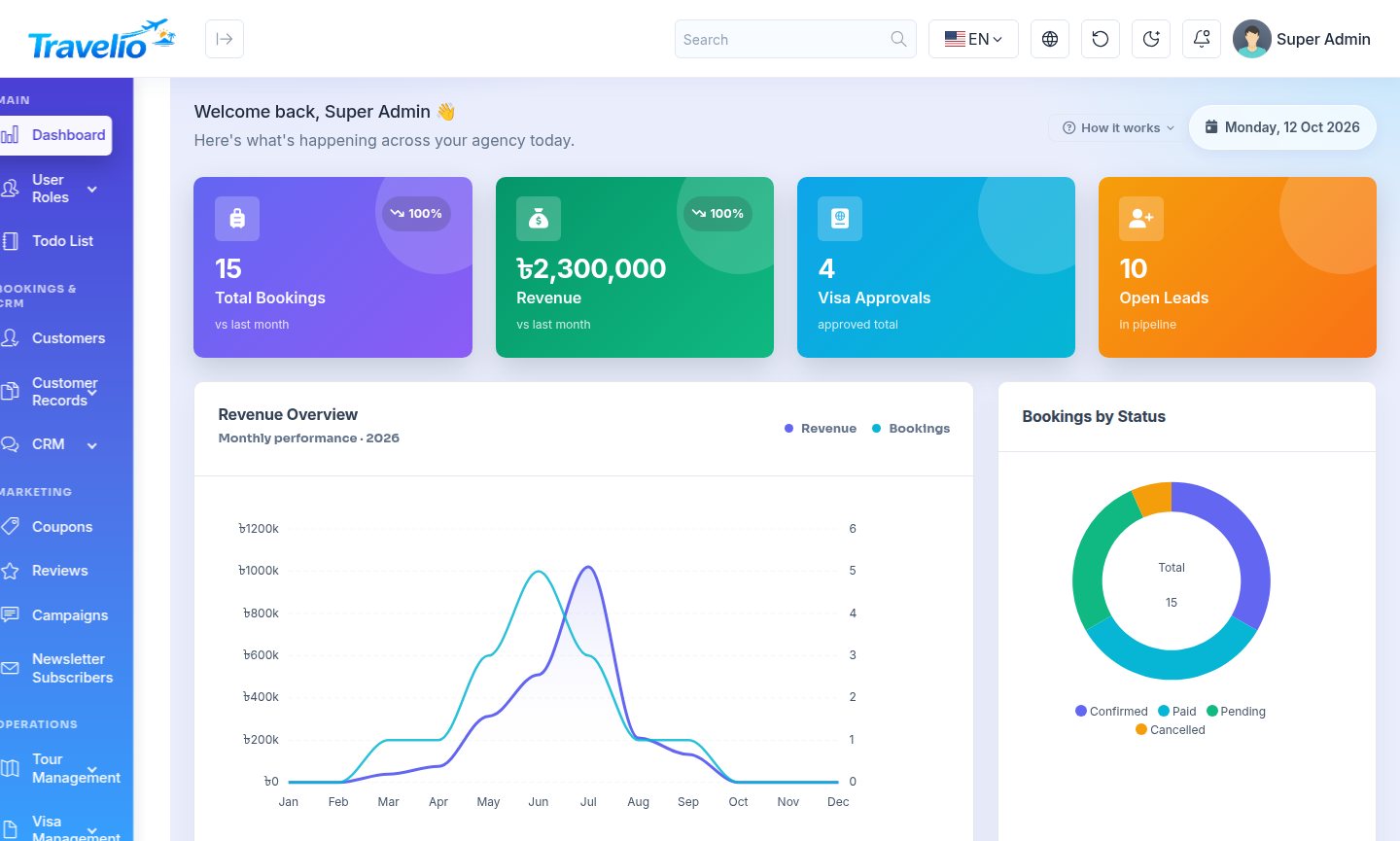
Kept for the platform: System Update, creating or deleting languages, editing language phrases, clearing the server cache and the mobile app key (API Security) are not available inside a workspace. You manage those once for the whole platform.
Subscription & Billing Page
Inside the workspace, the Subscription section of the agency sidebar has three pages, which only the owner (Super Admin) can open: (current plan, usage and changing plan), and . Platform Support sits next to them.
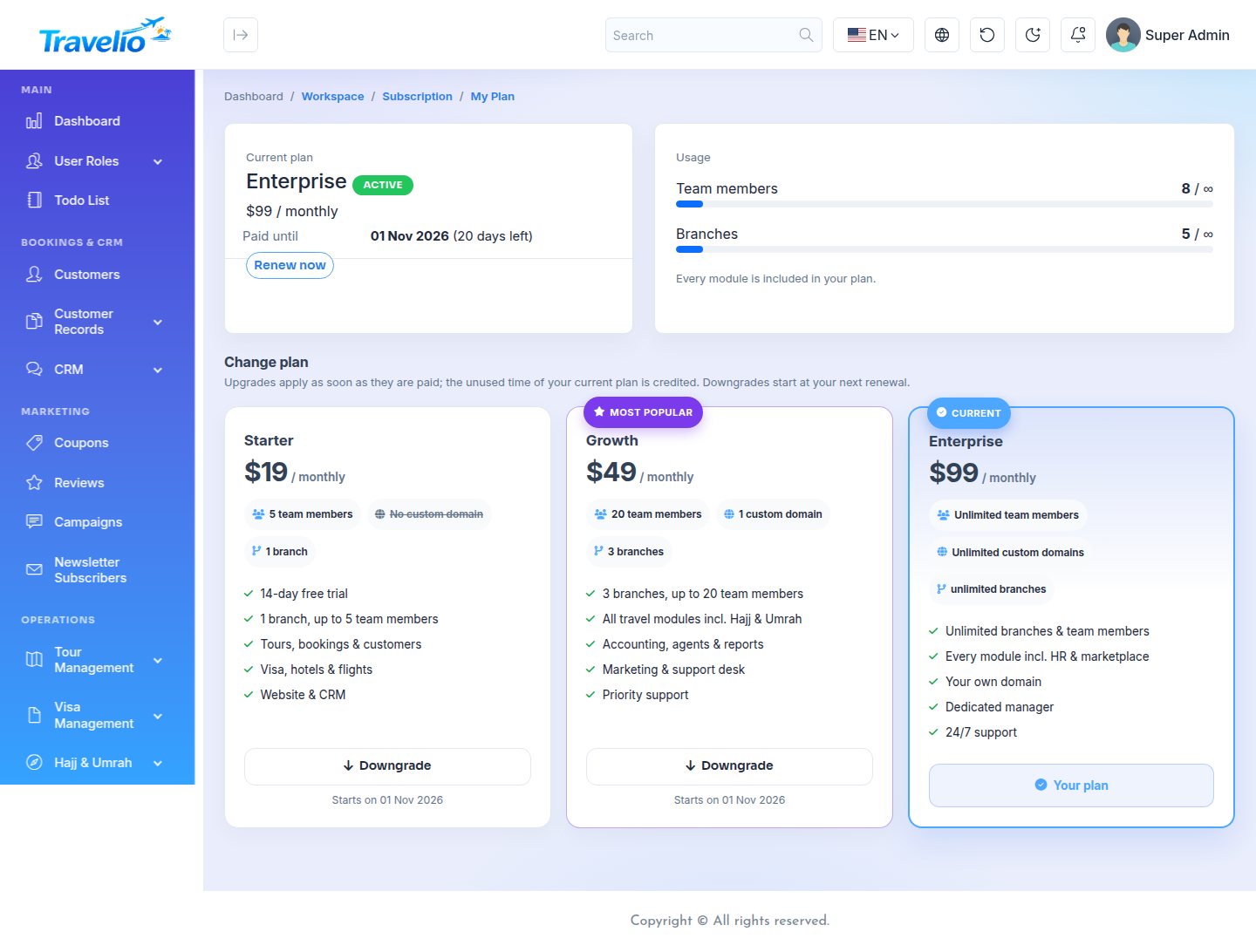
Current plan
- Plan, status, paid-until or trial-end date with the days left.
- A warning during the grace period, and any scheduled downgrade.
- A button that fits the situation: Renew now, Pay now and keep using it after the trial, or Pay the first invoice.
- A banner with Pay now when an invoice is open.
Usage
Bars for team members (x of max) and branches (x of max), and the list of modules not in the plan.
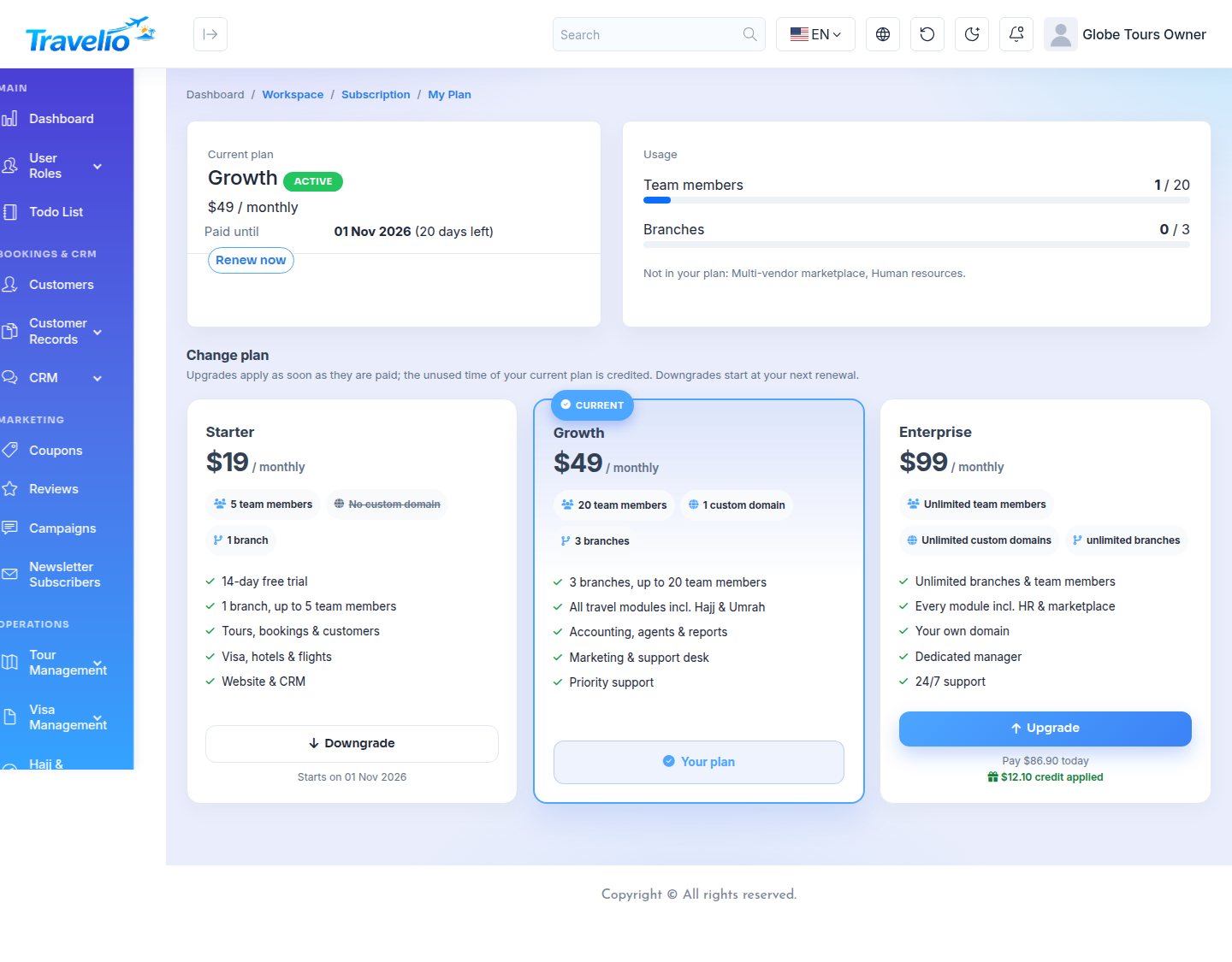
Change plan
| Change | How it works |
|---|---|
| Upgrade | The agency pays the difference now; the unused time of the current plan is credited (pro-rata by days). The new plan applies when the invoice is paid. |
| Downgrade | Starts at the next renewal. It can be cancelled with Stay on <plan>. |
| During a trial or before the first payment | The plan switches immediately. |
| No plan yet | The agency picks its first plan here. |
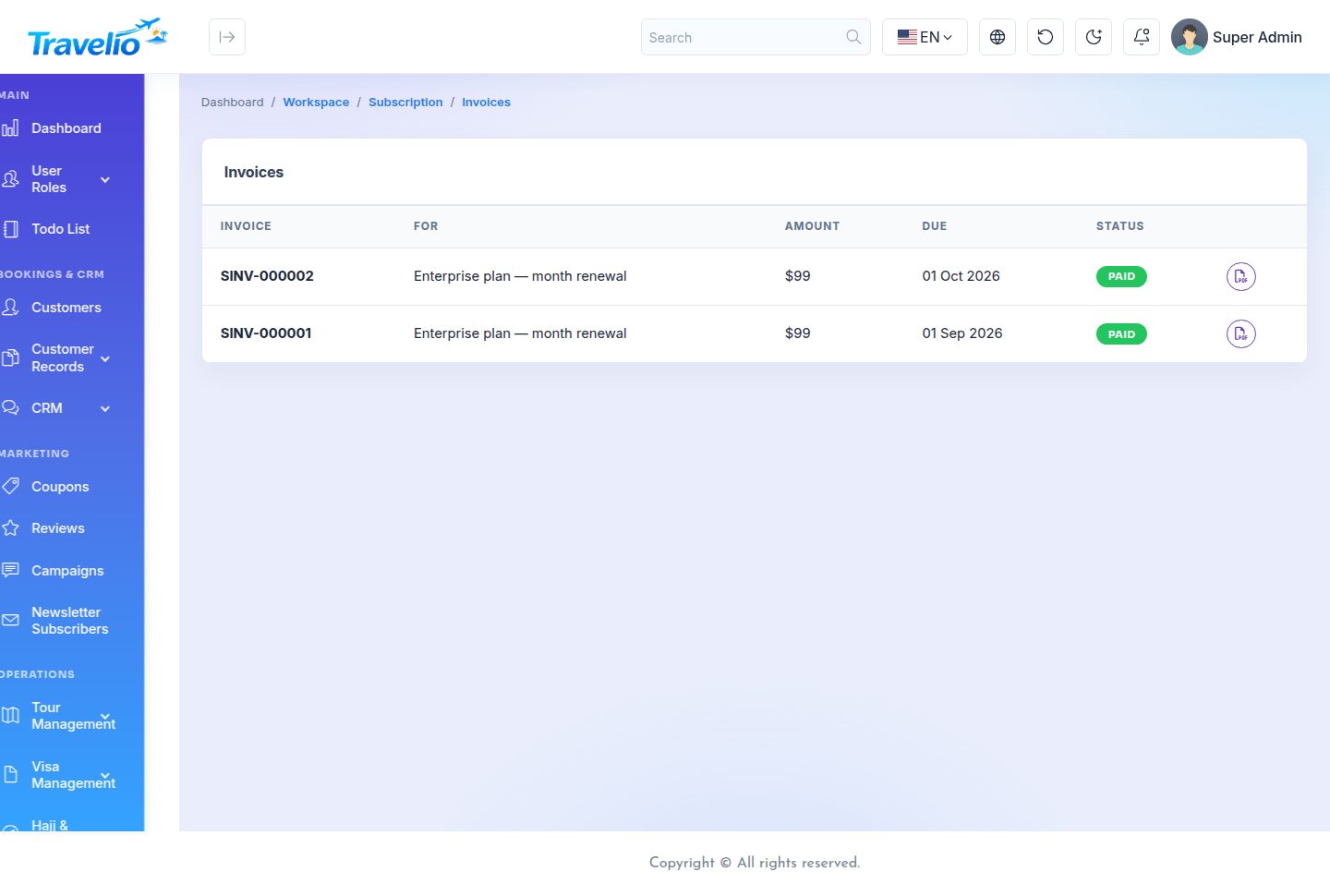
Invoices
All the agency's invoices, with Pay and PDF buttons.
Domains
- The agency adds its domain. A pasted URL is reduced to the host. Addresses under your platform's base domain, your platform host and domains of other workspaces are refused. At most 5 domains can wait at once.
- Under the domain, its TXT record appears with a copy button for the Name (the short form, such as
_travelio-verify.book, with the full name below it) and for the Content (the token). - DNS records to create shows the CNAME (subdomain), the A record (main domain) and the TXT rule, each with the field names DNS editors use (Type, Name · Host, Target / IPv4 address / Content · Value, Proxy status, TTL), copy buttons and tips for registrars and Cloudflare. See the Custom Domain DNS Guide.
- It presses Check. When the domain points at your server and the TXT record is right, it is verified and, with auto-approve on, connected at once (the agency gets an email). Otherwise it waits for your approval under Domains.
The agency can remove its own custom domains.
The Platform Support link is in the same Subscription section, for the owner and for staff with support access; see Agency Support Tickets.
Suspended & Pending Agencies
| Situation | Visitors and staff see |
|---|---|
| Agency status is suspended (by you, or when its subscription expired) | Workspace suspended (403), with a Renew the subscription button for the owner |
| Agency status is pending, or its workspace has not been built | Workspace not ready yet (503); for a paid signup waiting for payment, with a pay button |
| The host is not any agency's domain | No workspace here (404) |
The Renew the subscription button leads to the agency's renewal invoice (yourplatform.com/saas/renew?domain=…). Paying it activates the agency again.
API calls get the same answer as JSON, so the mobile app can show it too.
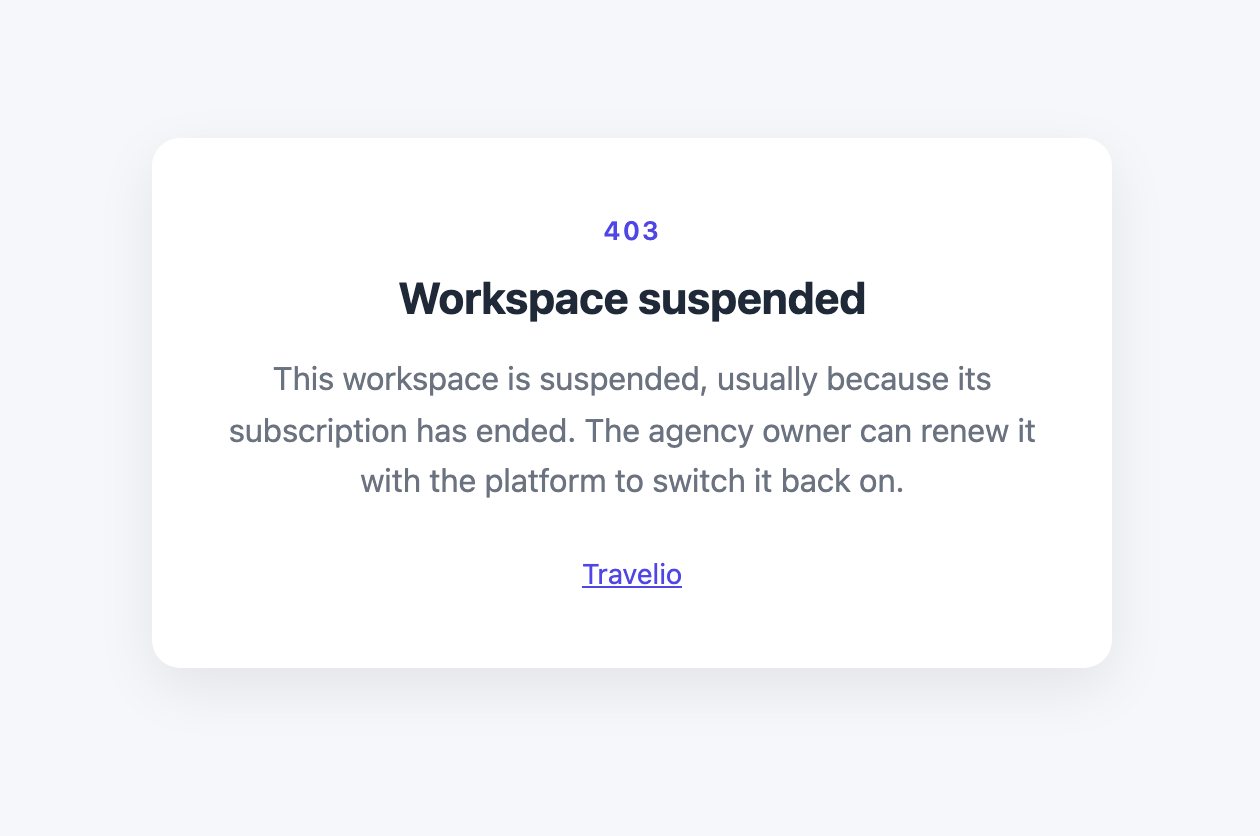
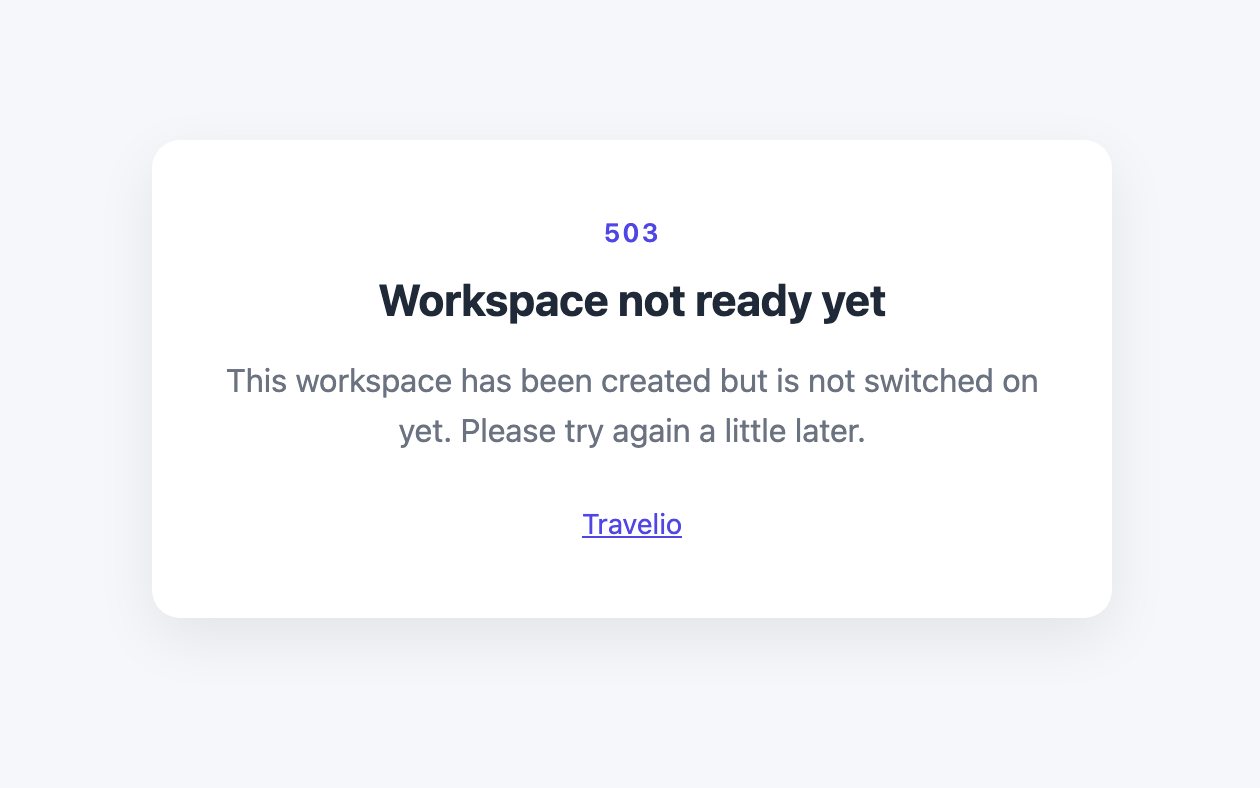
The link at the bottom of these pages shows your platform's brand name from General Settings.
One Mobile App for All Agencies
One Flutter app in the stores serves every agency on your platform. On first launch the app asks for the agency's address and remembers it; Change agency is on the login screen and in Settings. With WORKSPACE_DOMAIN set, users type only skyline instead of the full address. The app checks the address and refuses your platform domain. Everything else (package ID, icons, signing) is as described in the Travelio App guide.
cp env/saas.example.json env/saas.json     # set WORKSPACE_DOMAIN, API_HOST and APP_API_KEY
flutter build appbundle --release --dart-define-from-file=env/saas.json
The app key
There is one mobile app key for all agencies. Set it on the platform's API Security page and use the same key in the app build. Agencies cannot change it (their API Security page is hidden and returns 404), so one app in the stores works for every agency.
Commands & Scheduler
| Command | What it does |
|---|---|
php artisan saas:provision <id> | Builds an agency's workspace. Options: --owner-email=, --owner-password=, --fresh (rebuild from scratch), --demo (with sample data). |
php artisan saas:upgrade-tenants | Runs the migrations and syncs permissions in every built workspace. --tenants=skyline --tenants=globe limits it to some agencies. |
php artisan saas:tenants-run "<command>" | Runs any artisan command inside every workspace, for example saas:tenants-run "cache:clear". |
php artisan saas:run-subscription-lifecycle | The daily billing run: renewal invoices, reminders, expiry and suspension, optional removal of unpaid signups (normally run by the scheduler). See Subscriptions. |
Add the scheduler's cron entry once. Without it, no renewal invoices or reminders are sent and nothing expires.
* * * * * cd /var/www/travelio && php artisan schedule:run >> /dev/null 2>&1| Time | Job |
|---|---|
| 02:00 daily | Billing run: renewal invoices, reminders, expiry and suspension |
| 02:15 daily | Passport expiry statuses, in every agency |
| 03:05 daily | Vendor auto-payouts, in every agency |
Emails
The platform sends these emails through the platform's Mail Settings. Platform emails go to the email in General Settings, or to the platform owners when it is empty.
| Sent to | |
|---|---|
| Welcome, after signup | Agency owner |
| New signup | Platform |
| New invoice / pay link | Agency |
| Renewal and trial reminders | Agency |
| Payment received | Agency and platform |
| Agency suspended | Agency and platform |
| Domain connected / domain rejected | Agency |
| Domain waiting for approval | Platform |
| New support ticket, agency reply | Platform |
| Platform reply to a ticket | Agency |
Emails are sent on a best-effort basis and are skipped while mail is not set up. The shipped placeholder host smtp.example.com counts as not set up, so enter your real SMTP details in Mail Settings first.
Updating Every Agency
Every agency has its own database, so an update must reach all of them.
From the panel: open System Update in the platform sidebar. It updates the platform and then every agency workspace (it runs saas:upgrade-tenants for you).
From the command line: one command upgrades every workspace:
$ php artisan saas:upgrade-tenants
✓ Skyline Travels
✓ Globe Tours
Workspaces upgraded: 2.
To install a new release by hand:
- Back up the files, the platform database and every
tenant…database. - Upload the new files over the old ones, keeping
.env,storage,public/uploadsandpublic/storage. - Run:
composer install --no-dev --optimize-autoloader
php artisan travelio:upgrade          # platform database
php artisan saas:upgrade-tenants      # every agency database
php artisan optimize:clear
Always back up every database before an update, whichever way you run it.
Good to Know
- No automatic card charging. Cards are not stored. Renewals are invoices with a pay link and reminders; each agency pays every period itself, or you mark the invoice paid.
- No refunds on downgrade. A downgrade starts at the next period, so there is nothing to prorate back.
- Landing page images are not editable from the panel; the texts are, and the logo and favicon are set in General Settings.
- Custom domains are checked when the agency presses Check. There is no scheduled re-check, and a domain stays connected if its DNS changes later.
- Custom-domain HTTPS is automatic only with an on-demand-TLS web server such as Caddy; see Automatic HTTPS. Otherwise issue certificates per domain.
- Emails need Mail Settings. Until mail is set up, no email is sent; see Emails.
- The cron entry is required for renewal invoices, reminders and expiry.
Troubleshooting
Problems specific to the platform. For general installation errors (500 error, blank page, database connection, storage link, permissions) see Troubleshooting in the main guide.
| Symptom | Fix |
|---|---|
| An agency subdomain shows No workspace here or does not open | The wildcard record * is missing or has not spread yet — check with dig skyline.yourplatform.com (it must return your server IP). The web server must accept every host (server_name yourplatform.com *.yourplatform.com _; or ServerAlias *.yourplatform.com). The agency's address follows SAAS_DOMAIN (or the host of APP_URL) at the time it was created. See Wildcard DNS. |
| Certificate warning on an agency subdomain | The certificate does not cover *.yourplatform.com. Issue a wildcard certificate with the DNS challenge (certbot certonly --manual --preferred-challenges dns -d yourplatform.com -d "*.yourplatform.com") and reload the web server. |
| A custom domain stays Waiting for DNS | DNS can take minutes to hours to spread, and there is no automatic re-check: the agency presses Check again. Common mistakes: the full name typed in the Host field (it becomes _travelio-verify.domain.com.domain.com), a URL redirect instead of an A/CNAME record, a CNAME on the main domain, or the Cloudflare proxy (orange cloud) switched on. See the DNS Guide. |
| A connected custom domain has no HTTPS | With on-demand TLS (Caddy), open https://yourplatform.com/saas/tls-check?domain=book.example.com: it must return 200, and the ask URL must reach the platform. Without on-demand TLS, issue a certificate per domain, e.g. certbot --nginx -d book.example.com. See Automatic HTTPS. |
| Signup fails while building the workspace | The database user cannot create databases. Grant CREATE and DROP (most cPanel hosts do not — use a VPS). A failed signup is rolled back; rebuild an existing agency with php artisan saas:provision <id>. Check storage/logs/laravel.log for the exact error. |
| Paid at the gateway, but the invoice stays unpaid | The gateway must be able to reach https://yourplatform.com/saas/payment/callback/<gateway> from the internet: not localhost, not behind maintenance mode, HTTP auth or a firewall. Check that the gateway's sandbox/live mode matches its credentials. Billing → Payment Records shows each attempt and its status; after confirming the money arrived you can Mark as paid with the transaction reference. |
| No renewal invoices, reminders or expiry | The scheduler cron is missing or failing. Add * * * * * cd /path/to/project && php artisan schedule:run >> /dev/null 2>&1 and run php artisan saas:run-subscription-lifecycle once by hand to see any error. See Commands & Scheduler. |
| No emails are sent | Mail is not set up (the shipped host smtp.example.com counts as not set up). Enter real SMTP details in the platform's Mail Settings, and in each agency's own Settings → Mail for that agency's customer emails. See Emails. |
| Errors in agency workspaces after an update | The workspace databases were not migrated. Run php artisan saas:upgrade-tenants, then php artisan optimize:clear. See Updating Every Agency. |
| A change does not show in one or all workspaces | Clear the caches: php artisan optimize:clear for the platform and php artisan saas:tenants-run "cache:clear" for every workspace. |
| An agency sees Workspace suspended or not ready yet | Its subscription expired, it was suspended, or a paid signup is waiting for payment. The owner pays the renewal invoice, or you mark it paid. See Suspended & Pending Agencies. |
AI Usage Disclosure
Yes — AI tools were used in making this item. AI coding assistants (Anthropic Claude) helped write, refactor, test and review parts of the source code; AI assistants helped draft and edit the documentation; and the logo, icons, preview and description images were drawn by scripts written with AI coding assistance from real screenshots. Every change was reviewed and tested by our team. The demo photos are free-licence stock images, not AI-generated.
The only AI feature in the product is the optional AI Trip Planner, which uses your own OpenAI API key and is off until you add one. Full details: AI Usage Disclosure.
Changelog
SaaS edition 1.0.0 — Initial Release
First release, built on Travelio ERP 1.7.0: every agency workspace gets everything in that release (see the ERP changelog).
- Account deletion in every workspace's mobile app and customer portal (App Store guideline 5.1.1(v), Google Play): personal data is erased and the account anonymised; bookings and invoices stay in the agency's records. See Delete account.
- Settings → Modules in every workspace: an agency switches off the services it does not sell, on top of what its plan includes; agent registration has its own switch.
- Six flight APIs (Amadeus, Sabre, Travelport, Duffel, TBO Air, Kiwi.com) per agency, each with its own credentials under the agency's Settings → Flight API.
- Featured packages and Promotions (scheduled promo banners for the website and the app); Promotions are part of the Marketing plan module.
- Team: platform users and roles with View / Manage permissions per area (Tenants, Billing, Support, Reports, Settings, Team), three ready-made roles and safety rules against locking yourself out.
- Reports: Revenue, Dues & Aging, Subscription Report, Agency Growth and Plan Performance, each with a date filter and CSV export.
- General Settings is the one place for the brand: name, tagline, contact email, currency, logo and favicon (uploadable). Platform Settings keeps billing rules, custom domains and the landing page.
- Custom domains: DNS records shown with the field names of Cloudflare and registrars, the short TXT name worked out for every domain, copy buttons, and Cloudflare / registrar tips.
- Sidebar grouped into menus with submenus, shown per permission. In the agency workspace, Subscription & Billing is split into My Plan, Invoices and Domains.
- Redesigned plan form with a live pricing preview; support tickets shown as a conversation; landing page hero illustration, stats and benefits.
- The platform domain serves only the platform: customer and vendor sign-up, agency website pages, portals and the API answer 404 there,
/loginleads to the team sign-in. A larger platform logo on the landing, signup and payment pages and in the panel. - US dollars by default: a fresh platform bills in USD (General Settings → Currency) with plans at $19, $49 and $99 a month. bKash, Nagad, SSLCOMMERZ and aamarPay take BDT only, so a dollar platform takes card payments (Stripe, PayPal and the other international gateways).
- The platform landing page is served at
/; the old/saasand/pricingaddresses redirect there, and the SaaS asset folder is nowpublic/saas-assets(apublic/saasfolder made/saasanswer 403 on Nginx). - Custom domains per plan: on/off and a maximum per plan, a locked box with an upgrade button on the agency's Domains page, a warning in the downgrade confirmation, and pausing (with a redirect to the subdomain) instead of deleting when a plan stops covering a domain.
- Required dropdowns no longer show a clear (×) button; optional ones show it apart from the arrow.
- Demo data: two demo agencies (Skyline Travels, Globe Tours).
- Multi-tenant platform: a separate database, file store, cache and session for every agency, each running the Travelio ERP, website, portals and mobile API.
- Platform panel: dashboard, analytics (MRR, ARR, ARPU), tenants, domains, plans, feature matrix, subscriptions, invoices, payments, payment records, payment gateways, system settings, audit logs and agency support tickets.
- Plans with free trials, free plans, currency, max users, max branches and included modules; limits and module locking enforced inside every workspace.
- Landing page with live pricing, and self-service signup that builds the workspace and owner account; trial, free and paid-signup flows.
- Real invoices (
SINV-…) with PDF, secure pay links, manual invoices, “Mark as paid” and cancellation. - Daily billing run: renewal invoices, renewal and trial reminders, grace period, automatic suspension, optional removal of unpaid signups.
- Subscription & Billing page for agencies: pay, renew, upgrade with credit for unused time, downgrade from the next renewal, invoices and usage.
- 12 payment gateways (bKash, Nagad, SSLCOMMERZ, aamarPay, Razorpay, PayU, Cashfree, Instamojo, Stripe, PayPal, Paystack, Flutterwave) with credential forms in the panel; a confirmed payment marks the invoice paid.
- Automatic subdomains, and custom domains added by agencies themselves with DNS verification and optional approval.
- On-demand TLS endpoint (
/saas/tls-check) for automatic HTTPS on custom domains. - Platform Settings: brand, support email, billing rules, custom-domain settings and a landing page text editor.
- Platform emails: welcome, invoices, reminders, payments, suspension, domains and support tickets.
- One mobile app key for all agencies, set on the platform's API Security page.
- System Update for the platform admin, updating the platform and every agency.
- “SaaS platform support” tickets from inside every agency workspace.
- Commands:
saas:provision,saas:upgrade-tenants,saas:tenants-run,saas:run-subscription-lifecycle. - One Flutter app for every agency, with an agency picker on first launch.
- Guided web installer that sets up the platform and its owner account.